With Windows XP, you could set your own login background colors and/or wallpaper by modifying the values found in the following registry location: [HKEY_USERS\.DEFAULT\Control Panel\Desktop].
Windows 7 no longer reads this registry key. Instead you’ve got to complete the multi-step process described in this
article.
While the steps to set a login wallpaper are not complicated, one challenging limitation is the fact your background wallpaper needs to reside on the workstation’s hard drive. Interestingly, this is not true for the user’s wallpaper, as there are GPO settings to point to a network location.
So when I had a customer ask me to set their login wallpaper, I had to think of how I wanted to accomplish their request. We could possibly write a script, and as much “fun” as that might be, I’d rather use something more controlled. Something that would allow me to easily change the configuration later as well as be decipherable to the customer after I leave.
The answer? Group Policy – Preferences, that is!
So before we jump in to the Group Policy Management Console (GPMC), let’s identify what we’re trying to do. If you haven’t already, you may wish to read the above link, otherwise you’re about to be lost.
We want our policy to:
- Copy our wallpaper file to the user’s workstation.
- Instruct Windows to use our file instead of the default %WinDir%\System32\oobe\background.bmp file.
With the new (ok they aren’t that new anymore) Group Policy Preferences that Windows 7 has built-in, we can copy our wallpaper to the user’s computer, while reserving the right to pull it off if the computer leaves the scope of the GPO. To copy files, open GPMC and follow these steps:
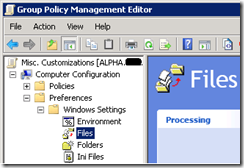
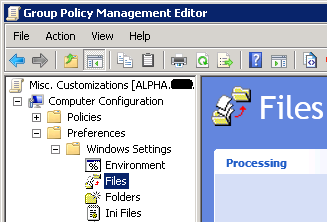
| 1. Navigate to: Computer Configuration\Preferences\Windows Settings\Files |
 |
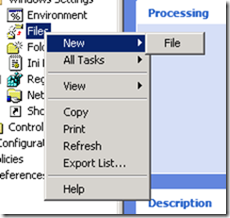
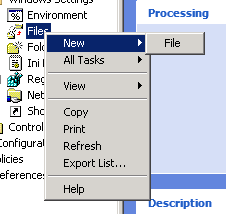
| 2. Right-click the “Files” node and select:
New > File
|
 |
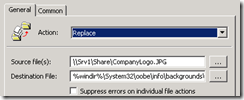
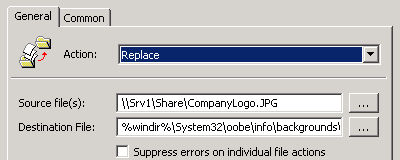
| 3. Select Replace
4. Type in the UNC path for your source file.
•In my example I used:
\\Srv1\Share\CompanyLogo.jpg
•Remember this file needs to be <256K
•Also understand the permissions on this share need to allow the workstation’s computer account READ. If you leave the usual “Authenticated Users” you’ll be fine.
5. For the Destination File, type this exact text (without the quotes, and no line breaks):
“%windir%\system32\oobe\info\backgrounds\backgrounddefault.jpg”
|
 |
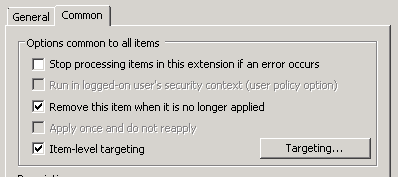
| 6. Click the “Common” tab
7. Select “Remove this item when it is no longer applied”. This will ensure your file is removed if:
•The GPO is deleted or disabled
•The workstation is moved to another OU where the policy is not linked
•The policy is filtered out
•You update your policy to send a new wallpaper file
|
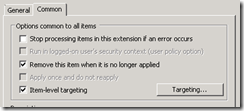 |
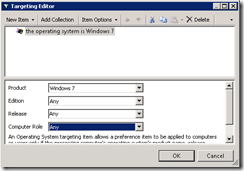
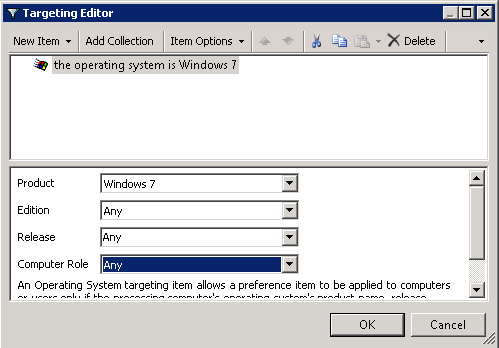
| 8. Optionally: Select Item-level targeting to specify only Windows 7 computers. This will ensure your file isn’t sent to versions of Windows that wouldn’t make use of it anyway. |
 |
Now we need to instruct Windows to render this image when the login screen is displayed. If you read the above article, you’ll remember the OEMBackground registry key. The good news is, we don’t need that key because there is actually a setting to enable it in GPMC already.
In the same Group Policy Object, navigate to:
Computer Configuration\Policies\Administrative Templates\System\Logon.
Once there, select “Always use custom logon background” and set it to “Enabled”. This has the same effect of setting the registry manually.
Once you’ve completed these steps, close the Group Policy Management Editor and link your policy to an OU – you’re done!
This policy may take two refresh cycles (e.g. reboots) to take effect. This is because the wallpaper file is not yet present when the “always use custom logon background” setting is first applied. But once the file has completed copying you’ll see your image at logon.
If you would like to consider multiple screen resolutions, please consult
this link.
Before we close, I should point out, this can work for Server 2008 R2 as well. I have not tested with Vista or Server 2008.
Finally, here are some geeky, but not too
over the top wallpapers:

 The
The 
 ):
):

![logo-office-365[1]](https://mikecrowley.us/wp-content/uploads/2011/06/logo-office-3651.png "logo-office-365[1]")



 an event held twice a year for the purpose of learning about Exchange Server and meeting other professionals working with the technology. It is held alongside several other “Connections” events and has always been a lot of fun!





 Mike Crowley's Whiteboard
