Exchange 2010 SP1 Edge Transport & TMG 2010 SP1 Issue: Fixed.

Microsoft released Exchange 2010 SP1 a few weeks ago and quickly followed up with the following post of oops! known issues: http://msexchangeteam.com/archive/2010/09/01/456094.aspx

One of these issues is that you cannot combine TMG 2010 with Edge 2010 after you apply Exchange 2010 SP1.

It would seem this is now fixed, as Microsoft released “Software Update 1 for Microsoft Forefront Threat Management Gateway (TMG) 2010 Service Pack 1” earlier today.

Personally I’ve been disappointed with the “integration” of TMG and Edge, but if you are using this configuration, go grab this update here:

http://www.microsoft.com/downloads/en/details.aspx?FamilyID=695D0709-0D8B-45EE-AFDB-727C4428CA4D&displaylang=en

For more info on this update see: What’s new in Forefront TMG 2010 Update 1.

Gartner: Exchange 2010 Takes 1st Place

Exchange doesn’t even know what the definition of competition is in today’s enterprise environment!  Ok, calm down you Gmail fanatics!  Winking smile


See this post from Mohamed Baher (an MCS engineer):

I’m happy to announce Microsoft’s strong position in Gartner’s 2010 MarketScope for E-Mail Systems report, in which Microsoft is the only vendor given the top rating of “Strong Positive”. Microsoft is uniquely positioned to deliver e-mail and calendaring technology to customers in the way that makes most sense to them – on-premise, in the cloud, or a combination of both. See the full report at http://www.gartner.com/technology/media-products/reprints/microsoft/vol10/article19b/article19b.html

clip_image001

-Source: http://blogs.technet.com/b/mbaher/archive/2010/08/31/exchange-is-on-top-gartner-s-2010-marketscope-for-e-mail-systems.aspx


From the report itself:

Microsoft released the fifth version of Exchange in November 2009. Exchange 2010, which is starting to increase its market penetration, promises improvements in storage efficiencies, high availability and disaster recovery, as well as more granular administration control and user self-service options. We expect adoption to follow the normal trajectory of previous Exchange releases, peaking at 50% by the end of 2012. The real action, however, is around Microsoft’s Exchange Online service, a subset of the large Business Productivity Online Standard Suite (BPOS) cloud collaboration offering. Throughout 2009 Microsoft added features to the service, and, more importantly, cut the price in half (to $5 per user per month), while quintupling the storage (to 25GB per user) — bringing it close to price and storage parity with Google GAPE. In November 2009, Microsoft said it had 1 million BPOS subscribers. We suspect that number has since doubled.

In 2H10 Microsoft will release the first service pack for Exchange 2010, with an emphasis on archiving, mobility, browser access, resiliency and management services. In 1H11 it will update Exchange Online with the 2010 version of Exchange, which is better suited to working in a multitenant environment. The current 2007 cloud release lacks some essential features, such as password synchronization, a health and performance console, multimailbox search and end-user password resetting. Furthermore, simple e-mail administration requests, such as to track a message, forward mail to an external mail box and disable ActiveSync require submission of a service request to the Exchange Online help desk, which creates operational inefficiencies for customers. Nonetheless, Microsoft continues to prosper in the e-mail market with both its on-premises and cloud options. Longer term, we will see the introduction of numerous hybrid e-mail models from Microsoft, with some mail boxes live in the cloud and others live on-premises. Google has emerged as its closest e-mail competitor, and it will remain so for the next few years.

Rating: Strong Positive

Exchange 2010 SP1 Hotfix Prerequisites

Like many of you, I was excited to see that Exchange 2010 SP1 was released earlier this week.  I downloaded and and ran it right away on my demo lab environment to be immediately disappointed with the following error:

image

Ok, so Exchange needs some prerequisites, no big deal, right?  I wish they were in the Microsoft Update queue, but hey its brand spanikin’ new so maybe they haven’t gotten to it yet.

I then clicked the link(s) to get the downloads and was greeted again by an error!


image

Ask my question on Bing… that’s rich.

So finally, I TYPED the links, one at a time to finally get to a page with hotfixes for download.  Yeah, I know typing is required from time to time, but don’t tease me with hyperlinks that don’t work Microsoft!  Smile

Anywho, the links are a grab bag of hotfixes.  Some from the MSDN site, others from the Connect site.  Not very reassuring as many of these links are with a lesser SLA from Microsoft…

Once I installed the updates, Exchange 2010 SP1 did install successfully (it took about an hour).  Also worth noting, while it wants a reboot after each one, I just did them all followed by a single reboot at the end.

Finally, to save you the trouble of rounding up all the updates – here is a ZIP I made with them ready to go:

Exchange2010SP1HotFixes.zip

=========UPDATE=========

Looks like you can also get them from this link as well (one at a time): http://technet.microsoft.com/en-us/library/bb691354.aspx

Exchange 2010 SP1 VHD Download

Microsoft was quick to release this one – you can now try Exchange 2010 SP1 without the trouble of even installing it!

Checkout this pre-canned virtual machine of Exchange 2010 with SP1:

http://www.microsoft.com/downloads/details.aspx?FamilyID=53F7382A-3664-4DE3-8303-31E514D69F02&displaylang=en

You’ll need Hyper-V to use this machine, as Virtual PC doesn’t support x64 guests.

Delayed SMTP Acknowledgement

Exchange 2010 introduces a nifty new feature called Shadow Redundancy. Being one of the bigger changes in this version, it is well documented and discussed.

This post is on Delayed SMTP Acknowledgement, which is a subset of this feature – not Shadow Redundancy as a whole.  However to fully grasp what I will be discussing, it’s important to understand a few basics about Shadow Redundancy to appreciate the purpose and spirit of Delayed SMTP Acknowledgement.

I encourage you to first travel to some of the above links, but most importantly, understand a few points:

Exchange 2007 sent messages to recipients through Transport Servers (Hub/Edge). If a Transport server were to fail with messages in its queue, these messages are lost.  Generally, this is only a small amount of data loss, but loss is loss, and we want to avoid that!

To mitigate this risk you could:

     A. Attempt to replay transaction logs (recover the database) from a separate disk; but this assumes the failure was limited to a single disk or database. More importantly the queue database uses circular logging by default so you cannot assume this approach will work anyway.

     B. Backup your Queue databases. This sounds simple on the surface, but the database is changing each time a message is sent and received. Restoring a queue database is likely irrelevant unless you had truly continuous backups.

     C. Leverage the Transport Dumpster. This feature is used for LCR/CCR environments only, but might resubmit messages in some scenarios.

Exchange 2010’s Shadow Redundancy sends the message down multiple SMTP paths (different Hub or Edge Transport servers) so that if the destination does not confirm successful delivery, another Transport server is able to submit the message. This means, we can sustain a failure of a Transport server/database, provided you have multiple servers.

Let’s take a look at a modified TechNet diagram to see an example:

Shadow Redundancy Example

Note that the Hub server sends the same message to two Edge servers. The lower edge server only submits the [shadow] message if it learns that the top edge server failed to do so.

Please understand I’m greatly simplifying this process. To fully understand all the steps involved, read the documentation linked above.

Ok, so now that we understand Shadow Redundancy, let’s ask the obvious question:

What about servers that do not support Shadow Redundancy?

A very valid concern, as this of course includes all previous versions of Exchange and most servers on the internet today.

Enter: “Delayed Acknowledgement”.

Delayed Acknowledgement is an attempt made by Exchange 2010 Transport servers to protect messages received from less sophisticated mail servers.

This is accomplished by making the sending server wait while the message is delivered behind the scenes of the 2010 environment.

Let’s explore this in more detail via the below illustration:

(Click for higher quality)

Logic Flow Chart

As you can see, this is a best effort attempt to protect email that does not support full Shadow Redundancy. This protection covers the scenario where your receiving Transport server fails after it accepts the message from the sending server, but before it delivers it to the user’s mailbox. If this failure were to happen, the original sending server would never get it’s acknowledgement and therefore it would be that server’s behavior to queue or resubmit the message.

See the below image to visualize this scenario:

(Click for higher quality)
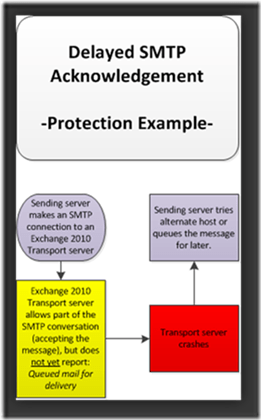
Protection Example

So as you can see, while this isn’t as robust as true Shadow Redundancy, it does attempt to ensure messages are not lost when a Transport server fails.

Now that we see how it works, I’d like to point out some of the gotchas and configurable options:

As we saw in the first diagram, it’s possible for the sending server to think a message was delivered if the background submission takes more than 30 seconds. Because of this, messages that naturally take this long anyway (due to network conditions or latency, or whatever) will not be protected. Now, you can change 30 seconds to something higher, but you risk the sending server timing out on you.

There are additional reasons the Transport server might let the sending server “off the hook”, including:

· Submission queue in suspended state

· Message is in deferred state due to transient error

· Delivery queue is in retry or suspended state

· Delivery queue exceeds DelayedAckSkippingQueueLength value

· Message is routed to unreachable queue

So in closing, Delayed SMTP Acknowledgement is not as robust as it’s bigger brother Shadow Redundancy, but does a best-effort to protect messages in transport. You can configure the MaxAcknowledgementDelay via the Set-ReceiveConnector command.

You shouldn’t have to, but if you need to disable this feature, do so via:

Set-ReceiveConnector "ConnectorName" -MaxAcknowledgementDelay 0

See this sample scenario from TechNet:

Assume that all messages are typically delivered within 20 seconds in your environment, but due to performance requirements, you don’t want to delay acknowledgement more than 15 seconds for messages received from the Internet. After analyzing the message flow, you conclude that 95 percent of messages are delivered within the 15 second interval. This example configures the Receive connector from the Internet to delay acknowledgement for only 15 seconds. In this scenario, your environment provides shadow redundancy for 95 percent of messages received from the Internet.

Set-ReceiveConnector "From the Internet" -MaxAcknowledgementDelay 00:00:15.

References:

· Understanding Shadow Redundancy

· Configure Shadow Redundancy

· TechNet Webcast: Deploying and Managing Microsoft Exchange Server 2010 Transport Servers

=========UPDATE=========

New to SP1:

Shadow Redundancy Promotion

Exchange 2010 introduced the shadow redundancy feature to minimize the loss of any message during delivery after it enters the Exchange organization. Exchange Transport servers achieve this by using the shadow redundancy SMTP protocol extension.

However, in any organization Exchange Transport servers need to communicate with other third-party SMTP servers that may not support the shadow redundancy protocol. This is especially true with Edge Transport servers that handle message traffic with various hosts on the Internet. When receiving messages from hosts that don’t support shadow redundancy in Exchange 2010 RTM, Transport servers delay sending acknowledgement to incoming messages until they verify final delivery within the organization. However, when a specific threshold was reached, the Transport server issued an acknowledgement even if final delivery wasn’t verified. This presented a scenario where messages received from hosts that don’t support shadow redundancy can be lost in transit.

To address this issue, a new feature called shadow redundancy promotion is introduced in Exchange 2010 SP1. When faced with the scenario described above, instead of issuing an acknowledgment without delivery confirmation, a Transport server now routes the message to any other Transport server within the site so that the message is protected by shadow redundancy.

-Source: http://technet.microsoft.com/en-us/library/ff629378.aspx

Respect the DAG!

image Exchange 2010’s Database Availability Group configuration allows you to build a highly available Mailbox Server environment without being an expert in clustering technologies; but did you know that DAGs install and configure Failover Clustering behind the scenes?

So while you don’t need to be an expert in Failover Clustering, or even remember to install it – you should at least know that it exists and treat it as such.

There are many videos and articles on the DAG configuration, but I wanted to point out a few common mistakes I’ve seen.  The New DAG wizard doesn’t adhere to these best practices, so manual fix-up is required (If you aren’t using EMS).


Below are 4 tips:


  • When you create a Windows Cluster, a computer account is created and in Active Directory!  You should treat this account like you would any other server object.
    image This could mean lots of things, but at the least, you should move the object to the same OU as the mailbox server accounts.  By default the DAG account will be placed in the “Domain\Computers” container.  You wouldn’t want a weird GPO messing with your Exchange environment!
  • Set a static IP.  You’ll learn this real quick 🙂 if your server’s subnet doesn’t have DHCP; but if it does, you may go on for a long time not realizing you aren’t in control of the IP used for DAG communication.  If you created your DAG in PowerShell (hey, I like PS too, but there’s a GUI so I use it!) you could have used the following commands:
    New-DatabaseAvailabilityGroup -Name DAG1 -DatabaseAvailabilityGroupIPAddresses 10.2.3.4
    If you used the wizard, the option to use a static IP is not exposed.  To fix this you can either use the abovementioned command, but with “Set” instead of “New” – or you can go right into the Failover Cluster Manager MMC.image
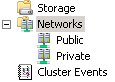
    Start, Administrative Tools, Failover Cluster Manager.  Expand Cluster Core Resources (collapsed in the center by default).  Expand your DAG name and double-click IP Address.image

Select the Static IP Address bubble and fill out the appropriate IP address.


  • Rename your DAG Networks.  By default they are named generically, but you can fix this by clicking the Database Availability Groups tab under the global mailbox configuration.  You can also use the Set-DatabaseAvailabilityGroupNetwork cmdlet.  If you don’t know what to name them, I’d suggest simply calling the one facing the Client Access Servers “Public” and the 2nd one “Private”.  Of course the name itself isn’t too important, as long as it is meaningful to you!
  • Rename your Cluster Networks.  This is not required, but I like a tidy shop, so I always rename the “Cluster Networks” to match the DAG network.image

I hope you find these four tips useful.  They are not required, but based on my experience I can say they will make your life easier.  And a little disclaimer before you go:  This post is not intended to educate you on creating a DAG; rather point out a few best practices often overlooked.  For complete guidance see this great step-by-step guidance from MVP Henrik Walther here.


Have a happy and safe Independence Day!!

Update Rollup 4 for Exchange Server 2010

Looks like there is at least one more update before Exchange 2010 SP1 is released.  RU4 for Exchange 2010 was published today.

You can download it immediately here: http://www.microsoft.com/downloads/details.aspx?FamilyID=09B4973E-3A80-4FB9-9F60-5C6E2B7A2727&displaylang=en

Or first read below for a list of issues that the update rollup fixes:

Update Rollup 4 for Exchange Server 2010 RTM fixes the issues that are described in the following Microsoft Knowledge Base articles:

979342 (http://support.microsoft.com/kb/979342/ ) An attachment is not visible when an Exchange Server 2010 user opens a signed mail message by using Outlook 2003

979517 (http://support.microsoft.com/kb/979517/ ) You cannot send a message to a Dynamic Distribution Group in a mixed Exchange Server 2007 and Exchange Server 2010 environment

979790 (http://support.microsoft.com/kb/979790/ ) An IMAP4 client crashes when accessing an Exchange Server 2010 mailbox

979801 (http://support.microsoft.com/kb/979801/ ) An error message is generated in Exchange Server 2010 when you use Exchange Troubleshooting Assistant

979810 (http://support.microsoft.com/kb/979810/ ) You cannot connect an Exchange Server 2010 mailbox by using a MAPI client

979848 (http://support.microsoft.com/kb/979848/ ) Event ID 1066 is logged and you cannot move a mailbox from an Exchange Server 2003 server to an Exchange Server 2010 server

979862 (http://support.microsoft.com/kb/979862/ ) Event ID 4999 and Event ID 7031 are logged when you move a mailbox to an Exchange Server 2010 server

979921 (http://support.microsoft.com/kb/979921/ ) You cannot replicate a public folder from one Microsoft Exchange Server 2010 server to another, and Event ID 3079 is logged on the target server

980149 (http://support.microsoft.com/kb/980149/ ) The Add-MailboxDatabaseCopy command fails when it is used to add a database copy to a Database Availability Group in an Exchange Server 2010 environment

980353 (http://support.microsoft.com/kb/980353/ ) A MAPI application that is used to access Exchange Server 2010 mailboxes crashes when the application accesses an address book

980354 (http://support.microsoft.com/kb/980354/ ) “MAPI_E_INVALID_PARAMETER” error message when you copy email messages from an Exchange Server 2010 mailbox

980364 (http://support.microsoft.com/kb/980364/ ) Microsoft Exchange Transport service on an Exchange Server 2010 server crashes when a certain message is processed

980701 (http://support.microsoft.com/kb/980701/ ) An Exchange Server 2010 mailbox user receives a NDR error message when the user sends an email message to multiple internal users

980852 (http://support.microsoft.com/kb/980852/ ) The RpcClientAccess process on an Exchange Server 2010 server crashes when you access a mailbox by using a MAPI application

981033 (http://support.microsoft.com/kb/981033/ ) Error message when you expand the Microsoft Exchange On-Premises node in the EMC of Exchange Server 2010

981961 (http://support.microsoft.com/kb/981961/ ) Event ID 4033 is logged and the Free/Busy replication from an Exchange Server 2003 server to an Exchange Server 2010 server fails

982209 (http://support.microsoft.com/kb/982209/ ) Some embedded messages are corrupted when they are contained in a message that is sent from an Exchange Server 2010 mailbox address

982378 (http://support.microsoft.com/kb/982378/ ) A delegate receives only one meeting request when someone sends a meeting request to several principals in an Exchange Server 2010 RU1 or later environment

982944 (http://support.microsoft.com/kb/982944/ ) The msExchVersion attribute value of a user is stamped incorrectly after you run the Enable-MailUser cmdlet to mail-enable the user

983200 (http://support.microsoft.com/kb/983200/ ) The .xls file as an attachment is empty when you access an Exchange Server 2010 mailbox by using OWA

983631 (http://support.microsoft.com/kb/983631/ ) “redirect it to people or distribution list” rule does not work on an Exchange Server 2010 mailbox address

2084061 (http://support.microsoft.com/kb/2084061/ ) A user intermittently fails to access an Exchange Server 2010 mailbox after the mailbox is moved

Discontinued Features from Exchange 2010 RTM to Exchange 2010 SP1

In a recent post I pasted the “What’s new” portion of the Exchange 2010 SP1 Help File.  Of course you can get this file and read it for yourself, but in an effort to reduce the strain on your mouse, I’ve again posted content here.  🙂

This time it’s the table of Discontinued or “de-emphasized” elements as you transition from 2010 RTM to 2010 SP1.

BTW – Sometimes de-emphasized means “just please don’t use it” and other times its actually removed or partially removed!

Thankfully it’s a short list!

This section lists the Exchange Server 2010 RTM features that are discontinued in Exchange Server 2010 SP1.

Feature Comments and mitigation
Export-Mailbox and Import-Mailbox Use Mailbox Export Requests or Mailbox Import Request. For more information, see Understanding Mailbox Import and Export Requests.
Federated Delivery Federated delivery allowed messages to be sent in an encrypted format and delivered as if they came from an internal server with internal addresses resolved, unsolicited e-mail and virus filtering results preserved, and trusted system data preserved between federated organizations.
ISInteg Use New-MailboxRepairRequest. For more information, see Understanding Mailbox Repair.
Managed Folders in EMC In Exchange 2010 SP1, use the Shell to administer Managed Folders features such as Managed Default Folders, Managed Custom Folders. , and Managed Folder Mailbox Policies.Use the EMC to manage Retention Policies and Retention Tags – the new Messaging Records Management (MRM) feature introduced in Exchange 2010. For more information, see Deploying Messaging Records Management.

What’s New in Exchange 2010 SP1

=========UPDATE=========

Visit these new links for RTM-based info:

=========END UPDATE=========

From the help file published here:

Exchange Server 2010 SP1 Beta Help


This is pre-release documentation and subject to change in future releases. [This topic’s current status is: Writing]

Applies to: Exchange Server 2010 SP1
Topic Last Modified: 2010-06-04

This topic provides you with an overview of important new features and functionality in Exchange Server 2010 Service Pack 1 (SP1), which you can use when you’re planning, deploying, and administering your organization. The following sections include information about changes to features and functionality that has occurred since Exchange Server 2010 RTM (release to manufacturing) and information about features and functionality first introduced in Exchange 2010 SP1. For more information about the features and functionality that was introduced at Exchange 2010 RTM, see What’s New in Exchange 2010.

For information about known issues with Exchange 2010 SP1, see Release Notes for Exchange Server 2010 SP1 Beta.

New Option in Deployment

During an Exchange 2010 SP1 installation, you can now select a new option to install the required Windows roles and features for each selected Exchange 2010 SP1 server role.

Client Access Server Role Improvements

The improvements and new features in the Client Access server role fall under several key areas: Federation certificates, Exchange ActiveSync, SMS Sync, Integrated Rights Management, Microsoft Office Outlook Web App, and virtual directories. Each area is described in more detail in the following sections.

Federation Certificates

In Exchange 2010 SP1, you can use a self-signed certificate instead of a certificate issued by a Certificate Authority to establish a federation trust with the Microsoft Federation Gateway. A self-signed certificate is automatically created and installed on Exchange servers in your organization when you use the New Federation Trust wizard in the Exchange Management Console. For more information, see Understanding Federation.

Exchange ActiveSync

In Exchange 2010 SP1, you can manage Exchange ActiveSync devices using the Exchange Control Panel (ECP). Administrators can perform the following tasks:

  • Manage the default access level for all mobile phones and devices.
  • Set up e-mail alerts when a mobile phone or device is quarantined.
  • Personalize the message that users receive when their mobile phone or device is either recognized or quarantined.
  • Provide a list of quarantined mobile phones or devices.
  • Create and manage Exchange ActiveSync device access rules.
  • Allow or block a specific mobile phone or device for a specific user.

For every user, the administrator can perform the following tasks from the user’s property pages:

  • List the mobile phones or devices for a specific user.
  • Initiate remote wipes on mobile phones or devices.
  • Remove old mobile phone or device partnerships.
  • Create a rule for all users of a specific mobile phone or device or mobile phone type.
  • Allow or block a specific mobile phone or device for the specific user.

For more information, see Understanding Exchange ActiveSync.

SMS Sync

SMS Sync is a new feature in Exchange ActiveSync that works with Windows Mobile 6.1 with the Outlook Mobile Update and with Windows Mobile 6.5. SMS Sync is the ability to synchronize messages between a mobile phone or device and an Exchange 2010 Inbox. When synchronizing a Windows Mobile phone with an Exchange 2010 mailbox, users can choose to synchronize their text messages in addition to their Inbox, Calendar, Contacts, Tasks, and Notes. When synchronizing text messages, users will be able to send and receive text messages from their Inbox. This feature is dependent on the user’s mobile phones or devices supporting this feature.

Server-Side Information Rights Management Support

Exchange ActiveSync mailbox policies now contain support for Information Rights Management (IRM) functionality. Information Rights Management is enabled when creating a new Exchange ActiveSync mailbox policy. This new functionality allows non-Windows Mobile devices to receive and view protected e-mails. When the IRMEnabled property is configured on the Exchange ActiveSync mailbox policy and IRM is enabled for Client Access Servers, the protected e-mail will be decrypted on the server before it is downloaded to the mobile phone or device. The downloaded e-mail will be downloaded with additional properties that indicate the restrictions sent with the original e-mail. Protected messages will only be decrypted and downloaded if the mobile phone or device connects to the Client Access server using Secure Sockets Layer (SSL).

Outlook Web App Improvements

The following is a list of the new Outlook Web App functionality in Exchange 2010 SP1:

  • Improved management of the relationship between Office Communications Server and Outlook Web App. Configuration is stored in Active Directory instead of a web.config file and can be managed via cmdlet.
  • Twenty-seven themes are available, and they have new administrative options:
    • Set default theme with the DefaultTheme parameter by using either the Set-OwaMailboxPolicy or the Set-OwaVirtualDirectory cmdlet.
    • Create custom themes by modifying existing themes.
    • Control the order themes are listed in Outlook Web App.
  • By default, attachment types that are marked as Force Save will be excluded from security checks for XML or HTML. You can change this behavior by setting the ForceSaveAttachmentFilteringEnabled parameter to $true by using either the Set-OwaMailboxPolicy or the Set-OwaVirtualDirectory cmdlet.
Reset Virtual Directory

In Exchange 2010 SP1, you can use the new Reset Client Access Virtual Directory wizard to reset one or more Client Access server virtual directories. The new wizard makes it easier to reset a Client Access server virtual directory. One reason that you might want to reset a Client Access server virtual directory is to resolve an issue related to a damaged file on a virtual directory. In addition to resetting virtual directories, the wizard creates a log file that includes the settings for each virtual directory that you choose to reset. For more information, see Reset Client Access Virtual Directories.

Improvements in Transport

The following is a list of new Transport functionality in Exchange 2010 SP1:

  • MailTips access control over organizational relationships
  • Enhanced monitoring and troubleshooting features for MailTips
  • Enhanced monitoring and troubleshooting features for message tracking
  • Message throttling enhancements
  • Shadow redundancy promotion
  • SMTP failover and load balancing improvements
  • Support for extended protection on SMTP connections
  • Send connector changes to reduce NDRs over well-defined connections

For more information and details about these changes, see New Transport Functionality in Exchange 2010 SP1.

Permissions Functionality

The following is a brief description of new permissions features and enhancements in Exchange 2010 SP1:

  • Database scope support   With database scopes, you can control which databases mailboxes can be created for a given set of administrators and also control which databases they can manage. For more information about database scopes, see Understanding Management Role Scopes.
  • Active Directory split permissions   Active Directory split permissions enable you to completely separate the administrative capabilities of Exchange administrators from your Active Directory administrators. The ability to create and remove Active Directory users and groups and manage non-Exchange attributes of Active Directory objects by Exchange administrators and servers has been removed in Exchange 2010 SP1. For more information about Active Directory split permissions, see Understanding Split Permissions.
  • Improved user interface   You can now create and manage management role groups and management role assignment policies in the Exchange Control Panel (ECP). This includes adding and removing management roles to role groups and role assignment policies, adding and removing members to and from role groups, and assigning users to role assignment policies. For more information about how to manage role groups and role assignment policies, see the following topics:
    • Managing Administrator and Specialist Users
    • Managing End Users

Exchange Store and Mailbox Database Functionality

The following is a list of new store and mailbox database functionality in Exchange 2010 SP1:

  • With the New-MailboxRepairRequest cmdlet, you can detect and repair mailbox and database corruption issues.
  • Store limits were increased for administrative access.
  • The Database Log Growth Troubleshooter (Troubleshoot-DatabaseSpace.ps1) is a new script that allows you to control excessive log growth of mailbox databases.
  • Public Folders client permissions support was added to the Exchange Management Console (EMC).

For more information and details about each of these features, see New Exchange Core Store Functionality in Exchange 2010 SP1.

Mailbox and Recipients Functionality

The following is a list of new mailbox and recipient functionality included in Exchange 2010 SP1:

  • Calendar Repair Assistant supports more scenarios than were available in Exchange 2010 RTM.
  • Mailbox Assistants are now all throttle-based (changed from time-based in Exchange 2010 RTM).
  • Internet calendar publishing allows users in your Exchange organization to share their Outlook calendars with a broad Internet audience.
  • Importing and exporting .pst files now uses the Mailbox Replication service and doesn’t require Outlook.
  • Hierarchical address book support allows you to create and configure your address lists and offline address books in a hierarchical view.
  • Distribution group naming policies allow you to configure string text that will be appended or prepended to a distribution group’s name when it’s created.
  • Soft-delete of mailboxes after move completion.

For more information and details about these features, see New Mailbox and Recipient Functionality in Exchange 2010 SP1.

High Availability and Site Resilience Functionality

The following is a list of new high availability and site resilience functionality included in Exchange 2010 SP1:

  • Continuous replication – block mode
  • Active mailbox database redistribution
  • Improved Outlook cross-site connection behavior and experience
  • Enhanced datacenter activation coordination mode support
  • New and enhanced management and monitoring scripts
  • Exchange Management Console user interface enhancements
  • Improvements in failover performance

For more information about these features, see New High Availability and Site Resilience Functionality in Exchange 2010 SP1.

Messaging Policy and Compliance Functionality

The following is a list of new messaging policy and compliance functionality included in Exchange 2010 SP1:

  • Provision personal archive on a different mailbox database
  • Import historical mailbox data to personal archive
  • Delegate access to personal archive
  • New retention policy user interface
  • Support for creating retention policy tags for Calendar and Tasks default folders
  • Opt-in personal tags
  • Multi-Mailbox Search preview
  • Annotations in Multi-Mailbox Search
  • Multi-Mailbox Search data de-duplication
  • WebReady Document Viewing of IRM-protected messages in Outlook Web App
  • IRM in Exchange ActiveSync for protocol-level IRM
  • IRM logging
  • Mailbox audit logging

For more information and details about each of these features, see New Messaging Policy and Compliance Functionality in Exchange 2010 SP1.

Unified Messaging Server Role Improvements

The Unified Messaging server role has been improved and has added new features in Exchange 2010 SP1. To use some of these features, you must correctly deploy Microsoft Office Communications Server "14" in your environment. The following is an overview of all the new features in Exchange 2010 Unified Messaging:

  • UM reporting   The reports for Call Statistics and User Call Logs found in the Exchange Management Console are displayed in the Exchange Control Panel.
  • UM management in the Exchange Control Panel   You can use the ECP to manage UM components in a cross-premises environment.
  • Cross-Forest UM-enabled mailbox migration   In Exchange 2010 SP1, you can use the New-MoveRequest cmdlet with the Mailbox Replication Service (MRS) to move a UM-enabled mailbox within a local forest and multiple forests in an enterprise.
  • Outlook Voice Access improvements   Outlook Voice Access users can log on to their Exchange 2010 mailbox and choose the order to listen to unread voice mail messages, from the oldest message first or the newest message first.
  • Caller Name Display support   Exchange 2010 SP1 includes support for enhanced caller ID resolution for displaying names for voice mails from unresolved numbers using Caller Name Display (CND).
  • Test-ExchangeUMCallFlow cmdlet   With this Exchange 2010 SP1 cmdlet, you can test UM connectivity and call flow.
  • New UM Dial Plan wizard   An additional page has been added to the New UM Dial Plan wizard that allows you to add a UM server to the dial plan.
  • Office Communications Server "14" Support   Migrating SIP URI dial plans and Message Waiting Indicator (MWI) notifications in a cross-premises environment has been added.
  • Secondary UM dial plan support   You can add a secondary UM dial plan for a UM-enabled user.
  • UM language packs added   New UM language packs are now available in Exchange 2010 SP1. In addition, the Spanish (Spain) (es-ES) UM language pack available for Exchange 2010 SP1 now includes Voice Mail Preview, a feature that wasn’t available in the Exchange 2010 RTM release of that language pack.
  • Call answering rules improvements   There are three updates to Call Answering Rules for UM-enabled users in SP1.
  • Unified Communications Managed API/speech platform improvements   Beginning with Exchange 2010 SP1, the UM server relies on Unified Communications Managed API v. 2.0 (UCMA) for its underlying SIP signaling and speech processing.
  • UM auto attendant update   In Exchange 2010 SP1, a UM auto attendant will play only the holiday greeting on a holiday.

For more information and details about each of these features, see New Unified Messaging Functionality and Voice Mail Features in Exchange 2010 SP1.

Audit Logging Improvements

Exchange 2010 SP1 provides improvements in functionality related to administrator audit logging and new functionality for mailbox audit logging:

  • Improvements in administrator audit logging   Exchange 2010 enhances the administrator audit logging functionality by providing you with the ability to perform searches of the admin audit log using the Exchange Management Shell. You can search on cmdlet and parameter names, date, the user who ran the command, and more. The results generated by your search can be displayed on the screen or e-mailed to a recipient you specify and viewed as an XML file. And, because all the administrative interfaces run Shell cmdlets in the background, the actions that occur in all the interfaces can be logged.
    For more information, see Overview of Administrator Audit Logging.
  • New mailbox audit logging   Exchange 2010 SP1 introduces new mailbox audit logging functionality to allow you to track mailbox access by administrators, delegates, and mailbox owners, and actions taken on mailbox items such as moving or deleting a message, using SendAs or SendOnBehalf rights to send messages, and accessing a mailbox folder or a message. You can use the ECP to generate a report of non-owner mailbox access and use the Shell to search mailbox audit logs. For more information, see Understanding Mailbox Audit Logging.
  • The Exchange Control Panel also provides several reports which are generated based on the audit logs in Exchange 2010 SP1.

Support for Coexistence with Exchange Online

Exchange 2010 SP1 includes functionality that supports coexistence with Exchange Online. However, Exchange Online has not yet been updated to support the following Exchange 2010 SP1 functionality:

  • Migration of UM-enabled mailboxes   The New-MoveRequest cmdlet can be used with the Microsoft Exchange Mailbox Replication service (MRS) to move a UM-enabled mailbox within a coexistence environment.
  • IRM support for coexistence   IRM is fully supported for cross-premises deployments. The tenant administrator can export the trusted publishing domain from the on-premises Active Directory Rights Management Services (AD RMS) server and import it to the cloud-based service. This functionality allows IRM-protected messages to be decrypted in the cloud, and cloud mailbox users to send IRM-protected messages that on-premises mailbox users can decrypt and access.
  • Remote Mailboxes   A new set of SP1 cmdlets allow you to create and manage a mail-enabled user in the on-premises Active Directory site and at the same time create and manage the associated mailbox in the cloud-based service. The cmdlets are:
    • New-RemoteMailbox
    • Set-RemoteMailbox
    • Get-RemoteMailbox
    • Enable-RemoteMailbox
    • Disable-RemoteMailbox
    • Remove-Remote Mailbox
  • Transport   Updated features in Transport help ensure that message flow remains protected between users regardless of where their mailboxes are located. Enhanced Transport features such as MailTips, delivery reports, and message moderation also support this deployment scenario. To learn more about Transport in a coexistence with Exchange Online scenario, see Understanding Transport in a Cross-Premises Deployment.

Exchange 2010 Multi-Tenant Support

UPDATE: be sure to see this important development:

https://mikecrowley.wordpress.com/2011/08/30/hosting-exchange-2010-without-the-hosting-switch/

—————————————————————————————-

Check it out:

“This download contains topics that will help you plan, deploy, and manage Exchange Server 2010 SP1 (beta) in a multi-tenant organization.”

http://www.microsoft.com/downloads/details.aspx?FamilyID=BBA88FB5-9D84-475C-85D7-3FFEB308636E&displaylang=en

“Microsoft Exchange Server 2010 SP1 will form part of the suite of multi-tenant capable products that will replace the Hosted Messaging and Collaboration 4.5 solution.”

There have been several TechNet threads on Address List Segregation, which this approach encompasses – but only indirectly.  Deploying Exchange in the abovementioned multi-tenant configuration requires a special configuration of Active Directory.  This is not something you simply choose to implement one day; but instead you build your forest to support in the first place.  Exchange 2010 (with the /hosting switch) must be deployed in a new forest at Windows Server 2008 functional level.

The infamous “Address List Segregation” whitepaper is still not released.  Don’t consider deploying Exchange in a hosted configuration just for this feature.  I would hang on.  Watch Dave’s Blog for updates.

Some other interesting points about multi-tenant support:

  • You must install Exchange 2010 (SP1) from the command line in order to use the /hosting switch.
  • Correction: You must disable the Exchange Control Panel (ECP) [This is optional, not required]
  • The following cmdlets listed in this section are those that are only available for Hosting Deployments.
    • Remove-LinkedUser
    • Get-Organization
    • New-Organization
    • Start-OrganizationUpgrade
    • Complete-OrganizationUpgrade
    • Get-RecipientEnforcementProvisioningPolicy
    • New-RecipientEnforcementProvisioningPolicy
    • Remove-RecipientEnforcementProvisioningPolicy
    • Set-RecipientEnforcementProvisioningPolicy
    • Update-ServicePlan

Exchange 2010 SP1 doesn’t support the following features in Hosting mode:

  • Exchange Management Console
  • Public Folders
  • Unified Messaging Server role
  • Federation
  • Business-to-Business features such as cross-premises message tracking and calendar sharing
  • IRM
  • Outlook 2003 support (EnableLegacyOutlook)
  • Edge Transport Server role

Installing Exchange 2010 SP1 (Beta)

I just finished upgrading my demo lab Exchange 2010 server to SP1. The process was very straight forward, as you would expect, but there are a few things you should know:

  1. At time of writing, Microsoft has not yet posted release notes. They made an announcement a while back on some features, but otherwise the install is a bit of a leap of faith!
  2. There are schema extensions required for the upgrade. The installer addresses them for you, but you’ll need to be a Schema Admin. Remember, Schema updates are a one-way task and it would be a bad idea to update your production schema while the SP is still a beta.
  3. You’ll need to install hotfix KB981002 on your Exchange servers prior to SP1 installation.

Remember ever since Exchange 2007, service packs are slipstreamed into the Exchange install only. Therefore the same file to update Exchange 2010 RTM would also be used to do a fresh Exchange 2010 SP1 (beta) installation.

Other Stuff I noticed:

  • More Outlook Anywhere authentication options
  • More phone and voice controls in the ECP
  • Retention Policy tabs in EMC
  • Assign Roles to users in EMC
  • More Move-Request logs in EMC
  • “Reset Virtual Directory” tool in EMC
  • UM tools in the EMC Toolbox
  • More flexibility with Archive Mailboxes (described in announcement above)
  • UPDATE: The complete list: http://wp.me/pAAoj-2c


Some Pictures:

image

(Yes it took that long to install!)

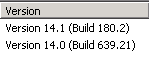
image

(Note both SP1 and RTM version numbers)

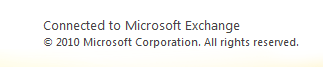
image

(Copyright date updated on OWA login page)

image

(Themes in OWA!)

Exchange Recipient Validation

Exchange server has a recipient filter that prevents mail submissions to accounts that are not in the GAL (Global Address List).

First, let’s locate this configuration and then we’ll talk about how it works followed by thoughts about relay domains.

How to enable this feature

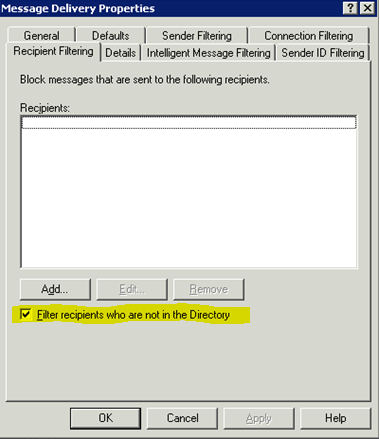
To enable this filter in Exchange 2003 you would visit the Message Delivery Properties screen, and select the checkbox next to Filter recipients who are not in the Directory. You would also need to enable it on each SMTP connection.

clip_image001


Exchange 2007 and 2010 also have this feature, though the name has changed and so has the location of the controls. It is now considered an Anti-spam technology, therefore navigate to the Anti-spam tab on your Edge Transport server, and select Recipient Filtering. Within you’ll find Block messages sent to recipients that do not exist in the directory on the Blocked Recipients tab.

clip_image003 

You can also use EMS and type:
Set-RecipientFilterConfig -RecipientValidationEnabled $True

If you are not using an Edge Transport server you can still leverage this feature, however you must first install the Anti-spam agents on your internet-facing Hub Transport server(s). Once you have done this, visit the Anti-spam tab within Organizational Hub Transport Configuration or use the PowerShell cmdlet.


How does it work?

Let me describe how this feature works by comparing behavior with it turned off versus when it is turned on.

Below is an example of an SMTP session under both conditions. Assume there IS NOT a valid mailbox (or contact, folder, etc) for “NOTrealuser@DemoLab.local”

RecipientValidationEnabled $False (default)  RecipientValidationEnabled $True
220 server1.demolab.local Microsoft ESMTP MAIL Service ready at Fri, 4 Jun 2010 13:32:33 –0400
ehlo
250-Server1.demolab.local Hello [::1]
250-SIZE
250-PIPELINING
250-DSN
250-ENHANCEDSTATUSCODES
250-STARTTLS
250-X-ANONYMOUSTLS
250-AUTH NTLM
250-X-EXPS GSSAPI NTLM
250-8BITMIME
250-BINARYMIME
250-CHUNKING
250-XEXCH50
250-XRDST
250 XSHADOW
mail from:externalperson@somewhere.com
250 2.1.0 Sender OK
rcpt to:NOTrealuser@demolab.local
250 2.1.5 Recipient OK
220 server1.demolab.local Microsoft ESMTP MAIL Service ready at Fri, 4 Jun 2010 13:35:52 -0400
ehlo
250-Server1.demolab.local Hello [::1]
250-SIZE
250-PIPELINING
250-DSN
250-ENHANCEDSTATUSCODES
250-STARTTLS
250-X-ANONYMOUSTLS
250-AUTH NTLM
250-X-EXPS GSSAPI NTLM
250-8BITMIME
250-BINARYMIME
250-CHUNKING
250-XEXCH50
250-XRDST
250 XSHADOW
mail from:externalperson@somewhere.com
250 2.1.0 Sender OK
rcpt to:NOTrealuser@demolab.local
550 5.1.1 User unknown

What we see is that with RecipientValidationEnabled set to False, Exchange accepts the email even though the user is not valid! This of course means more overhead on the Exchange server because it has to process the message, only to later realize there is no account for the address. Once Exchange comes to this realization it will send a bounce back message (NDR). This NDR is not only even more processing, but this can contribute to backscatter.

Now let’s take a look at the 2nd column, where we have RecipientValidationEnabled set to True. We see that Exchange immediately rejects the message because the user is unknown. This cuts down on processing as well as is a step in preventing the abovementioned backscatter. This also results in faster bounce back messages because they are generated by the sending server, not the receiving (our end) server.

If this feature is so great, why isn’t it enabled by default!? Good question. I have two potential answers:

  1. If the sending server does not know to generate an NDR, the sending user may be unaware their message did not reach its destination.
  2. This could aid a “hacker” in a directory harvesting attack. Because Exchange quickly reports on the validity of email addresses, it could be used to learn what accounts are valid and what are not.

Despite the abovementioned risks, I usually DO enable this feature.

It is worth noting that being “hidden” from the GAL or other address lists has no impact on this feature.  They still receive their mail just fine.


Relay Domains

I was not able to find documentation about how this feature works in conjunction with Internal-Relay and External-Relay Accepted Domains. The natural question that comes from this area is:

Will enabling this feature cause Exchange to reject mail for recipients in shared address spaces or address spaces not handled by Exchange mailbox servers at all?

This is a good question, because recipients in internal or external domains will NOT be in your Global Address List, and therefore it sounds like the feature will block mail sent to them.

The good news is, this is not true. Exchange will accept mail for any account in an Internal or External relay domain! While this is good news for those users, remember this reduces the effectiveness of the feature itself.

Consider a scenario where I share @mikecrowley.us across 2 mail systems. In this case, some of my users would have exchange mailboxes, and others would not. Even if I set RecipientValidationEnabled to True, Exchange would accept mail for all users in the @mikecrowley.us namespace. This is because it has no way of knowing what mailboxes might exist on the other system.

The way to leverage a shared namespace WITH this feature is to create contacts or mail-users for each remote user, and set the Accepted Domain type to Authoritative.

Many to One Mail-User Forwarding

I have two mail-user accounts that need to forward to the same external recipient. How can this be done?

The question seems simple enough, but when we try this, errors are reported:

image

[The proxy address “SMTP:User@SomewhereElse.net” is already being used by “demolab.local/Users/UserA”.  Please choose another proxy address]

As you can see, the issue isn’t actually with the ExternalEmailAddress attribute (technically called targetAddress within Active Directory) we are trying to set; it’s the proxy address.

When UserA was created, Exchange created a proxy address to match the ExternalEmailAddress. When we try to create UserB, Exchange also tries to create a proxy address that matches the ExternalEmailAddress. And in this case, because User@SomewhereElse.net was already assigned as a proxy address to UserA, UserB could not be created.

Initially I thought: I’ll create a contact and have both these mail-users forward to that contact. But this doesn’t work. First of all, now we would have to create a 3rd directory object which is undesirable, but more importantly that “forward to a contact” feature I was thinking of only applies to mailboxes (Set-Mailbox –ForwardingAddress).

Then I thought: Well, just make `em mailboxes! This would work, but there are too many associated risks. What if the user were to find out about their mailbox and login and start using it? The “-DeliverToMailboxAndForward $false” would prevent it from collecting mail, but not if the user starts filling Sent Items or other mail folders. I even thought of disabling these user accounts, but users need the accounts for other non-Exchange functions, so mailboxes are out.

This is a stupid problem to have. I understand multiple objects with the same proxy addresses could result in inconsistent mail delivery, but why does the proxy address have to match the ExternalEmailAddress in the first place!?

The closest thing I could find to this was here: Proxy-Sync Scenarios. Within you’ll see that not only does this specifically speak to older versions of Exchange (a lot has changed with attributes in Exchange 2007/10), but the author is talking about mailboxes, not mail-users.

So what happens if we take things into our own hands? Can we just remove the unwanted proxy address from UserA so that I can create UserB? In the GUI the answer seems to be NO. The red “X” that deletes proxy addresses greys out when you select a proxy address that is used by the ExternalEmailAddress field:

clip_image004

But what happens if we try to write over the value in the Exchange Management Console with a list which does not include the ExternalEmailAddress?

Set-MailUser UserA –EmailAddresses “UserA@demolab.local”


This works! Let’s verify:

clip_image006

Now we can go back and create UserB with the same external email address as UserA.

Two closing thoughts:

1. To be a tidy admin, I’d recommend removing the superfluous address from UserB as well. Better to be consistent.

2. The intentional graying out of the delete button in the EMC makes me wonder if Microsoft simply forgot to include the same safeguards in the shell. I cannot foresee problems with this approach, but it makes me wonder why the attributes for mail-users are linked in the first place. Follow my guidance here at your own risk.

3. I realize you could also approach this problem by using ADSI edit or some other manual approach, but I believe you have a higher level of “supportability” from Microsoft when you use the intended tools for the job. As I noted in #2 above, this may not be supported, but at least we tried!


Thanks Will for your help with this one!

Quest Software: Notes Migrator for Exchange 2010 Released

For those who’ve used the Transporter Suite tools before, you know they aren’t the greatest. But when Microsoft announced they were no longer supported with Exchange 2010 I started to wish I wasn’t so mean to them!

There were also no 3rd party tools in this space (yet) so migrations were rough.

Well, now Quest has released their Notes Migrator for Exchange product with 2010 support. I’ve used this product before with Exchange 2007 and its top notch. Domino to Exchange migrations are still slightly short of being “fun” but at least it’s possible now!

clip_image001

http://www.quest.com/notes-migrator-for-exchange