OneDrive and SharePoint Online File Deduplication Report | Microsoft Graph API

As an Office 365 admin, should you dedupe files on your SharePoint sites? In the normal case, I think the answer is no. As a general rule, it is cheaper to simply buy more capacity than it is to spend the time rationalizing through other people’s data. But, what if you’ve got a site that you know to be a mess, or maybe you just want to be tidy with your own OneDrive folder?

The second case is why I whipped this up. Over the years, I’ve worked on files that I’ve renamed or or copied into different folder structures, making a mess for myself. I wanted to dedupe them (using PowerShell of course!) but I’m using OneDrive’s Known Folder Move, which means most of the contents in Documents, Pictures, and Desktop are not sitting on my hard drive until I access them.
Let’s quickly talk about how you’d normally dedupe content at the file level, which is different than techniques that dedupe content at the storage (e.g. block) level, which we wouldn’t have access to anyway.

  1. Define the scope of your work. I suggest starting with just the contents of one directory, like your Documents folder. Besides, it would likely cause your users confusion to remove a file from SiteA because you found a copy of the file in SiteB.
  2. Normally this is where you start grouping files by size (called length in PowerShell). Two files cannot be identical if they are different sizes, so it would be a waste of time to hash them. However, in the case of SharePoint Online (including OneDrive), Microsoft has already hashed each file, so we can skip this step.
    • Note: Multiple files with the same name are not necessarily duplicates, so we won’t be evaluating names.
  3. Because Microsoft has already populated the quickXorHash property, we do not need to compute the hash of the files ourselves.
    • As mentioned in the remarks section on the previous link, this attribute is not available in all cases, however I’ve found it to be present in OneDrive for Business and SharePoint Online. We should err on the side of caution anyway, so we’ll just skip files without this attribute.
  4. Group files by the quickXorHash property, and report any group that has more than 1 member (where two or more files are the same).
  5. Generate a report.

The next step would be to decide which instances of a file you want, and then delete the others, but there is a lot to think about before you take that leap. Too much for this article, which will leave you with just the report. Once you’ve figured out which files to remove, it would be simple enough to send the results to Remove-MgDriveItem.

I use the Microsoft Graph PowerShell SDK’s Invoke-MgGraphRequest for all of the API work. If you are just interacting with your own files, you can jump right in. If you want to work on files on other sites, such as the OneDrive of another user account, you’ll want to register a app in your tenant with the Files.ReadWrite permission.

Quick rant: Why use Invoke-MgGraphRequest instead of the Get-MgDrive* cmdlets?

  1. The various mg-whatever cmdlets have inconsistent levels of quality. Microsoft has said that these are machine-generated, and in this author’s opinion, that’s why they often don’t work correctly. I’ve felt this way for a few years now, so maybe the quality has improved.
  2. The cmdlets don’t expose all of the functionality that may be available in the underlying API, or constrain the use of some functionality.
  3. They obfuscate what’s going on behind the scenes (though I love the -debug parameter). You learn a lot more about how M365 works by learning the real API.
  4. Often a cmdlet is more complicated than just using the API directly.
  5. There are so many modules to install!

Quick caveat: So why use Invoke-MgGraphRequest instead of simply Invoke-RestMethod or Invoke-WebRequest like a true purist?

  1. It does a nice job of handling authentication in the background, so I don’t have to keep track of tokens.
  2. The app is already registered by Microsoft:

Back to the dedupe report…

We’ll create a folder on your desktop, and assume it is synced to your OneDrive in the normal manner, as mentioned above with the Known Folder Move feature.

# Create some duplicate files
$Desktop = [Environment]::GetFolderPath("Desktop")
$TestDir = mkdir $Desktop\DupesDirectory -Force
$TestLogFile = (Invoke-WebRequest "https://gist.githubusercontent.com/Mike-Crowley/d4275d6abd78ad8d19a6f1bcf9671ec4/raw/66fe537cfe8e58b1a5eb1c1336c4fdf6a9f05145/log.log.log").content
1..25 | ForEach-Object { $TestLogFile | Out-File "$TestDir\$(Get-Random).log" }

# Create some non-duplicate files
1..25 | ForEach-Object { Get-Random | Out-File "$TestDir\$(Get-Random).log" }

You should now have a DupesDirectory folder. Half of the files are duplicates:
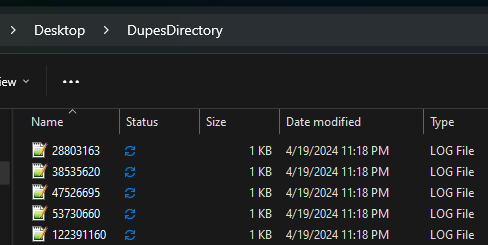
Wait for it to sync to OneDrive before moving on:

In this case, we could use the /me/drive uri, but since we’re building a tool for admins, not an app for end-users, we’ll specify the user in the request, even if that is “me” in today’s demo. This lets us use it for other users and incorporate foreach loops in the future.

(Invoke-MgGraphRequest -Uri 'v1.0/me/drive').value.webUrl

vs

$Upn = "mike@mikecrowley.fake"
(Invoke-MgGraphRequest -Uri "v1.0/users/$Upn/drive").value.webUrl 

Also in this case, we know the folder path to check. It’s ...Documents/DupesDirectory. Let’s use that for now, but I’ll share some thoughts on running this across multiple folders or sites in a little bit. To list the new files, run the below:

Connect-MgGraph -NoWelcome
$Upn = "mike@mikecrowley.fake"
$Drive = Invoke-MgGraphRequest -Uri "beta/users/$($upn)/drive"
$DriveChildren = Invoke-MgGraphRequest -Uri "beta/drives/$($Drive.id)/root:/Desktop/DupesDirectory:/children"
$DriveChildren.value.name

This should list your new files:

Notice how the files have an quickXorHash attribute:

Hmm, do you see what I see? Duplicates!
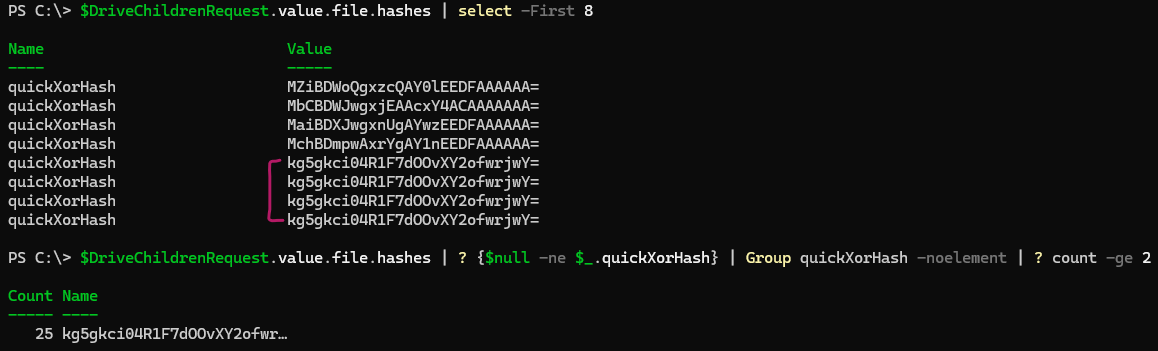
Note: Microsoft limits the output to 200 objects by default, which is fine for our test, but I’ve included code to loop through additional pages, should you have more files in the future.
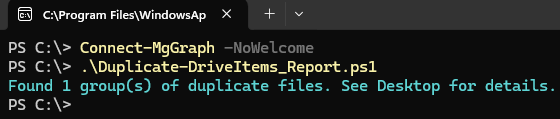
# Add a couple of extra duplicate groups to make the report interesting:

1..25 | ForEach-Object { "Hello World 1" | Out-File "$TestDir\$(Get-Random).log" }
1..25 | ForEach-Object { "Hello World 2" | Out-File "$TestDir\$(Get-Random).log" }

The script will place two files on your desktop. One in CSV the other in JSON, which I find to be an easier format for evaluating the duplicate file groups.
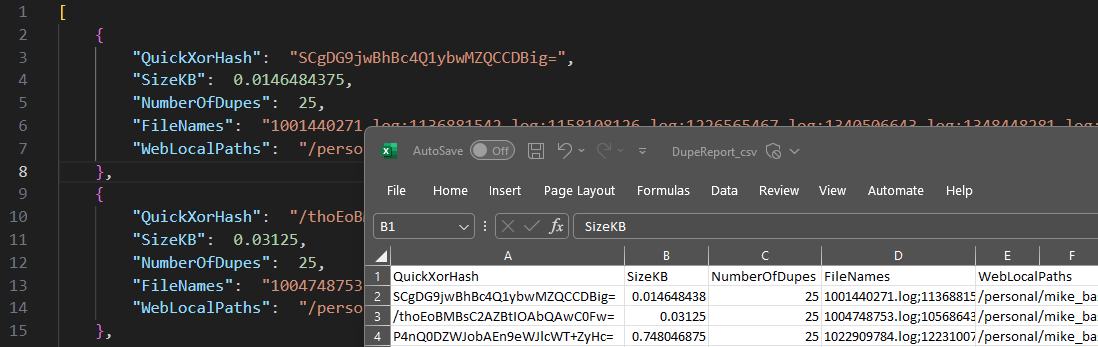
Here is the complete code:

<Code updated below>

Some thoughts on searching multiple folders, document libraries, or sites:

Want to search all files on your OneDrive, not just one level of the DupesDirectory folder? It will take more work. First, swap out this line:

$uri = "beta/drives/$($drive.id)/root:/Desktop/DupesDirectory:/children"

With this instead:

$uri = "beta/users/$($upn)/drive/root/search(q='')" 

Be warned – it may take a long time. It also depends on Microsoft’s search index, which may be slower or incomplete, making testing in quick succession unreliable. I got tens of thousands of files returned for my OneDrive, so that felt substantial enough. Unfortunately, and here is the bummer, this does not populate the hashes property. That means you’d need to feed it back in to another call, getting the file explicitly. I will update this post if I find a better solution.

You may want to check for duplicate files across more than just a single drive. In this case, you’ll need to modify the script to include multiple queries (for each site), combining the results into a single array. Otherwise the logic would be the same.

My goal with this article was to introduce the quickXorHash property and show how it can be useful with a dedupe report. If you have more questions about navigating SharePoint or OneDrive through Graph, leave questions in the comments.

EDIT: 23 April 2024: Here is a draft of a better version. Once testing is complete, I will update this article to use this file, which handles recursion, page size and other features.

https://github.com/Mike-Crowley/Public-Scripts/blob/main/Find-DriveItemDuplicates.ps1

A New and an Updated PowerShell Script

NOTE: Updated November 2016 to include -ServersToQuery and -StartTime and parameters.

e.g.

.\RDPConnectionParser.ps1 -ServersToQuery Server1, Server2 -StartTime "November 1"
————————–

Hey everyone, yes I’m still alive!

Connection Report for Remote Desktop 

I wrote a script that connects to one or multiple servers and captures Remote Desktop logons, disconnects, reconnects and logoffs along with the connecting IP:

Untitled

Feb 2021 Edit:
Microsoft finally took down the TechNet Gallery. This script is now available on GitHub: https://github.com/Mike-Crowley/Public-Scripts/blob/main/RDPConnectionParser.ps1

Download RDPConnectionParser.ps1 here

Recipient Address Report (Formally ProxyAddressCount)

I also updated the “Exchange Proxy Address (alias) Report” script.  It now includes a few environment metrics, as well as the regular CSV-style output:

Untitled(1)

Untitled2

Download the updated script here

Feb 2021 Edit:
Microsoft finally took down the TechNet Gallery. This script is now available on GitHub: https://github.com/Mike-Crowley/Public-Scripts/blob/main/RecipientReportv5.ps1

What are the Azure DirSync Cmdlets [Updated]?

ARTICLE UPDATED August 2014 to address the PowerShellConfig module.

NOTE: If you are using Azure AD Connect, see this new article.

As you may have seen, DirSync’s PowerShell functionality can now be called from the “Import-Module” cmdlet instead of running a custom DirSyncConfigShell.psc1 file. If we look at this new module, we can see 92 DirSync-related cmdlets:

DirSync PowerShell Module

Notice the screenshot is actually listing the commands of the “Microsoft.Online.Coexistence.PS.Config module” and “PowerShellConfig” (very descriptive!), not “DirSync”. That is because the DirSync module is a wrapper of sorts, calling “%programfiles% \Windows Azure Active Directory Sync\dirsync\DirSync.psd1” on your behalf. The DirSync module itself contains no cmdlets.

So, what do these cmdlets do anyway? Not all of them are well documented online, so you should start with the help file. Unfortunatley, even the help file omits a synopsis for the 67 “PowerShellConfig” cmdlets.  For the 25 within Microsoft.Online.Coexistence.PS.Config module, run the below command to generate an output similar to the following table:

ipmo DirSync
gcm -m Microsoft.Online.Coexistence.PS.Config | get-help | select name, synopsis | epcsv $env:userprofile\desktop\DirSyncCmdlets.csv -notype


Name

Synopsis

Disable-DirSyncLog

This commandlet is used to disable logging for the Azure Active Directory Sync tool.

Disable-MSOnlineObjectManagement Disable-MSOnlineObjectManagement -Credential <pscredential> [-ObjectTypes <string[]>] [-WhatIf] [-Confirm] [<CommonParameters>]
Disable-MSOnlinePasswordSync Disable-MSOnlinePasswordSync -Credential <pscredential> [-WhatIf] [-Confirm] [<CommonParameters>]
Disable-MSOnlineRichCoexistence Disable-MSOnlineRichCoexistence -Credential <pscredential> [-WhatIf] [-Confirm] [<CommonParameters>]
Disable-OnlinePasswordWriteBack

This commandlet is used to disable writing back user password resets from cloud to onpremise Active Directory.

Disable-PasswordSyncLog

This commandlet is used to disable logging for the Password Sync feature of the Azure Active Directory Sync tool.

Enable-DirSyncLog

This commandlet is used to configure the logging level for the Azure Active Directory Sync tool.

Enable-MSOnlineObjectManagement Enable-MSOnlineObjectManagement -ObjectTypes <string[]> -TargetCredentials <pscredential> -Credential <pscredential> [-WhatIf] [-Confirm] [<CommonParameters>]
Enable-MSOnlinePasswordSync Enable-MSOnlinePasswordSync -Credential <pscredential> [-WhatIf] [-Confirm] [<CommonParameters>]
Enable-MSOnlineRichCoexistence Enable-MSOnlineRichCoexistence -Credential <pscredential> [-WhatIf] [-Confirm] [<CommonParameters>]
Enable-OnlinePasswordWriteBack

This commandlet is used to enable writing back user password resets from cloud to onpremise Active Directory.

Enable-PasswordSyncLog

This commandlet is used to configure the logging level for the Password Sync feature of the Azure Active Directory Sync tool.

Get-CoexistenceConfiguration

Gets a configuration information from the Microsoft Online Coexistence Web Server

Get-DirSyncConfiguration Get-DirSyncConfiguration -TargetCredentials <pscredential> [<CommonParameters>]
Get-DirSyncLogStatus

This commandlet is used to retrieve the current logging level for the Azure Active Directory Sync tool.

Get-OnlinePasswordWriteBackStatus

This commandlet is used to obtain the current status of writing back user password resets from cloud to onpremise Active Directory.

Get-PasswordSyncLogStatus

This commandlet is used to retrieve the current logging level for the Password Sync feature of the Azure Active Directory Sync tool.

Get-PreventAccidentalDeletes

This commandlet is used to retrieve the current status of the object deletion threshold for DirSync.

Set-CoexistenceConfiguration

Configures Microsoft Online Directory Synchronization Tool.

Set-CompanyDirSyncFeatures Set-CompanyDirSyncFeatures -TargetCredentials <pscredential> -FeaturesFlag <int> [<CommonParameters>]
Set-DirSyncConfiguration Set-DirSyncConfiguration -TargetCredentials <pscredential> -DirSyncConfiguration <CloudDirSyncConfiguration> [<CommonParameters>]
Set-FullPasswordSync

Resets the password sync state information forcing a full sync the next time the service is restarted.

Set-PreventAccidentalDeletes

This commandlet is used to enable or disable the object deletion threshold for DirSync.

Start-OnlineCoexistenceSync

Starts synchronization with Microsoft Online

Update-MSOLDirSyncNetworkProxySetting

Updates the directory sync service to use the current user’s http proxy settings.

The de-“magicification” of DirSync is definitely a good thing for all Azure customers.  Having said this, I’d still keep the Codeplex FIM modules around, since they do offer a lot more control of and visibility into the underlying FIM Sync Service.

Here are the cmdlets without help documentation:

 Add-AttributeFlowMapping
 Add-ConfigurationParameter
 Add-ConnectorAnchorConstructionSettings
 Add-ConnectorAttributeInclusion
 Add-ConnectorFilter
 Add-ConnectorHierarchyProvisioningMapping
 Add-ConnectorObjectInclusion
 Add-RelationshipConditionGrouping
 Add-RunStep
 Add-SynchronizationConditionGrouping
 Disable-ConnectorPartition
 Disable-ConnectorPartitionHierarchy
 Enable-ConnectorPartition
 Enable-ConnectorPartitionHierarchy
 Export-ServerConfiguration
 Get-AADConnectorPasswordResetConfiguration
 Get-ConfigurationParameter
 Get-Connector
 Get-ConnectorHierarchyProvisioningDNComponent
 Get-ConnectorHierarchyProvisioningMapping
 Get-ConnectorHierarchyProvisioningObjectClass
 Get-ConnectorPartition
 Get-ConnectorPartitionHierarchy
 Get-ConnectorTypes
 Get-GlobalSettings
 Get-PasswordHashSyncConfiguration
 Get-RunProfile
 Get-Schema
 Get-SynchronizationRule
 Import-MIISServerConfig
 Import-ServerConfiguration
 Initialize-Connector
 Initialize-RunProfile
 Initialize-SynchronizationRule
 New-Connector
 New-RunProfile
 New-SynchronizationRule
 Remove-AADConnectorPasswordResetConfiguration
 Remove-AttributeFlowMapping
 Remove-ConfigurationParameter
 Remove-Connector
 Remove-ConnectorAnchorConstructionSettings
 Remove-ConnectorAttributeInclusion
 Remove-ConnectorFilter
 Remove-ConnectorHierarchyProvisioningMapping
 Remove-ConnectorObjectInclusion
 Remove-PasswordHashSyncConfiguration
 Remove-RelationshipConditionGrouping
 Remove-RunProfile
 Remove-RunStep
 Remove-SynchronizationConditionGrouping
 Remove-SynchronizationRule
 Set-AADConnectorPasswordResetConfiguration
 Set-ConfigurationParameter
 Set-Connector
 Set-GlobalSettings
 Set-MIISADMAConfiguration
 Set-MIISECMA2Configuration
 Set-MIISExtMAConfiguration
 Set-MIISFIMMAConfiguration
 Set-PasswordHashSyncConfiguration
 Set-ProvisioningRulesExtension
 Set-RunProfile
 Set-Schema
 Set-SynchronizationRule
 Update-ConnectorPartition
 Update-ConnectorSchema

As time allows, I will return with more detail on each of the above DirSync cmdlets; so long for now!

Backup and Restore Instructions for the DirSync Database

Today, Microsoft released a 9 page guide on backing up and restoring the Microsoft Azure Active Directory Sync tool. You can get it here.

Some things to keep in mind:

  • This guide applies to DirSync when used with the full version of SQL only.  This means it does not apply to most installations.
  • You don’t need to backup or restore DirSync.  If you simply install a new instance and configure it appropriately, the objects will re-sync.  Doing a backup/restore can save time however, if you have a very large number of users (I wouldn’t bother with less than 100k).
  • Ironically, this guide doesn’t actually tell you how to backup or restore the database.  You need some SQL-aware backup product to do that.  Instead, this guide helps you make use of a restored database in a DirSync environment (working with miisclient.exe, handling keys, etc).

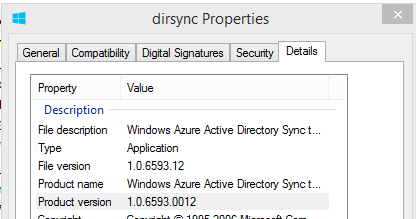
DirSync 1.0.6593.0012

Late Monday, Microsoft released another update to the DirSync software, this time with a build number of 6593.0012. You can download it in from the usual link.

DirSync 1.0.6593.0012

As with previous DirSync updates, there has been no official announcement of the release, however the “use at your own risk” Wiki does mention one of the new features:

Version 6593.0012
Date Released 2/3/2014
Notable Changes

New features:

  • Additional Attributes are synchronized on User and Contact objects

Attributes documented here

The new attributes referenced in the link are userCertificate and userSMIMECertificate. Interestingly pwdLastSet was also added, however there is no mention of that one in the article. These additions serve an unknown purpose for now, however one might speculate that they are in support of new capabilities soon to be available in the service?!

Before you upgrade, you may wish to get a “before and after” review of the attribute inclusion list. The best way to review this is in the “Configure Attribute Flow” area of each management agent. At the end of this post, I have also shared an experimental PowerShell method of getting this information.

It is noteworthy that the author of this update, a Microsoft Program Manager for DirSync, is linking to yet another community wiki page instead of the seemingly defunct Knowledge Base article KB-2256198. Sadly, it would appear that the crumbling integrity of the TechNet/Support documentation may be latest casualty in a growing list of IT Pro-related cuts Microsoft has made along their quest to the cloud…

<#
Description:
This script counts and dumps the attribute inclusion lists from each MA.
It does not evaluate attribute flow or applicable object types.

February 3 2014
Mike Crowley
http://mikecrowley.us
#>

#Import Modules
Import-Module SQLps -WarningAction SilentlyContinue

#Get SQL Info
$SQLServer = (gp 'HKLM:SYSTEM\CurrentControlSet\services\FIMSynchronizationService\Parameters').Server
if ($SQLServer.Length -eq '0') {$SQLServer = $env:computername}
$SQLInstance = (gp 'HKLM:SYSTEM\CurrentControlSet\services\FIMSynchronizationService\Parameters').SQLInstance
$MSOLInstance = ($SQLServer + "\" + $SQLInstance)

#Get Management Agent Attribute Info
[xml]$OnPremAttributes = (Invoke-Sqlcmd -MaxCharLength 10000 -ServerInstance $MSOLInstance -Query "SELECT attribute_inclusion_xml FROM [FIMSynchronizationService].[dbo].[mms_management_agent] WHERE [ma_name] = 'Active Directory Connector'").attribute_inclusion_xml
[xml]$CloudAttributes = (Invoke-Sqlcmd -MaxCharLength 10000 -ServerInstance $MSOLInstance -Query "SELECT attribute_inclusion_xml FROM [FIMSynchronizationService].[dbo].[mms_management_agent] WHERE [ma_name] = 'Windows Azure Active Directory Connector'").attribute_inclusion_xml
$ADAttributes = $OnPremAttributes.'attribute-inclusion'.attribute
$AzureAttributes = $CloudAttributes.'attribute-inclusion'.attribute

#Output to Screen
Write-Host $ADAttributes.count "Attributes synced from AD to the Metaverse" -F Cyan
Write-Host $AzureAttributes.count "Attributes synced from the Metaverse to Azure" -F Cyan
Write-Host "See" $env:TEMP\DirSyncAttributeList.txt "for detail" -F Cyan

#Output to File
"******AD Attributes******" | Out-File $env:TEMP\DirSyncAttributeList.txt
$ADAttributes | Out-File $env:TEMP\DirSyncAttributeList.txt -Append
" "| Out-File $env:TEMP\DirSyncAttributeList.txt -Append
"******Azure Attributes******" | Out-File $env:TEMP\DirSyncAttributeList.txt -Append
$AzureAttributes | Out-File $env:TEMP\DirSyncAttributeList.txt -Append

##END

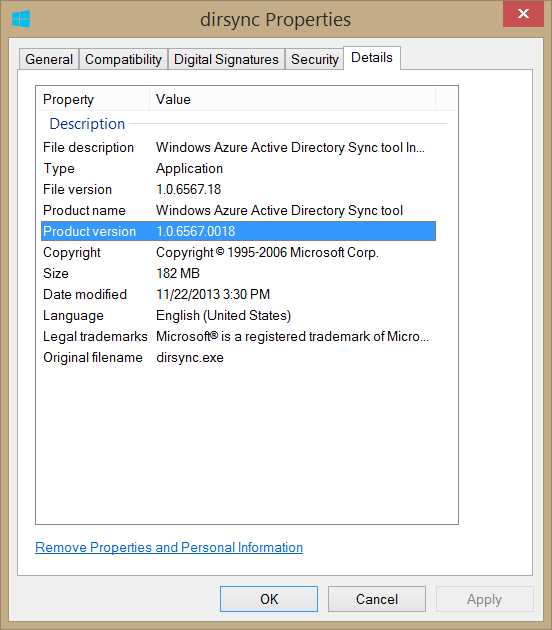
DirSync 1.0.6567.0018 Has Been Released

As some of us noticed, last week, Microsoft quietly removed the latest version of DirSync without so much as a tweet explaining why. Word on the street is that there were issues in the “Export” stage in the synchronization process (see KB 2906832). Today it would appear those issues have been resolved, as v1.0.6567.0018 just hit the web. You can download it here, though I’d advise caution, given Microsoft’s approach to communicating (lack-thereof) bugs.

As stated in the updated Wiki, the following improvements exist in this version:

New features:

  • DirSync can be installed on a Domain Controller (must log-off/log-on AFTER installation and BEFORE configuration wizard)
    • Documentation on how to deploy can be found here

Contains fixes for:

  • Sync Engine memory leak issue
  • Sync Engine export issue (FIM 2010 R2 hotfix 4.1.3493.0)
  • “Staging-Error” during large Confirming Imports from Windows Azure Active Directory
  • password sync behavior when sync’ing from Read-Only Domain Controllers (RODC)
  • DirSync setup behavior for domains with ‘@’ symbol in NetBois names
  • Fix for Hybrid Deployment Configuration-time error:
    • EventID=0
    • Description like “Enable-MsOnlineRichCoexistence failed. Error: Log entry string is too long.  A string written to the event log cannot exceed 32766 characters.”

Upgrading DirSync to the Latest Version

EDIT (Nov. 22 2013): DirSync 1.0.6567.0018 Has Been Released

EDIT (Nov. 11 2013): DirSync 1.0.6553.2 has been removed from Microsoft’s download site and version history comment removed from the Wiki.  Not sure why.

Early this morning, Microsoft released an updated version of Windows Azure Active Directory Sync tool (DirSync to you and me). Version 1.0.6553.2 (or later) can be downloaded from the usual link. It comes with 4 known improvements:

  1. Fix to address Sync Engine memory leak
  2. Fix to address “staging-error” during full import from Azure Active Directory
  3. Fix to handle Read-Only Domain Controllers in Password Sync
  4. DirSync can be installed on a Domain Controller. Documentation on how to deploy can be found here.

I am most excited about #4, as this enables me to build more interesting labs from my laptop, now that I don’t need a dedicated “DirSync Server”. You should note however, this is recommended only for “development” environments. After some further testing, I’d consider recommending this configuration for shops with multiple domain controllers and 50 or fewer users.

If you’re already running DirSync, and want to upgrade, you’re likely in one of two camps:

  1. You want to move DirSync from a dedicated server to a DC.
  2. You don’t want to move the DirSync server to a DC (or elsewhere), you just want the latest version.

If you’re in the first scenario, I’m going to assume you’re working in a lab or very small environment. This means you don’t need to worry about a lengthy synchronization process, and can easily take advantage of the built-in soft-match capability of the product. Your upgrade process is easy:

  1. Throw away your existing DirSync server.
  2. Install Dirsync on a DC.
  3. Run the Directory Sync Configuration Wizard

As soon as you finish the 3rd step, the initial synchronization will rebuild the database (and re-sync passwords), returning to where you left off!

NOTE: If you’re a big shop, you should consider that a full sync takes roughly 1 hour per 5,000 objects synced, according to a recent webcast by Lucas Costa. Soft-matches would likely go faster, but you’ve been warned…

Now, if you’re just looking to upgrade your version of DirSync to the latest version, you need to first ensure you are running versoin 6385.0012 or later. In-place upgrades aren’t supported on earlier versions. If this is you, refer to the soft-match advice I gave above. This is your upgrade path.

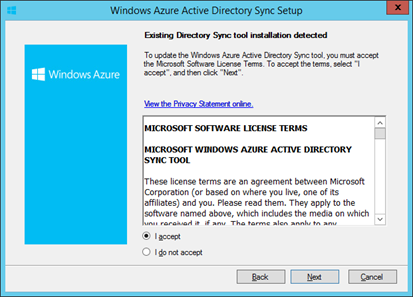
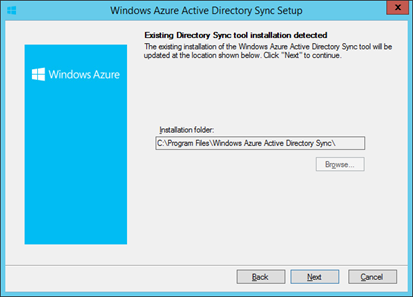
For those that are running 6385.0012 or later, upgrading is as simple as a few clicks of the mouse. For the nervous, here are some screenshots:

NOTE: The installer detects an existing installation.
This is the default path, but it should reflect your installation directory.
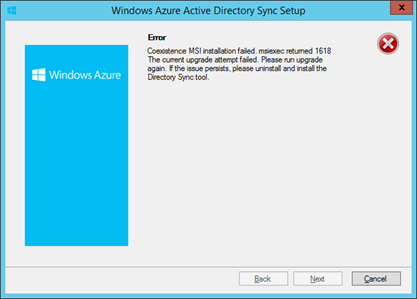
Hmm, that’s not good! Fortunately a reboot cleared this up for me, but if you’re not so lucky, you can examine the following logs:
  • coexistenceSetup
  • dirsyncSetup
  • miissetup
  • MSOIDCRLSetup

…which are located in the earlier discussed installation directory.

msiexec returned 1618
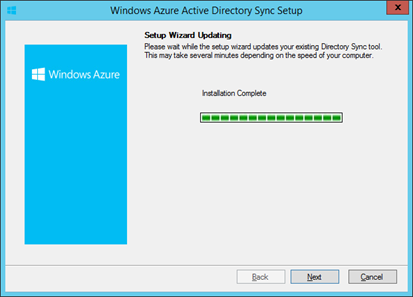
Much better!
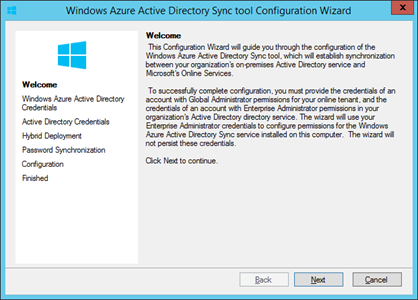
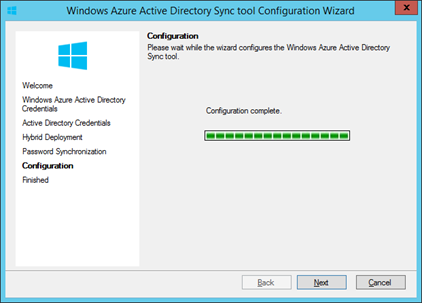
For an upgrade, you’ll want to run this right away, since not doing so leaves you without a functioning DirSync server.
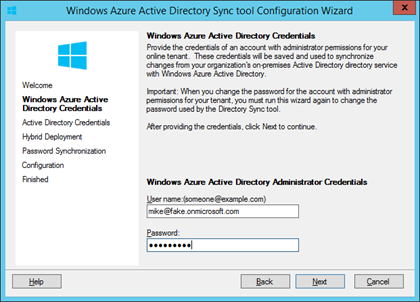
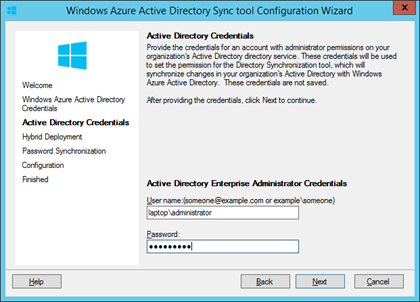
Global Office 365 Administrator credentials go here. This is stored on your DirSync server, so make sure PasswordNeverExpires attribute is set to $true on the Office 365 account (or your on-premises account, if you’re using a federated user)
On-Premises Enterprise Admin credentials go here:
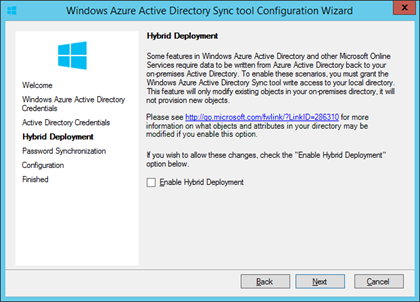
Checking this box allows some attributes to be written back to your Active Directory, which is necessary for a Hybrid Exchange Server scenario.
Enable Password Sync… or Don’t.
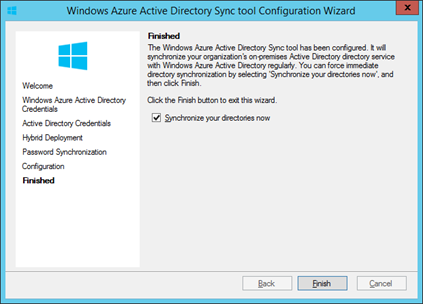
NOTE: Upgrades and new installs require a Full Sync.
This post wouldn’t be complete without a plug for my free DirSync Report script! DirSync Report

DirSync and Disabled Users: The BlockCredential Attribute [Part 2]

In this two-part article, I have laid out a scenario in which DirSync sets the Azure “BlockCredential” attribute of disabled Active Directory users. In Part 1, I explained how the Windows Azure Active Directory Sync tool (DirSync) causes this to happen. Part 2 (below) discusses how to change this behavior.


Last time, we saw that magic a rules extension prevents a user from logging into Office 365 if their on-premises Active Directory account was disabled. Below, I’ll show you how to override this attribute flow, but first a note on Microsoft Support:

NOTE: Changing the behavior of DirSync means that you may wander into “unsupported” terrain, but in my experience, unless an unsupported change is likely the cause for a given problem, Microsoft’s support staff have been understanding and have yet to terminate a support case without cause. Having said this, you should not expect Microsoft to incorporate your changes into their upgrade path, so be sure to document, backup, and plan upgrades accordingly.

As you’ll recall, the existing attribute flow is:

userAccountControl à Rules Extension à accountEnabled à Metaverse
Metaverse à accountEnabled à BlockCredential

We will adjust it to the following:

userAccountControl à Rules Extension à accountEnabled à Metaverse à <Nowhere>

In essence, we are allowing the rules extension to update the Metaverse, but not allowing the Azure MA to flow to the BlockedCredential attribute.  This ensures changes in the on-premises Active Directory (such as disabling accounts) will not prevent login to Office 365 (be sure this is actually what you want before you proceed).  Fortunately it also does not necessarily prevent an administrator from setting BlockedCredential manually on Office 365 users.

With our game plan, let’s begin by firing up the trusty miisclient.exe; usually located here:

C:\Program Files\Windows Azure Active Directory Sync\SYNCBUS\Synchronization Service\UIShell\miisclient.exe 

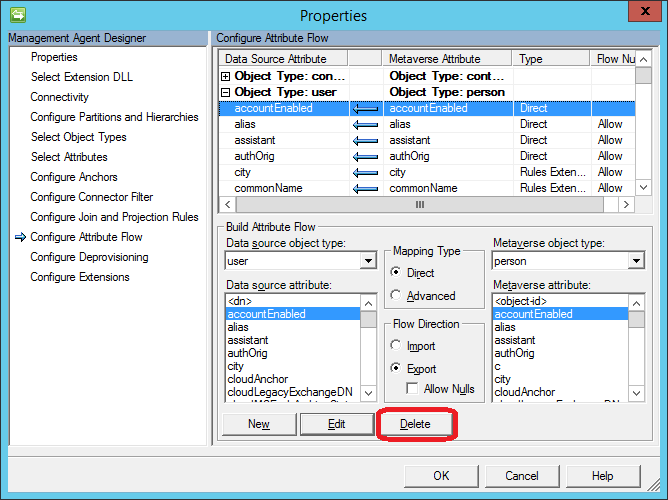
1) Click Management Agents.
2) Open the “Windows Azure Active Directory Connector” MA.
3) Click “Configure Attribute Flow” and expand “Object Type: User”.
4) Select the accountEnabled attribute.
5) Click “Delete”.

6) Click “OK” until you are back on the main screen.


We’re almost done!  Two tasks remain:

  1. Test our change by:
    • Creating a new AD user, ensure they sync to Office 365 and that they can log in
    • Disable the user’s AD account, run another sync and ensure they can still log in.
  2. Determine how to update users that were disabled before our change.  If you simply want to re/enable all currently disabled accounts, the below PowerShell sample might work well:
Connect-MsolService
$BlockedUsers = Get-MsolUser -EnabledFilter DisabledOnly -All
$i= 1
$BlockedUsers | ForEach-Object {
 Write-Host ($_.UserPrincipalName + " (" + $i + " of " + $BlockedUsers.count + ")" )
 Set-MsolUser -UserPrincipalName $_.UserPrincipalName -BlockCredential $false
 $i = $i + 1
 }

Thanks to William Yang for his advice on this post.

DirSync and Disabled Users: The BlockCredential Attribute [Part 1]

In this two-part article, I will describe a scenario in which DirSync sets the Azure “BlockCredential” attribute of disabled Active Directory users. In Part 1 (below) I explain how the Windows Azure Active Directory Sync tool (DirSync) causes this to happen. Part 2 discusses how to change this behavior.

As I’ve been discussing, DirSync can be more complicated than it appears. Even if you are familiar with the miisclient.exe console, some of FIM’s logic is hidden in “Rules Extension” DLL files such as “MSONLINE.RulesExt.dll“. These files can be reverse-engineered to some degree, however it can be very difficult.

That’s why it’s good to know you can avoid them all together if necessary! For example, imagine that I don’t want DirSync to prevent my disabled users from logging into Office 365. Perhaps you need to limit access to on-premises resources for a group of people, while still allowing everyone access to Office 365.

If this restricted group is only a handful of users, and you don’t need password synchronization, you might be best off creating them manually within the Office 365 portal. However if automation and password sync are important, this scenario presents a few credentialing challenges:

  • Because ADFS authenticates against local domain controllers, the accounts Must be enabled.
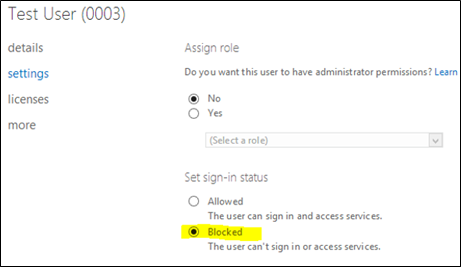
  • DirSync will sync passwords for disabled users, but as mentioned above, it also disables them in Office 365 (by setting their BlockCredential attribute).

The first bullet point is simply how ADFS works, therefore ADFS is out. This 2nd option, however, can actually be explored. WHY does DirSync do this? As far as I can tell, Microsoft hasn’t documented this part of the attribute flow, so let’s take a look ourselves.

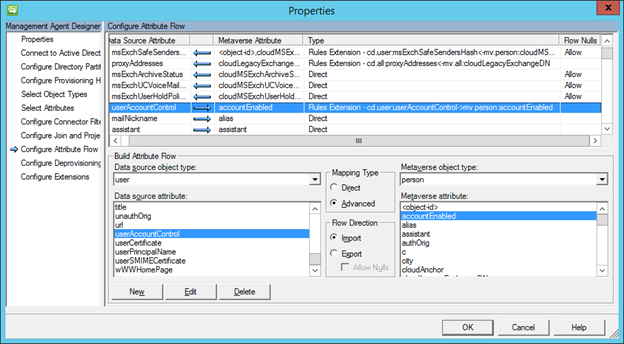
Launch miisclient.exe and select the Management Agents tab. Double-click the “Active Directory Connector” MA and select “Configure Attribute Flow”, then expand to this section:

What we can see here is that FIM is reading the Active Directory attribute “userAccountControl” (where the disabled state is recorded) and updating the “Metaverse” attribute “accountEnabled” based on logic within the rules extension. For the sake of argument, why don’t we call this rules extension “magic”, because I have no idea what’s inside it – but let’s keep going.

Now let’s look at the “Windows Azure Active Directory Connector” MA in the same spot:

Well, that’s pretty simple. It’s taking the accountEnabled attribute OUT of the Metaverse and sending it to Azure. The type “Direct” means no magic. After some testing, I have determined that this attribute directly toggles the BlockCredential attribute I mentioned earlier.

userAccountControl à Magic à accountEnabled à Metaverse

Metaverse à accountEnabled  à BlockCredential

(AD / Azure)

Clear as mud, right? J

Here’s an example to be sure:

1) A user has just been disabled.
2) Later, DirSync runs, updating the “userAccountControl” value in the AD MA.

3) The magic within the rule extension reads this and decides the “accountEnabled” Metaverse attribute needs to be updated to “false” which is then exported to Azure.

4) More magic within Azure, decides the user’s BlockCredential attribute needs to be updated. You can view this in the Office 365 Admin Portal or within PowerShell.
5) The user can no longer log into Office 365.Note: This behavior is described in KB 2742372  It looks like your account has been blocked

As you can see, this won’t work in our scenario. Fortunately, FIM is very flexible and we can change this behavior!

Continue on to Part 2 if you’d like to see how.

System Center 2012 R2 Evaluation Virtual Machines

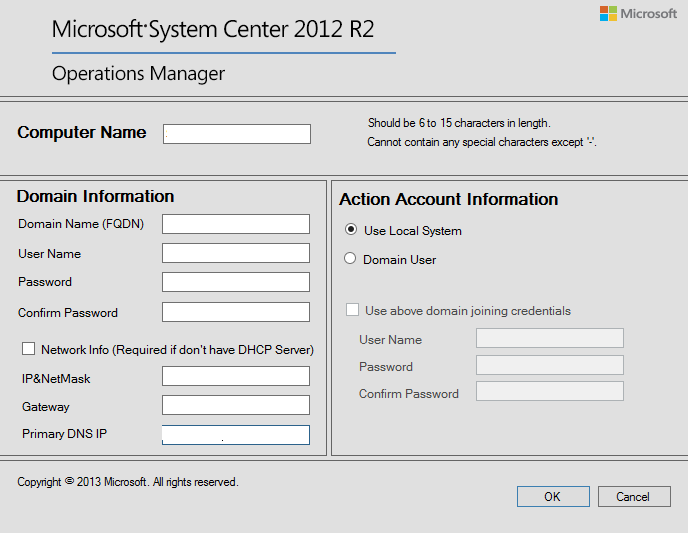
Today, Microsoft published 7 System Center eval VHDs.  If they are anything like the 2012 versions, they are great and very easy to deploy, with a wizard automatically configuring them into your environment!

Check `em out:

Additional Reading: What’s New in System Center 2012 R2

Sample setup screen:

SCOM Evaluation VHD Setup Screen

Dirsync: Determine if Password Sync is Enabled

For those not interested in the complete DirSync Report I published last week, now you can run just the Password Hash Sync portion, in a script I published here: Dirsync: Determine if Password Sync is Enabled.

For deployments with remote SQL installations: As with the previous report, note that we make use of the SQL PowerShell Module, which must be present on the computer.

Sample Output(s)

DirSync “Busted Users” Report

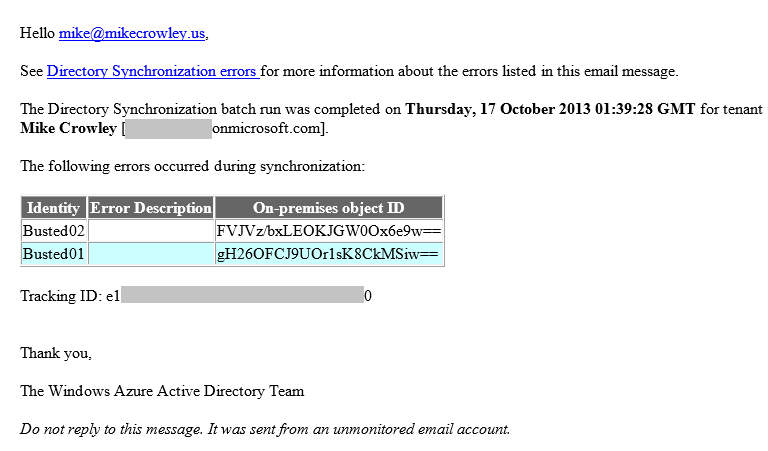
If you administer DirSync for your organization, you likely have seen emails like this, indicating some of your users didn’t sync.

DirSync Error Email

It can be a frustrating email, since the “error description” is for some reason blank and the “On-premises object ID” column is not something that’s easy to correlate to a user account within your Active Directory. There are also application event log entries (FIMSynchronizationService #6111 and Directory Synchronization #0), but again these aren’t exactly rich with detail.

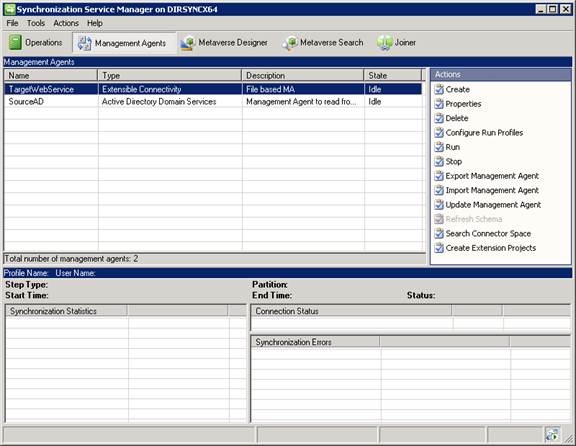
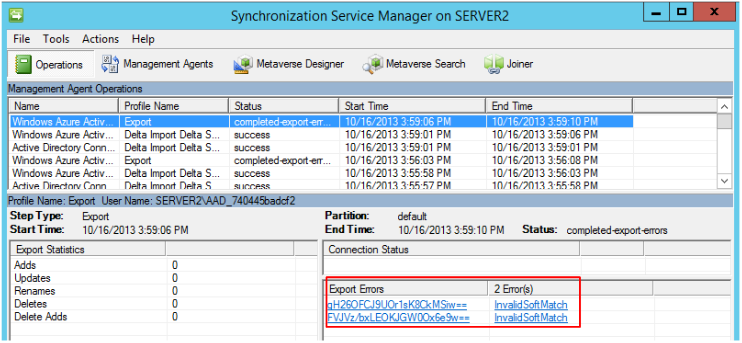
Many of you know that DirSync is actually a customized installation FIM 2010 R2’s Synchronization Service. Within the miisclient.exe console, you can look at your most recent “Export” job and examine the errors one at a time.

Miisclient.exe Console


(By the way, this is actually the place to go if you wanted to configure filtering for directory synchronization.)

Using this console certainly works, but it’s not an efficient way to resolve errors. Microsoft seems to acknowledge this, but falls short of a fix with that email, in my opinion. Instead of wearing out your mouse, I propose you use the PowerShell script I have written below. Within, I leverage the free FimSyncPowerShellModule which you’ll need to download and copy to:

…\System32\WindowsPowerShell\v1.0\Modules\FimSyncPowerShellModule\FimSyncPowerShellModule.psm1

Once you’ve copied the module, you’re ready to run the report, which can be downloaded here.

Here is a sample output, followed by the code itself.

Sample Output

<#
Description:
This script generates a list of users who are failing to export to Azure AD.

This script makes use of the FimSyncPowerShellModule
https://fimpowershellmodule.codeplex.com/
(Download and copy to C:\Windows\System32\WindowsPowerShell\v1.0\Modules\FimSyncPowerShellModule\FimSyncPowerShellModule.psm1)

October 18 2013
Mike Crowley
http://mikecrowley.us
#>

#Import the FimSyncPowerShellModule Module
ipmo FimSyncPowerShellModule

#Get the last export run
$LastExportRun = (Get-MIIS_RunHistory -MaName 'Windows Azure Active Directory Connector' -RunProfile 'Export')[0]

#Get error objects from last export run (user errors only)
$UserErrorObjects = $LastExportRun | Get-RunHistoryDetailErrors | ? {$_.dn -ne $null}

$ErrorFile = @()

#Build the custom Output Object
$UserErrorObjects | % {
 $TmpCSObject = Get-MIIS_CSObject -ManagementAgent 'Windows Azure Active Directory Connector' -DN $_.DN
 [xml]$UserXML = $TmpCSObject.UnappliedExportHologram
 $MyObject = New-Object PSObject -Property @{
 EmailAddress = (Select-Xml -Xml $UserXML -XPath "/entry/attr" | select -expand node | ? {$_.name -eq 'mail'}).value
 UPN = (Select-Xml -Xml $UserXML -XPath "/entry/attr" | select -expand node | ? {$_.name -eq 'userPrincipalName'}).value
 ErrorType = $_.ErrorType
 DN = $_.DN
 }
 $ErrorFile += $MyObject
 }

$FileName = "$env:TMP\ErrorList-{0:yyyyMMdd-HHmm}" -f (Get-Date) + ".CSV"
$ErrorFile | select UPN, EmailAddress, ErrorType, DN | epcsv $FileName -NoType

#Output to the screen
$ErrorFile | select UPN, EmailAddress, ErrorType, DN

Write-Host
Write-Host $ErrorFile.count "users with errors. See here for a list:" -F Yellow
Write-Host $FileName -F Yellow
Write-Host

DirSync Report

Azure Active Directory Sync (DirSync) seems so simple on the surface doesn’t it?  “Next, Next, Finish”, right?  Ha!  If you’ve ever had to revisit your DirSync server to troubleshoot or make a configuration change, you know there can be more than meets the eye.  A lot of useful information happens to be scattered across various registry keys, SQL tables and XML files.  If you’re not familiar with the FIM Management Console, and these other locations it might be hard to see what’s going on.

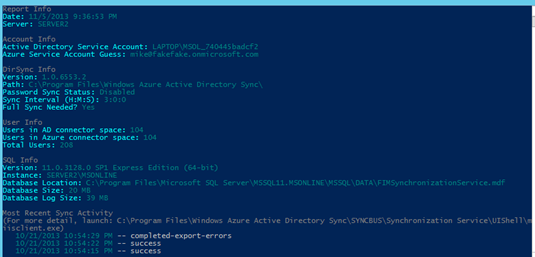
Here’s a free script that aims to help by creating a dashboard highlighting useful DirSync configurations.  See the image below for a sample output.  Before you run it you should be aware of the limitations listed in the “known issues” area of the script.

Oct 2014 Update: Fellow MVP, Michael Van Horenbeeck has written an update to this script for use with the new Azure AD Sync Tool.  Please be sure to check it out here: http://vanhybrid.com/2014/10/26/azure-ad-sync-tool-html-report/

DirSync Report


You can Review the script below or download it and try it for yourself!

&lt;#
Description:
This script gathers DirSync information from various locations and reports to the screen.

November 5 2013
Mike Crowley
http://mikecrowley.us

Known Issues:
1) All commands, including SQL queries run as the local user.  This may cause issues on locked-down SQL deployments.
2) For remote SQL installations, the SQL PowerShell module must be installed on the dirsync server.
    (http://technet.microsoft.com/en-us/library/hh231683.aspx)
3) The Azure Service account field is actually just the last account to use the Sign In Assistant.
    There are multiple entries at that registry location.  We're just taking the last one.
4) Assumes Dirsync version 6385.0012 or later.

#&gt;

#Console Prep
cls
Write-Host &quot;Please wait...&quot; -F Yellow
ipmo SQLps

#Check for SQL Module
if ((gmo sqlps) -eq $null) {
    write-host &quot;The SQL PowerShell Module Is Not loaded.  Please install and try again&quot; -F Red
    write-host &quot;http://technet.microsoft.com/en-us/library/hh231683.aspx&quot; -F Red
    Write-Host &quot;Quitting...&quot; -F Red; sleep 5; Break
    }

#Get Dirsync Registry Info
$DirsyncVersion = (gp 'hklm:SOFTWARE\Microsoft\Windows\CurrentVersion\Uninstall\Microsoft Online Directory Sync').DisplayVersion
$DirsyncPath = (gp 'hklm:SOFTWARE\Microsoft\MSOLCoExistence').InstallPath
$FullSyncNeededBit = (gp 'hklm:SOFTWARE\Microsoft\MSOLCoExistence').FullSyncNeeded
$FullSyncNeeded = &quot;No&quot;
If ((gp 'hklm:SOFTWARE\Microsoft\MSOLCoExistence').FullSyncNeeded -eq '1') {$FullSyncNeeded = &quot;Yes&quot;}

#Get SQL Info
$SQLServer = (gp 'HKLM:SYSTEM\CurrentControlSet\services\FIMSynchronizationService\Parameters').Server
if ($SQLServer.Length -eq '0') {$SQLServer = $env:computername}
$SQLInstance = (gp 'HKLM:SYSTEM\CurrentControlSet\services\FIMSynchronizationService\Parameters').SQLInstance
$MSOLInstance = ($SQLServer + &quot;\&quot; + $SQLInstance)
$SQLVersion = Invoke-Sqlcmd -ServerInstance $MSOLInstance -Query &quot;SELECT SERVERPROPERTY('productversion'), SERVERPROPERTY ('productlevel'), SERVERPROPERTY ('edition')&quot;

#Get Password Sync Status
[xml]$ADMAxml = Invoke-Sqlcmd -ServerInstance $MSOLInstance -Query &quot;SELECT [ma_id] ,[ma_name] ,[private_configuration_xml] FROM [FIMSynchronizationService].[dbo].[mms_management_agent]&quot; | ? {$_.ma_name -eq 'Active Directory Connector'} | select -Expand private_configuration_xml
$PasswordSyncBit = (Select-Xml -XML $ADMAxml -XPath &quot;/adma-configuration/password-hash-sync-config/enabled&quot; | select -expand node).'#text'
$PasswordSyncStatus = &quot;Disabled&quot;
If ($PasswordSyncBit -eq '1') {$PasswordSyncStatus = &quot;Enabled&quot;}

#Get Account Info
$ServiceAccountGuess = (((gci 'hkcu:Software\Microsoft\MSOIdentityCRL\UserExtendedProperties' | select PSChildName)[-1]).PSChildName -split ':')[-1]
$ADServiceAccountUser = $ADMAxml.'adma-configuration'.'forest-login-user'
$ADServiceAccountDomain = $ADMAxml.'adma-configuration'.'forest-login-domain'
$ADServiceAccount = $ADServiceAccountDomain + &quot;\&quot; + $ADServiceAccountUser

#Get DirSync Database Info
$SQLDirSyncInfo = Invoke-Sqlcmd -ServerInstance $MSOLInstance -Query &quot;SELECT DB_NAME(database_id) AS DatabaseName, Name AS Logical_Name, Physical_Name, (size*8)/1024 SizeMB FROM sys.master_files WHERE DB_NAME(database_id) = 'FIMSynchronizationService'&quot;
$DirSyncDB = $SQLDirSyncInfo | ? {$_.Logical_Name -eq 'FIMSynchronizationService'}
$DirSyncLog = $SQLDirSyncInfo | ? {$_.Logical_Name -eq 'FIMSynchronizationService_log'}

#Get connector space info (optional)
$ADMA = Invoke-Sqlcmd -ServerInstance $MSOLInstance -Query &quot;SELECT [ma_id] ,[ma_name] FROM [FIMSynchronizationService].[dbo].[mms_management_agent] WHERE ma_name = 'Active Directory Connector'&quot;
$AzureMA = Invoke-Sqlcmd -ServerInstance $MSOLInstance -Query &quot;SELECT [ma_id] ,[ma_name] FROM [FIMSynchronizationService].[dbo].[mms_management_agent] WHERE ma_name = 'Windows Azure Active Directory Connector'&quot;
$UsersFromBothMAs = Invoke-Sqlcmd -ServerInstance $MSOLInstance -Query &quot;SELECT [ma_id] ,[rdn] FROM [FIMSynchronizationService].[dbo].[mms_connectorspace] WHERE object_type = 'user'&quot;
$AzureUsers = $UsersFromBothMAs | ? {$_.ma_id -eq $AzureMA.ma_id}
$ADUsers = $UsersFromBothMAs | ? {$_.ma_id -eq $ADMA.ma_id}

#Get DirSync Run History
$SyncHistory = Invoke-Sqlcmd -ServerInstance $MSOLInstance -Query &quot;SELECT [step_result] ,[end_date] ,[stage_no_change] ,[stage_add] ,[stage_update] ,[stage_rename] ,[stage_delete] ,[stage_deleteadd] ,[stage_failure] FROM [FIMSynchronizationService].[dbo].[mms_step_history]&quot; | sort end_date -Descending

#GetDirSync interval (3 hours is default)
$SyncTimeInterval = (Select-Xml -Path ($DirsyncPath + &quot;Microsoft.Online.DirSync.Scheduler.exe.config&quot;) -XPath &quot;configuration/appSettings/add&quot; | select -expand Node).value

#Generate Output
cls

Write-Host &quot;Report Info&quot; -F DarkGray
Write-Host &quot;Date: &quot; -F Cyan -NoNewline ; Write-Host (Get-Date) -F DarkCyan
Write-Host &quot;Server: &quot; -F Cyan -NoNewline ; Write-Host  $env:computername -F DarkCyan
Write-Host

Write-Host &quot;Account Info&quot; -F DarkGray
Write-Host &quot;Active Directory Service Account: &quot; -F Cyan -NoNewline ; Write-Host $ADServiceAccount -F DarkCyan
Write-Host &quot;Azure Service Account Guess: &quot; -F Cyan -NoNewline ; Write-Host $ServiceAccountGuess -F DarkCyan
Write-Host

Write-Host &quot;DirSync Info&quot; -F DarkGray
Write-Host &quot;Version: &quot; -F Cyan -NoNewline ; Write-Host $DirsyncVersion -F DarkCyan
Write-Host &quot;Path: &quot; -F Cyan -NoNewline ; Write-Host $DirsyncPath -F DarkCyan
Write-Host &quot;Password Sync Status: &quot; -F Cyan -NoNewline ; Write-Host $PasswordSyncStatus -F DarkCyan
Write-Host &quot;Sync Interval (H:M:S): &quot; -F Cyan -NoNewline ; Write-Host $SyncTimeInterval -F DarkCyan
Write-Host &quot;Full Sync Needed? &quot; -F Cyan -NoNewline ; Write-Host $FullSyncNeeded -F DarkCyan
Write-Host

Write-Host &quot;User Info&quot; -F DarkGray
Write-Host &quot;Users in AD connector space: &quot; -F Cyan -NoNewline ; Write-Host $ADUsers.count -F DarkCyan
Write-Host &quot;Users in Azure connector space: &quot; -F Cyan -NoNewline ; Write-Host $AzureUsers.count -F DarkCyan
Write-Host &quot;Total Users: &quot; -F Cyan -NoNewline ; Write-Host $UsersFromBothMAs.count -F DarkCyan
Write-Host

Write-Host &quot;SQL Info &quot; -F DarkGray
Write-Host &quot;Version: &quot; -F Cyan -NoNewline ; Write-host $SQLVersion.Column1 $SQLVersion.Column2 $SQLVersion.Column3 -F DarkCyan
Write-Host &quot;Instance: &quot; -F Cyan -NoNewline ; Write-Host  $MSOLInstance -F DarkCyan
Write-Host &quot;Database Location: &quot; -F Cyan -NoNewline ; Write-Host $DirSyncDB.Physical_Name -F DarkCyan
Write-Host &quot;Database Size: &quot; -F Cyan -NoNewline ; Write-Host $DirSyncDB.SizeMB &quot;MB&quot; -F DarkCyan
Write-Host &quot;Database Log Size: &quot; -F Cyan -NoNewline ; Write-Host $DirSyncLog.SizeMB &quot;MB&quot; -F DarkCyan
Write-Host

Write-Host &quot;Most Recent Sync Activity&quot; -F DarkGray
Write-Host &quot;(For more detail, launch:&quot; $DirsyncPath`SYNCBUS\Synchronization Service\UIShell\miisclient.exe&quot;)&quot; -F DarkGray
Write-Host &quot;  &quot; ($SyncHistory[0].end_date).ToLocalTime() -F DarkCyan -NoNewline ; Write-Host &quot; --&quot; $SyncHistory[0].step_result -F Gray
Write-Host &quot;  &quot; ($SyncHistory[1].end_date).ToLocalTime() -F DarkCyan -NoNewline ; Write-Host &quot; --&quot; $SyncHistory[1].step_result -F Gray
Write-Host &quot;  &quot; ($SyncHistory[2].end_date).ToLocalTime() -F DarkCyan -NoNewline ; Write-Host &quot; --&quot; $SyncHistory[2].step_result -F Gray
Write-Host

Converting SMTP Proxy Addresses to Lowercase

Update: Be aware, this script has not been tested with SIP, X400 or other address types. I am working on an update to validate these scenarios, but in the meantime, proceed at your own risk with these address types.

I recently encountered a question in an online forum where someone asked for a script to convert all of their user’s email addresses to lower case values.  While this doesn’t affect the message delivery, it can have an impact on aesthetics when the address is displayed in an external recipient’s email client.  An Exchange Email Address Policy can do this to some degree, but I wanted to see how it could be done with PowerShell.

The challenge with a script like this is twofold:

  1. Email addresses (proxy addresses) are a multi-valued attribute, which can be tricky to work with.
  2. PowerShell is generally not case-sensitive, and therefore when we try to rename Mr. Gallalee’s email address in the screenshot below, we can see that it does not work:

WARNING: The command completed successfully but no settings of 'demolab.local/Users/Rob Gallalee' have been modified.

After a little bit of inspiration from a script written by Michael B Smith, I came up with the below:


$MailboxList = Get-Mailbox  -ResultSize unlimited

$MailboxList | % {

$LoweredList = @()
$RenamedList = @()

foreach ($Address in $_.EmailAddresses){
if ($Address.prefixstring -eq "SMTP"){
$RenamedList += $Address.smtpaddress + "TempRename"
$LoweredList += $Address.smtpaddress.ToLower()
}
}
Set-mailbox $_ -emailaddresses $RenamedList -EmailAddressPolicyEnabled $false
Set-mailbox $_ -emailaddresses $LoweredList

#Without this line the "Reply To" Address could be lost on recipients with more than one proxy address:
Set-mailbox $_ -PrimarySmtpAddress $_.PrimarySmtpAddress
}

This script works as follows:

  1. Puts all mailboxes into the $MailboxList variable.  If you don’t want all mailboxes,  edit the Get-Mailbox cmdlet as you see fit.
  2. Filters out X400 and other non-SMTP addresses.
  3. Creates an array called $RenamedList which stores each proxy address with “TempRename” appended to it (e.g. Rgallalee@demolab.localTempRename).
  4. Creates another array ($LoweredList) and use the “ToLower” method on each proxy address.
  5. Sets the proxy address for the user to the value of $RenamedList and then to $LoweredList.
    1. This is how we get around the case case insensitivity – name it to something else and then name it back.
  6. Step 4 and 5 don’t preserve the “Primary” / “Reply-To” address, so we set it back manually with the last line.

Note: This script turns off the email address policy for each user.

As always, feedback is welcome.

EDIT Dec 2018:
This is a similar approach, but for mailboxes migrated to Office 365. In this case, only the Primary SMTP addresses are targeted.

It may also be faster than the above, due to the fact we’re only operating against mailboxes that have uppercase (vs all of them).

Set-ADServerSettings -ViewEntireForest:$true

$TargetObjects = Get-RemoteMailbox -ResultSize Unlimited | Where {$_.PrimarySmtpAddress.ToLower() -cne $_.PrimarySmtpAddress}

Write-Host $TargetObjects.count "Remote mailboxes have one or more uppercase characters." -ForegroundColor Cyan

#Backup First
Function Get-FileFriendlyDate {Get-Date -format ddMMMyyyy_HHmm.s}
$DesktopPath = ([Environment]::GetFolderPath("Desktop") + '\')
$LogPath = ($DesktopPath + (Get-FileFriendlyDate) + "-UppercaseBackup.xml")

$TargetObjects | select DistinguishedName, PrimarySMTPAddress, EmailAddresses | Export-Clixml $LogPath
Write-Host "A backup XML has been placed here:" $LogPath -ForegroundColor Cyan
Write-Host

$Counter = $TargetObjects.Count

foreach ($RemoteMailbox in $TargetObjects) {

    Write-Host "Setting: " -ForegroundColor DarkCyan -NoNewline
    Write-Host $RemoteMailbox.PrimarySmtpAddress -ForegroundColor Cyan
    Write-Host "Remaining: " -ForegroundColor DarkCyan -NoNewline
    Write-Host $Counter -ForegroundColor Cyan

    Set-RemoteMailbox $RemoteMailbox.Identity -PrimarySmtpAddress ("TMP-Rename-" + $RemoteMailbox.PrimarySmtpAddress) -EmailAddressPolicyEnabled $false
    Set-RemoteMailbox $RemoteMailbox.Identity -EmailAddresses @{remove = $RemoteMailbox.PrimarySmtpAddress}

    Set-RemoteMailbox $RemoteMailbox.Identity -PrimarySmtpAddress $RemoteMailbox.PrimarySmtpAddress.ToLower()
    Set-RemoteMailbox $RemoteMailbox.Identity -EmailAddresses @{remove = ("TMP-Rename-" + $RemoteMailbox.PrimarySmtpAddress)}

    $Counter --
}

Write-Host
Write-Host "Done." -ForegroundColor DarkCyan

#End