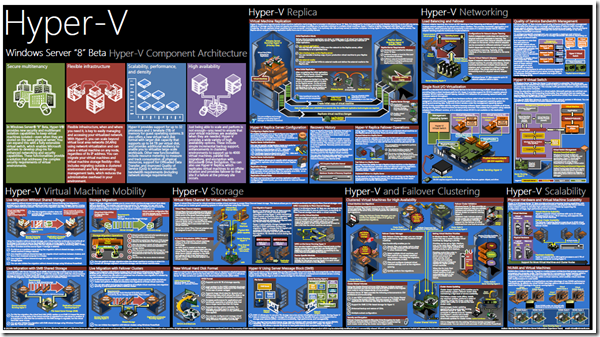
Windows Server “8” Beta Hyper-V Component Architecture Poster

Late last week, Microsoft released another high-quality poster.  This time for Hyper-V in Windows 8 (beta).

Hyper-V Component Architecture Poster

You can download this poster here.

If you’re interested in learning more on Hyper-V in Windows 8, click some of the links below.  This update to Hyper-V is my favorite part of Windows Server 8!

Reading

Videos

Security Flaw in Remote Desktop

3/16/2012 UPDATE:

Exploit code published for RDP worm hole

————————————-

I don’t always post on Windows security updates, but when I do, it’s a Dos Equis near to my heart!  Do you use Remote Desktop?  Of course you do.  That’s why you need to install this update immediately:

MS12-020: Vulnerabilities in Remote Desktop could allow remote code execution

This is important for anyone running just about any version of Windows, but especially if you’ve got any machine exposing Remote Desktop directly to the internet (such as a Terminal Server).  Fortunately there is a mitigation for those who just cannot patch tonight: enable NLA for your Remote Desktop connections.RDP - Network Level Authentication

Read more here.

Hop to it!  Microsoft says not to wait for a normal patch-cycle on this one…

Dealing with PST Files

Chances are, if you read my site, you also read the Exchange team blog.  This means you’ve seen the PST Capture Tool!  I’ve had a chance to work with this tool for a little while now and have found it to be a delight!PST File

“PSTs are bad M’kay?“

This is a line we’ve all recited a time or two (ok maybe not exactly that line), but do we even know why?  Are we just parrots, or do we actually have a reason for condemning this hugely prolific file format?

Let’s start by acknowledging that PST files aren’t all bad.  M’kay?  If you run Outlook at home, or if you use IMAP/POP-based accounts (Gmail, Hotmail, etc) at work, using a PST file can actually be a good idea.  While it is possible to direct internet mail to the Exchange mailbox, this would create several problems:

    • Wasting expensive Exchange disk space
    • Potential violation of company policies
    • Internet mail is now subject to corporate retention (and discovery!) policies
    • Makes moving to a job more painful
    • etc.

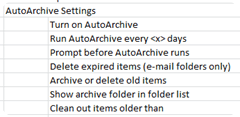
AutoArchive Group Policy Settings

I’d even go so far as to say you might want to use PST files for archiving corporate email!  If you run a small shop – or a big one that isn’t subject to any retention policies.  A group policy configuring AutoArchive (and a note to your users) might be a good way to implement spring cleaning in your Exchange data stores.

See, PST files actually can serve a purpose!

Then there is the other side of the coin:

In most situations, PST files represent unmanaged storage of email.  For someone who is charged with administering an email environment, this means we aren’t able to do our job.  If users begin to rely on something that we aren’t taking care of; what happens when it breaks?  We’ve all had the uncomfortable task of telling someone we can’t get their data back at least once in our careers.  It doesn’t make for fun times.

More important than our comfort; many organizations are subject to regulations which require them to turn email data over to the courts upon request.  A judge wont want to hear your sob story about how PST files aren’t searchable, and how you’re going to have to look across the whole network by hand to find that email thread.

I recently completed an Exchange 2010 deployment for a government organization that was subject to such legislation.  Once we activated the Personal Archive for their users, they decided to put the kibosh on PST files.  To enforce this, we laid out a three phased approach:

  1. Prevent the users from making new PST files
  2. Prevent the users from adding content to existing PST files
  3. Use the abovementioned PST Capture Tool to import PSTs as necessary

The first two steps were quite simple to accomplish.  Outlook reads a registry value called PSTDisableGrow (REG_DWORD).  We deployed a GPO to implement this as follows:

Outlook 2003 HKCU\Software\Microsoft\Office\11.0\Outlook\PST\
Outlook 2007 HKCU\Software\Microsoft\Office\12.0\Outlook\PST\
Outlook 2010 HKCU\Software\Microsoft\Office\14.0\Outlook\PST\

Set PSTDisableGrow to “1” (without the quotes).  This will allow users to mount PST files in Outlook, but it will not allow any new content to be placed within.  Don’t worry about overkill here.  I used a single GPO for all 3 settings.  Outlook version X doesn’t care about extra registry settings in Outlook Y’s key.

PSTDisableGrow has some siblings; read more about DisablePST, DisableCrossAccountCopy and DisableCopyToFileSystem here.

That’s all for now, have a great week!

EDIT: Be sure to also check out this relevant blog post by the Microsoft Exchange product group: Deep Sixing PST Files
Exchange 2010 Service Pack 2

Today, Microsoft released SP2 for Exchange 2010.  Version 14.2 (Build 247.5)

You can download SP2 here.

As previously announced, the major features for this update focus on the following areas:

  • A “Hybrid Configuration Wizard” (HCW) – which is used to guide administrators through the Office 365 Rich Coexistence setup.  BTW, you’ll notice Microsoft actually no longer uses the phrase “Rich Coexistence”, but instead prefers “hybrid” configuration.
  • Address Book Policies (ABP) – which allow an Exchange organization to segment the address list so that separate user populations can be hidden from each other (such as in a multi-tenant environment).  Here is an article that describes how this works, as well as another discussing some of the limitations.
  • Cross-Site Silent Redirection for OWA – which allows more seamless OWA redirection in a multi-site topology.
  • OWA Mini – which provides a text-only OWA experience so that you can use OWA from phones that do not support ActiveSync.

Here are some other fun facts:

  • Exchange 2010 SP2 extends the schema.  One interesting change is the new msExchExtensionAttribute attributes.  We’ve had 15 custom attributes for a while now, but this adds 30 more, all of which are multi-valued.  For your reference, Microsoft tracks Exchange schema extensions on this page.
  • Administrators can now disable the auto-mapping of user mailboxes in Outlook 2007/2010.  This may be helpful if a user has the “Full Access” permission to many other mailboxes.  By default, Outlook will try to mount all of them which could cause performance issues.
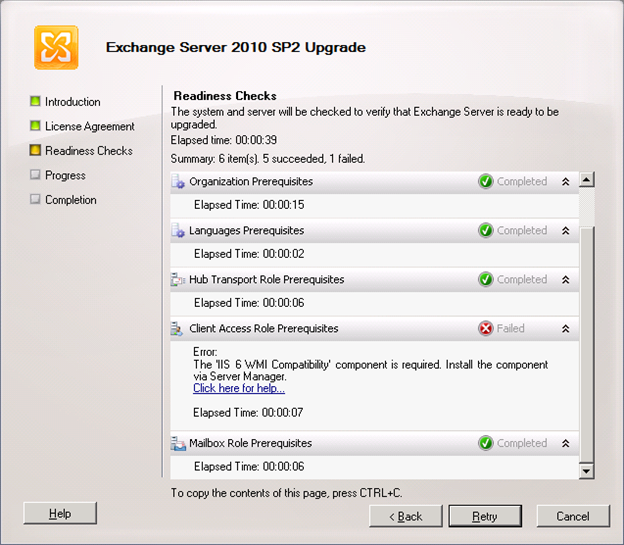
  • The "IIS 6 WMI Compatibility" component is requiredYou’ll need to add the “IIS 6 WMI Compatibility” component if you are upgrading from RTM or SP1.  A fresh install would offer to add this for you, but if you’re upgrading, you’ll need add it yourself.  You can easily add the IIS role service with the following two PowerShell commands:
         Import-Module servermanager
        Add-WindowsFeature Web-WMI
  • On some new hardware, I clocked the upgrade at ~22 minutes.  Ironically, Exchange Update Rollups often take longer than this!

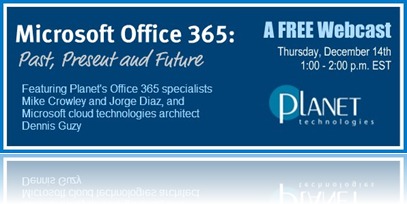
Office 365: Past, Present and Future – a Planet Technologies Webcast

Office 365: Past, Present and Future – a Planet Technologies Webcast

Planet Technologies is hosting a free webcast in which we will be providing some tips, insights and updates on Office 365 and Exchange Online.

If you’re interested in attending, or would like to read the agenda, please see the registration page below.


REGISTER NOW


About Planet Technologies

Planet Technologies, a leading Microsoft partner with multiple gold competencies, is recognized world-wide  as a leading expert in the integration and customization of Microsoft technologies, architecture, security and  management consulting. Planet’s clients include some of the largest public sector and  commercial  organizations  in the world.

Learn more at www.go-planet.com

Office 365 DirSync (x64) Installation Walkthrough

EDIT: This article seems to be popular, however readers should note it is from 2011!  Check out the updated article here:

Upgrading DirSync to the Latest Version

—————-

As Microsoft has already stated, the new 64-bit version of DirSync.exe is not installed or configured differently than its 32-bit predecessor.  However, as a tinkerer, I wanted to verify this and have a look under the hood anyway!

Below are some screenshots of my experiences and insights along the way:

Before you start: Read and follow the instructions!  In this article, I assume you’re at the point where you’re actually ready to install this product.

1. First I installed the .Net Framework prerequisites as well as my favorite MMC snap-ins onto a new Windows 2008 R2 server. You can do this using the following two lines in PowerShell Import-Module ServerManagerAdd-WindowsFeature NET-Framework,RSAT-ADDS -Restart
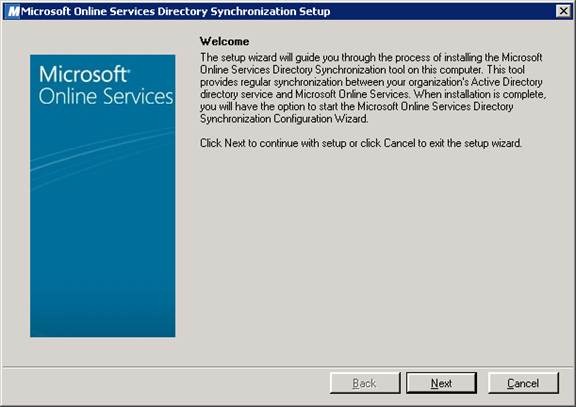
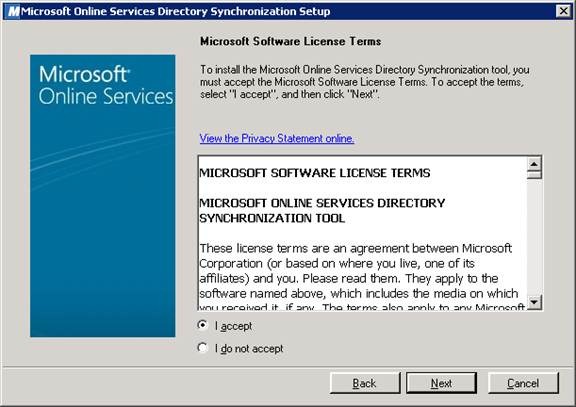
2. Then I ran dirsync.exe (downloaded from the portal.microsoftonline.com site).a. NOTE: Microsoft didn’t bother to change the installer’s executable name (dirsync.exe). This may be confusing if you plan to download and store both x86 and x64 versions. DirSync Install Screenshots
3. A few clicks of the “Next” button… DirSync Install Screenshots
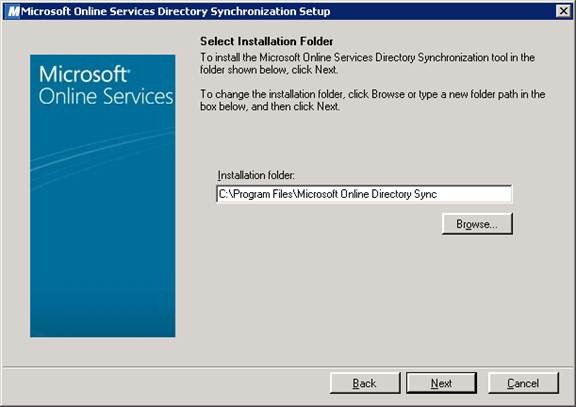
a. NOTE: We install to the “Program Files” directory. If this were a x86 application we’d be using “\Program Files (x86)” DirSync Install Screenshots
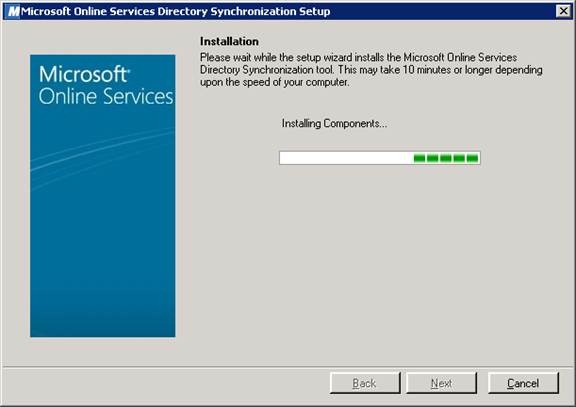
b. NOTE: This screen may take 5-10 minutes. It’s installing a few things in the background:i. SQL 2008 R2 Expressii. Forefront Identity Manager 2010 (FIM)iii. Configuration of the FIM Management Agents (MAs) DirSync Install Screenshots
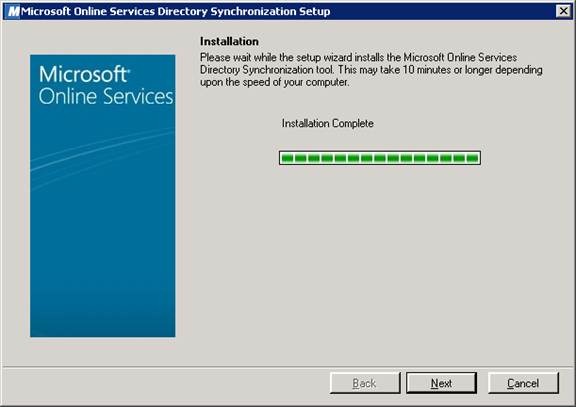
DirSync Install Screenshots
4. Once the background tasks have completed, you’re able to run the Configuration Wizard. This is where you will need to have your Office 365 tenant prepared and credentials identified, etc. DirSync Install Screenshots
5. Next… Directory Synchronization Configuration Wizard Screenshots
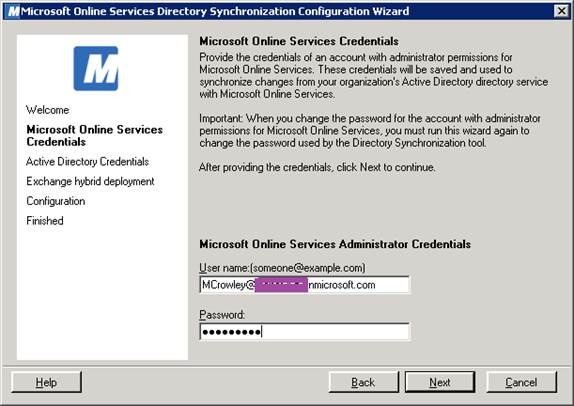
6. You should have created this account earlier. Whatever you put in here will be stored within FIM, and if you ever change the credentials, you’ll need to re-run this setup wizard. Directory Synchronization Configuration Wizard Screenshots
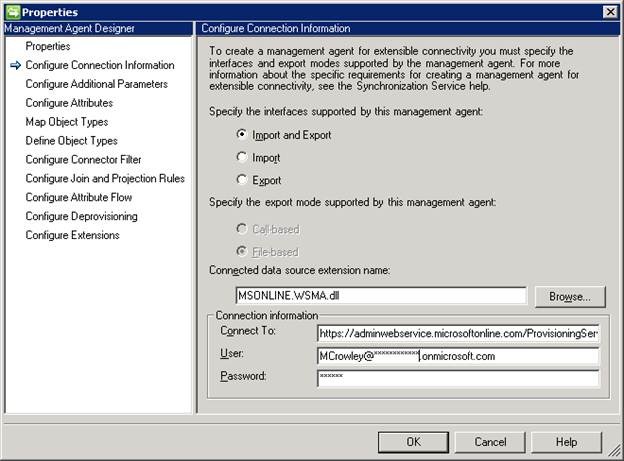
a. Or for the expert user: Dive into FIM directly Directory Synchronization FIM Management Agent
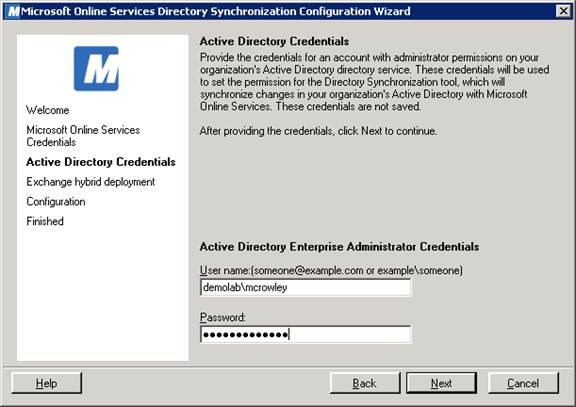
7. Here you need to supply your forest’s Enterprise Admin credentials. This username is not saved anywhere, and is only needed once to set permissions for these new objects:a.
Yourdomain\MSOL_AD_Syncb.
Yourdomain\MSOL_AD_Sync_RichCoexistence
Directory Synchronization Configuration Wizard Screenshots
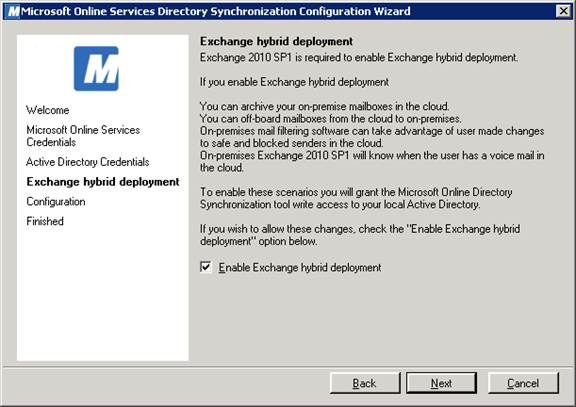
8. Selecting this box enables some extra features required for a “hybrid deployment” / “rich coexistence”, and by doing so you’ll allow FIM to update attributes IN YOUR Active Directory. If this box is not checked, FIM will read-only. Directory Synchronization Configuration Wizard Screenshots
9. Next.. Directory Synchronization Configuration Wizard Screenshots
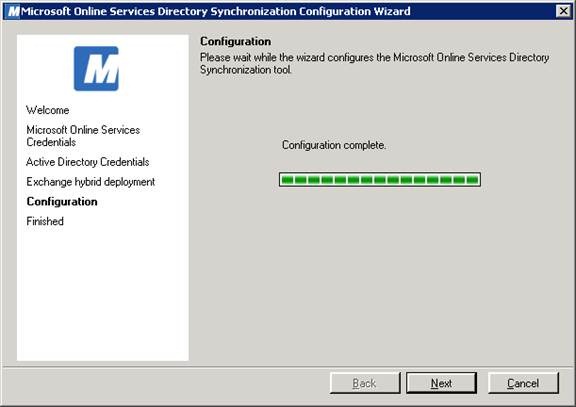
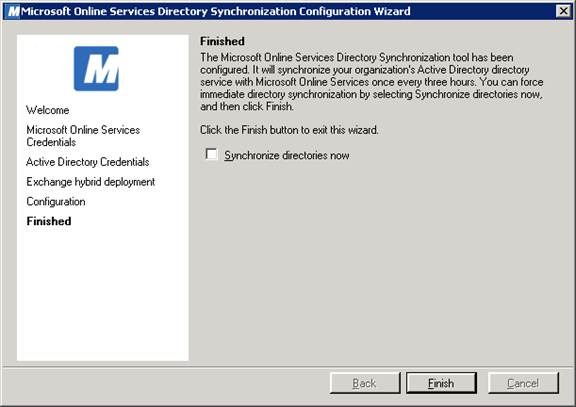
10. If you’re ready, you can run the initial full synchronization now. Otherwise, you can run it manually at any time.a. Once configured, DirSync runs every 3 hours. clip_image027
11. If you promise to be careful, you can poke around in the FIM configuration. Smilea. Note the “hidden” client UIb. If you get an error when opening the FIM console, log out and then back in. Your account was added to some groups that are not yet part of your login ticket.c. Clicking the Management Agents tab shows both sides of your configuration. “TargetWebService” is responsible for all of the Office 365 configurations and the “SourceAD” management agent contains your Active Directory connector information (double-click them to open).NOTE: Changing the DirSync configuration directly within FIM is unsupported by Microsoft. They would prefer you rerun the previously mentioned Configuration Wizard if you need to make any changes. C:\Program Files\Microsoft Online Directory Sync\SYNCBUS\Synchronization Service\UIShell\miisclient.exeUnable to connect to the Synchronization ServiceDirectory Synchronization FIM Management Agents
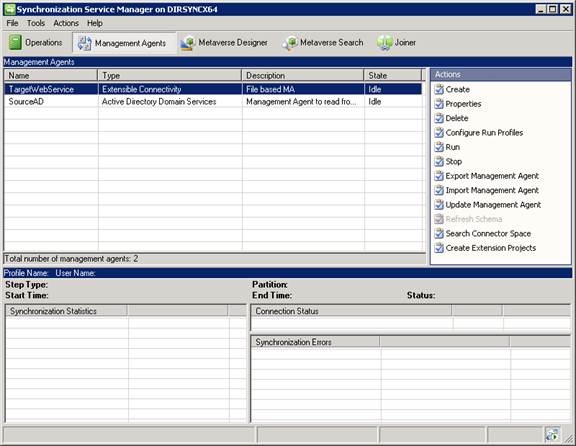
12. Finally, be sure to run Microsoft Update again. You’ll notice that SQL 2008 R2 does not have SP1. Download Service Pack 1 for Microsoft® SQL Server® 2008 R2

A New Version Of Office 365’s Directory Synchronization Tool Has Arrived!

Most medium and large organizations using Microsoft’s Office 365 service will also be using “DirSync” to provision and manage user identities. Until now, DirSync has been based on ILM 2007 FP1, which is a functional, but older application, with no x64 support. This means when installing DirSync onto a server, you had to go out of your way to deploy the Windows Server 2008 operating system since the Server 2008 R2 OS is x64 only.

ILM was replaced by Forefront Identity Manager (FIM) 2010, which uses the x64 CPU architecture and as therefore Windows Server 2008 R2 as well.

imageToday (finally), Microsoft announced DirSync can now be downloaded for use with the 64-bit architecture.  This is great news for new Office 365 customers – no more legacy software needed.  However, this does raise a question for existing DirSync users: How do we migrate?

You should check out the announcement for details, but essentially, you reformat and rebuild.  Wait!  Before you start muttering nasty things about Microsoft – the new installation of DirSync will find all of the identities currently in Office 365 and match them up with the appropriate Active Directory accounts in your environment.  There is no downtime for the users.

Exchange Connections Slide Decks

Thanks to all who attended my sessions at Exchange Connections in Las Vegas this week!

As promised, I have uploaded the slides. You can download them here:


If you’re looking for slides from other presenters, you can find them here:


Hosting Exchange 2010 without the /hosting switch

The EHLO blog posted an important announcement today regarding Exchange 2010 in hosted environments.  Previously, for Microsoft to support your multi-tenant deployment of Exchange 2010, you had to build a whole new forest and use a special setup.com /hosting installation process.  There were other significant limitations as well.

The strict support statement, combined with Microsoft’s release of Office 365 really came as a one-two punch to some of the smaller companies who wished to host Exchange but could not afford to employ developers and/or take the risk of forfeiting support from Microsoft.  It seemed like Microsoft may have lost some love for their hosting partners.

With the Exchange 2010 SP2 update (scheduled to launch later this year), you will be able to host a multi-tenant environment with a regular deployment of Exchange.  This is made possible by the new Address Book Policies and specific configurations to be documented with the SP2 release.

Personally, I’d look at this very carefully before deploying any new /hosting environments.  This (SP2) seems like a much simpler deployment to maintain.

How to Connect the BlackBerry Device Simulator to a BlackBerry Enterprise Server (Screenshots)

Let me start off by acknowledging this isn’t exactly an original topic.  Many have discussed it in the various BlackBerry-related forums and RIM has an official article on it (albeit very old).  I even found a video with similar instructions for BES 4x.  What I couldn’t find however was an illustrated and current (BES 5x) walkthrough of testing “Enterprise Activation” from a simulated handheld; so if that’s what you are after, please read on…


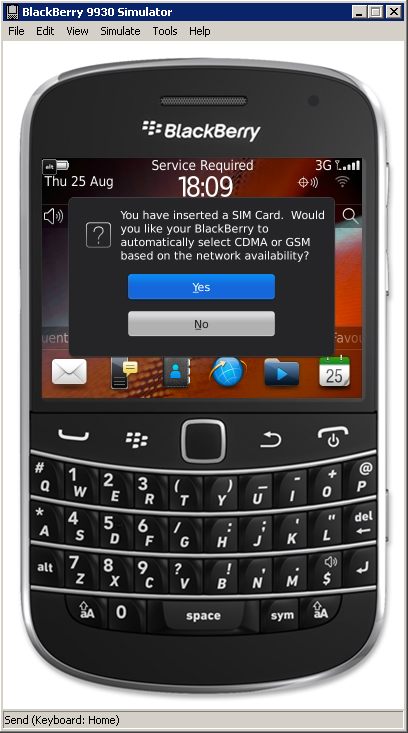
Before I get into the steps themselves let’s take a look at one of the simulators, which is based on Blackberry OS 7 device software:

You should know this software is free!  You can download it here after you complete the registration.BlackBerry Device Simulator

Once you run through the application setup, you’re greeted with this intuitive interface

———>

Within, you can do all softs of fun things such as navigate the menus, take screenshots, simulate use of the touchscreen, compass and more.

BlackBerry Device Simulator Device Manipulator

What we’re after today however is Enterprise Activation (the process of associating the handheld with a Blackberry Enterprise Server).

Initially, I was discouraged to see Enterprise Activation was not working via the normal process:

Activation Request failed.  A service connection is unavailable


But after some research I learned it can be completed via simulating a USB connection to the BAS interface instead.

To accomplish this, follow the below steps:

(Click images to enlarge)

1. Launch the simulator. You may need to resize the screen and click through a few pop-ups to get to the device’s main screen. BlackBerry Device Simulator Pop-ups
2. From the Simulate menu button, select USB Cable Connected. USB Cable Connected
3. From the same computer, launch the BAS web site. Accept certificate warnings and install ActiveX CAB files as prompted. Depending on your browser configuration you may need to adjust the security settings.

BlackBerry Administrative Service

The default URL is: https://server.domain.local:443/webconsole/login

Internet Explorer blocked an ActiveX control, so this page might not display correctly.

(Bad)

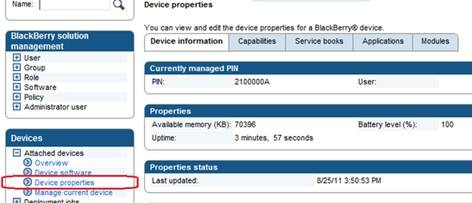
4. You can verify the device is properly connected by expanding the Devices menu tree on the left and selecting Device properties. BAS Device properties
5. Before you can begin the  EA process, you need to create a user. Select a user from your directory that does not currently have a Blackberry device. To do this, expand the BlackBerry solution management menu tree on the left and select Create a user.

6. Once on this screen, simply select Search from the right. It will pull up all of the users in your Exchange Server environment.

BAS Create a user
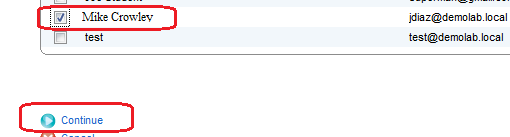
7. Select a test user and click Continue. BAS User Selection
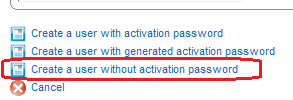
8. On the following screen, select Create a user without activation password. BAS Create a user without activation password
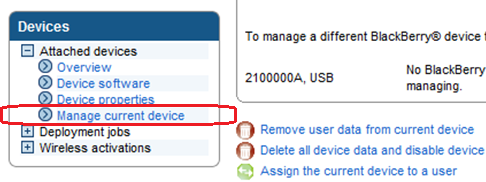
9. Expand the Devices menu tree on the left and select Manage current device. BAS Manage current device
10. Select Assign the current device to a user. BAS Assign the current device to a user
11. Click Search once again and select the test user.

12. Click Associate user.

BAS Associate user
13. Once complete, notice a new envelope icon on the simulator (covered with a briefcase). This represents the new EA relationship. Blackberry device main screen
14. Touch the new envelope and compose a test message. Blackberry device test message
15. Verify it reached its destination and that the message was saved to your test user’s Sent Items folder. OWA Sent Items folder


And we’re done! I hope this was helpful.

Speaking at Exchange Connections: November 2nd & 3rd in Las Vegas, Nevada

DevConnectionsWould you like an excuse to get out of the office for a few days?  When is the last time you learned something new?  Or how would you like an opportunity to share fresh ideas on the technology you’re passionate for?

Or heck, maybe it’s just been a while since you’ve been to Vegas?  Winking smile

Join me and other Microsoft enthusiasts at the DEVCONNECTIONS conference this fall!  This semiannual event covers many tracks from Visual Studio to Exchange Server to Microsoft’s hot new cloud products: Azure and Office 365.

In addition to attending some great sessions, I will also be presenting on two topics:

Exchange Online: Administration
Be careful not to fool yourself; Exchange Online (part of Office 365) offloads infrastructure management, but as an administrator, you are still responsible for the administration of your user mailboxes, Internet mail flow, message tracking and more! This session introduces you to the various administrative interfaces of Exchange Online, Forefront, RBAC, provisioning and other operational topics.
Exchange Online: Understanding Archiving and Compliance
Thinking of moving to Office 365? Whether you are aiming for a period of coexistence or a complete migration, your archival and compliance requirements are not going away! In this session we examine the features and functionality that Microsoft provides around retention, archiving, and search.


Sign up here, and use the SPKR discount code to save $50.

And if that’s not incentive enough, I’ll close by reminding you that Halloween in Las Vegas should prove to be very interesting…

A Picture Says a Thousand Words: TechNet Forums Now Supports Images

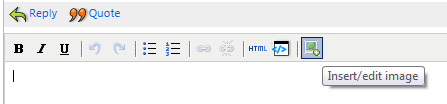
While replying to a question on the TechNet support forums, I noticed a little green button that wasn’t there before:

Green Image Upload Button

It seems that Microsoft has finally created a way to upload pictures to the forums!  No more feeling around in the dark, trying to guess what’s wrong.

As the seasoned forum participants will tell you, this isn’t entirely new.  You’ve always been able to add an image if it was hosted by another site via editing the thread’s HTML manually, but the introduction of this button will now allow you to store images with Microsoft; no 3rd party site needed.  And more importantly, this will allow anyone to upload a screenshot.

Once you upload an image, there are controls to drag it into place, as well as controls to resize.

I’m curious to see how this goes.  While I think it’s a needed addition, I would imagine there is a high risk of abuse, or worse, administrators accidently exposing sensitive information about their environments.


Do you use the TechNet forums?  If no, why not?  What other forums do you like?

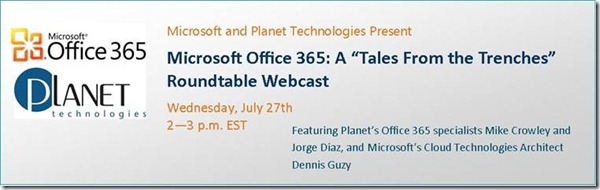
Microsoft Office 365: A “Tales From The Trenches” Roundtable Webcast

Register for the 7/27/11 Webcast!

The long awaited release of Microsoft Office 365 has arrived. Now what? As nice as it would be to flip a switch and perform your migration, we all know the process is a bit more involved. So, how do you get there from here?

Join Planet and Microsoft experts who’ve been in the trenches participating in thousands of migrations to O365 to date. In this one hour interactive roundtable, they’ll share insights into:

  • Lessons learned from the early Beta adopters regarding the biggest challenges and hurdles to deployment
  • The critical need to address the underlying health of your Active Directory PRIOR to migration, and specific steps for cleaning up your environment
  • Security issues and features
  • Realistic migration timeline expectations
  • A head-to-head analysis of O365 and the competition

There is no cost to participate but space is limited so register today!

REGISTER NOW


About Planet Technologies

Planet Technologies is recognized world-wide as a leading expert in the integration and customization of Microsoft technologies, architecture, security and management consulting.  We offer Microsoft based solutions around business intelligence, CRM, collaboration and messaging, cloud services, desktop deployment, SharePoint solutions, unified communications, virtualization and more. Visit us a www.go-planet.com