Cloud-Based BES Services With BPOS / Office 365

blackberry_logoTwo big pieces of news hits the Blackberry administrators and users today:


  1. Microsoft’s Hosted Exchange (BPOS / Office 365) will offer free Blackberry licenses (provided you’re already paying for your mailbox)
  2. RIM will soon offer a cloud-based BES service

Read more here:

http://community.office365.com/enus/office365/b/microsoft_office_365_blog/archive/2011/03/16/office-365-and-blackberry.aspx

IE9 RTM / RTW

Are you using Internet Explorer 8? Whelp, you’re now officially running Legacy software!   Winking smile

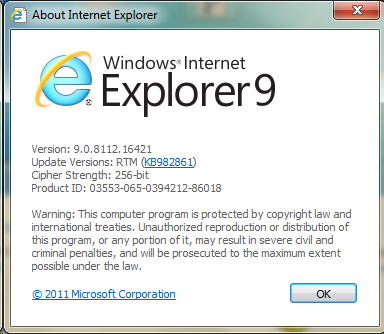
IE9 released to the Microsoft Download Center tonight:

IE9 About Window


Windows Vista / Server 2008:

Windows 7 / Server 2008 R2:

I’ve been using this for a while and after getting over a few bumps and learning curves, I can now say I really like it!


Read more about it here: http://microsoft.com/ie

Speaking at Exchange Connections: March 27-30 in Orlando Florida

Exchange Connections is Exchange Connections 2011an event held twice a year for the purpose of learning about Exchange Server and meeting other professionals working with the technology.  It is held alongside several other “Connections” events and has always been a lot of fun!

For a list of sessions checkout this link:

http://www.devconnections.com/conf/sessions.aspx?s=163

If you’re planning on attending, please come say hello.  I will be delivering the following sessions:

EXC13: Forefront TMG Client Access Publication and Edge Transport Integration
During this session, Mike will cover two aspects of Exchange and TMG integration. In the beginning, he’ll discuss the installation procedures and configuration requirements of TMG and Edge’s residence on the same server. In the second half, he’ll demonstrate the steps of publishing Exchange client access through TMG.
EXC14: Information Rights Management Explored
During this session, we will discuss and then demo IRM and S/MIME, the infrastructure requirements for both, the pros and cons, and configuration.
EXC15: Office 365
This session will cover capabilities, migration, and administration of the Office 365 and Live@EDU environments. It will include demonstrations and best practices.

How to Set Windows 7’s Login Wallpaper with Group Policies

With Windows XP, you could set your own login background colors and/or wallpaper by modifying the values found in the following registry location: [HKEY_USERS\.DEFAULT\Control Panel\Desktop].
Windows 7 no longer reads this registry key.  Instead you’ve got to complete the multi-step process described in this article.
Login Background for Windows XP
While the steps to set a login wallpaper are not complicated, one challenging limitation is the fact your background wallpaper needs to reside on the workstation’s hard drive.  Interestingly, this is not true for the user’s wallpaper, as there are GPO settings to point to a network location.
So when I had a customer ask me to set their login wallpaper, I had to think of how I wanted to accomplish their request.  We could possibly write a script, and as much “fun” as that might be, I’d rather use something more controlled.  Something that would allow me to easily change the configuration later as well as be decipherable to the customer after I leave.
The answer?  Group Policy – Preferences, that is!
So before we jump in to the Group Policy Management Console (GPMC), let’s identify what we’re trying to do.  If you haven’t already, you may wish to read the above link, otherwise you’re about to be lost.
We want our policy to:
  1. Copy our wallpaper file to the user’s workstation.
  2. Instruct Windows to use our file instead of the default %WinDir%\System32\oobe\background.bmp file.
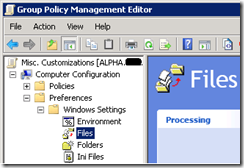
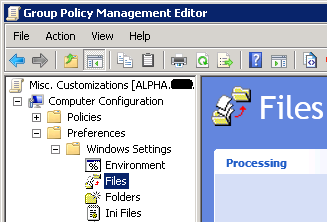
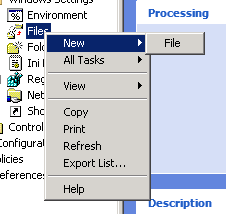
With the new (ok they aren’t that new anymore) Group Policy Preferences that Windows 7 has built-in, we can copy our wallpaper to the user’s computer, while reserving the right to pull it off if the computer leaves the scope of the GPO.  To copy files, open GPMC and follow these steps:
1. Navigate to: Computer Configuration\Preferences\Windows Settings\Files clip_image001
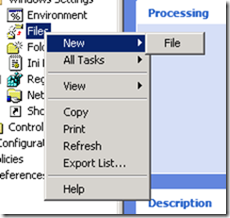
2. Right-click the “Files” node and select:

New > File
clip_image002
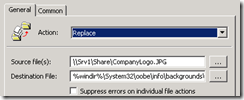
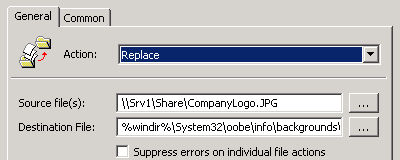
3. Select Replace

4. Type in the UNC path for your source file.
     •In my example I used:
\\Srv1\Share\CompanyLogo.jpg
     •Remember this file needs to be <256K
     •Also understand the permissions on this share need to allow the workstation’s computer account READ. If you leave the usual “Authenticated Users” you’ll be fine.
5. For the Destination File, type this exact text (without the quotes, and no line breaks):
“%windir%\system32\oobe\info\backgrounds\backgrounddefault.jpg
clip_image003
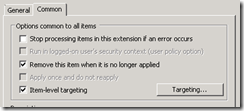
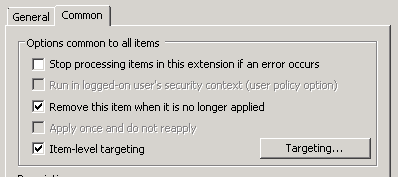
6. Click the “Common” tab

7. Select “Remove this item when it is no longer applied”. This will ensure your file is removed if:
     •The GPO is deleted or disabled
     •The workstation is moved to another OU where the policy is not linked
     •The policy is filtered out
     •You update your policy to send a new wallpaper file
clip_image004
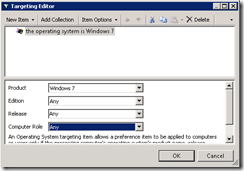
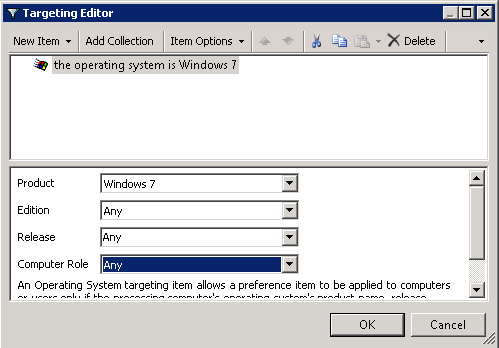
8. Optionally: Select Item-level targeting to specify only Windows 7 computers. This will ensure your file isn’t sent to versions of Windows that wouldn’t make use of it anyway. clip_image005
Now we need to instruct Windows to render this image when the login screen is displayed.  If you read the above article, you’ll remember the OEMBackground registry key.  The good news is, we don’t need that key because there is actually a setting to enable it in GPMC already.
In the same Group Policy Object, navigate to:
Computer Configuration\Policies\Administrative Templates\System\Logon.
Once there, select “Always use custom logon background” and set it to “Enabled”.  This has the same effect of setting the registry manually.
image
Once you’ve completed these steps, close the Group Policy Management Editor and link your policy to an OU – you’re done!
This policy may take two refresh cycles (e.g. reboots) to take effect.  This is because the wallpaper file is not yet present when the “always use custom logon background” setting is first applied.  But once the file has completed copying you’ll see your image at logon.
If you would like to consider multiple screen resolutions, please consult this link.
Before we close, I should point out, this can work for Server 2008 R2 as well.  I have not tested with Vista or Server 2008.
Finally, here are some geeky, but not too over the top wallpapers:  Smile
Login Background for Windows 7

PowerShell Tip – Running a Service Pack Report – Faster

Imagine you wanted to run a quick report of all your server’s service pack level in your domain.  After all, SP1 just came out!  You could get this information quickly by using the Active Directory Module for Windows PowerShell.  If you don’t have at least one Windows 2008 R2 (RTM or SP1) Domain Controller, you could also do something similar with the free Quest PowerShell tools, but that’s for another day…

We can find this information using a few different methods.  Here I’ll show two:

Method 1

Get-ADComputer -Properties OperatingSystem, OperatingSystemServicePack -Filter * | Where-Object {$_.OperatingSystem -like '*server*'} |  Format-Table name, oper* -autosize

You can see with Method 1, we’re telling PowerShell to get all the computer accounts from Active Directory.  Then we pass those objects over to the “Where-object” cmdlet and ask it to select only those who have an OperatingSystem attribute containing “server”.  We then format the results in a table.  Give it a try.

Not too shabby; but let’s make it better!

Method2

Get-ADComputer -Properties OperatingSystem, OperatingSystemServicePack -Filter {OperatingSystem -like '*server*'} | Format-Table name, oper* -autosize

In Method 2, we’re making smarter use of the –Filter switch.  So instead of getting ALL the computer accounts, we do our filtering up-front.  This can lead to significant amount of time saved!

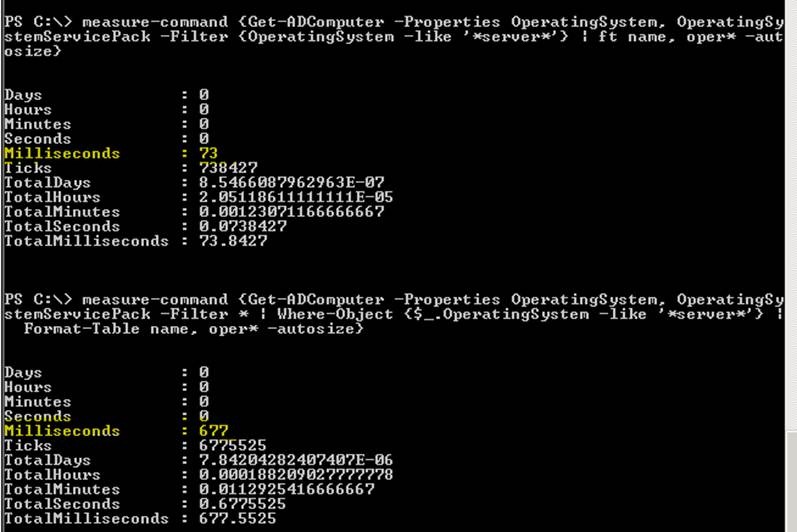
How much time, you ask?  Well, we can find out with the “Measure-Command” cmdlet.  Just put any command string in {} and it will tell you how long it took to run!

Here are the results from a small environment with fast servers. 677 milliseconds isn’t bad, but when you compare it to 73, you can begin to appreciate the potential.

clip_image001

One last thought:  You may wish to add this extra code to make your output prettier.  It will organize your results first by operating system and then by name:

Get-ADComputer -Properties OperatingSystem, OperatingSystemServicePack -Filter {OperatingSystem -like '*server*'} | Sort-Object operatingsystem, name | Format-Table name, oper* -autosize

Exchange 2010 SP1 Hotfix Prerequisites – Part 2

A while back, I complained about the difficulty in obtaining the necessary hotfixes for Exchange 2010’s Service Pack 1.  I just took a peek at the “Hotfixes and Security Updates included in Windows 7 and Windows 2008 R2 Service Pack 1 (http://go.microsoft.com/fwlink/?LinkId=194725)” article and verified all necessary hotfixes are within. 

So if you’re planning on Installing Exchange 2010 SP1, it may save you time to install Windows 2008 R2 Service Pack 1 first.

Service Pack 1 for Windows 2008 R2 Now Available for Download

Just a quick note to remind everyone that Service Pack 1 for Windows 7 and Windows 2008 R2 has just now become available for download on TechNet & MSDN.

If you don’t have a TechNet or MSDN subscription you should see it on the Microsoft Download sites next Tuesday. [EDIT: Here is the download Link]

Be sure to check with each product group before installing this.  Obviously it is supported with the OS itself (clustering, Hyper-V, RDS, etc) but you should seek a direct support statement like the one the Exchange group published.

You should also validate your 3rd party applications.  You’ll note there may be some issues with VMware, for example…

For more information such as release notes or articles on what’s new, visit this page:

Windows Server 2008 R2 Service Pack 1

Finally, here is a screenshot:

Version    6.1.7601 Service Pack 1 Build 7601

Version    6.1.7601 Service Pack 1 Build 7601

Some Resume Advice

I realize I haven’t posted in a while. I hope I haven’t lost my place in anyone’s RSS reader! I’m working on several articles, but it’s been very busy at Planet Technologies, and I’ve struggled to find much “blog time”.  Smile

We’ve actually been so busy, I’m looking for consultants to join our team and help me out! Sadly, in my search for qualified individuals, I have been amazed at how many horrible resumes I have encountered!

I wanted to take a moment to pass along some pointers, for any of you looking for work in the fun and exciting field of Information Technology!!

Note: This is my personal rant opinion and not necessarily the opinions of my employer. 😉

Do: Understand a resume is a sales brochure; not a database of all facts about you.
Why: Look up the acronym: TLDNR
Don’t: List old irrelevant technologies (unless you invented them).
Why: It can make you seem out of touch; a horrible designation in the technology business.
Examples: Windows 95, DOS, LaserDisc
Don’t: List old certifications unless you also have the accompanying newish ones.
Why: It may suggest you are no longer motivated.
Examples: NT4 MCSE
Don’t: Try to stretch a single technology into many
Why: We may be proud of the new checkbox we learned about last week, but it by itself doesn’t warrant precious resume real estate. Besides, nobody is doing a resume search for “DHCP Administrator” anyway!
Examples: A simple “Windows Networking” is instead represented as: DNS, DHCP, WINS, Ethernet.
Don’t: List model numbers.
Why: This shows you are desperate to fill the page.  Additionally, they are likely to become obsolete quickly.
Examples: PowerEdge 1850, Cisco 2800
Do: Create multiple resumes for different purposes and understand what terms can be searched in wherever you’re submitting.
Why: You may be happy with a consulting gig or landing a nice comfy admin position. These resumes should not look alike.
Do: Offer to provide a project-based resume upon request.
Why: It shows you’re happy to talk shop with the right audience, but you acknowledge the person reading the resume may not appreciate the extra clutter.
Do: List your resume with multiple websites.
Why: Employers have to pay to use Monster, Career Builder, Dice, etc. and may not have multiple subscriptions.
Don’t: List the names of utilities on your resume.
Why: A constructor doesn’t list each tool on his tool belt and you shouldn’t be either.
Examples: ipconfig, msconfig, ADUC, etc.
Do: Understand there are no rules; despite what you learned in school or heard on TV.
Why: Employers are going to Google you, perhaps your address or school and form opinions based on the information you expose. This could be direct or indirect. Life isn’t fair, but you can be prepared and market yourself accordingly.
Do: Be aware, if submitting resume online, it doesn’t need to be visually striking. Crazy fonts, weird paragraph lines don’t help.
Why: It can make it difficult to read.
Do: List acronyms AND their full meaning.
Why: Employers may search for “System Center” and it’d be a shame if they missed you because you put “SCCM”.  The reverse is also true.
Examples: AD, Win2k8, E2k7


Below are some screenshots from a popular job search engine. As you can see, there is no leetspeak translation feature!  You may wish to consider this “employer view” when trying to optimize your resume for employer’s searches:


image

image

Script for Missing UPNs

For various reasons I’ve found myself needing to fix customer sites where the User Principal Name (UPN) was not present for AD user accounts.

image

Most frequently this is because the environment was once NT4, which did not require this attribute.  Whatever the reason, I’ve fixed it using PowerShell.

If you don’t have 2008 R2 domain controllers you can use the free Quest PowerShell add-ins downloaded here.

If you DO have 2008 R2 domain controllers you can use the native Active Directory Module for Windows PowerShell.

Below is a script you can use for either scenario.  This will take all users with missing UPNs from the “My Users” OU in the “contoso.local” domain and set their UPN to username@contoso.local

Quest:

Get-QADUser –SearchRoot “contoso.local/My Users” -UserPrincipalName $null -SizeLimit 0 | % {$CompleteUPN = $_.samaccountname +"@contoso.local"; Set-QADUser -Id $_.DN -UserPrincipalName $CompleteUPN}

2008 R2 Native:

Get-ADUser  -Filter {-not (UserPrincipalName -like '*')} -SearchBase 'OU=My Users,DC=contoso,DC=local' | % {$CompleteUPN = $_.SamAccountName + "@contoso.local" ; Set-ADUser -Identity $_.DistinguishedName -UserPrincipalName $CompleteUPN}

Installing and Using Forefront Protection Server Management Console 2010 – Part 2

In a previous post, we took a look at Microsoft’s Forefront product line and saw where the new server management tool: Forefront Protection Server Management Console (FPSMC) fit in.  In this article, we will install FPSMC.

Before we start clicking, I’d like to point out a few important notes:

  • FPSMC cannot be deployed on a domain controller, an FPE server or an FPSP server.
  • FPSMC will not install on a server running any other Forefront product.
  • FPSMC will only support FPE and FPSP. It will not manage Forefront Security for Exchange server v10.x, Forefront Security for SharePoint v10.x and Antigen for Exchange and SMPT v9.x products – these still require Forefront Server Security Management Console (FSSMC).
  • FPSMC cannot redistribute the Cloudmark micro-updates.
  • FPSMC Beta will only support up to 100 servers per management console deployment.
  • FPSMC UI requires JavaScript to be enabled.
  • FPSMC must be installed on a domain-joined server.
  • FPSMC will not install on a server running any version of Microsoft Exchange Server or Microsoft SharePoint Server.

As well as some system requirements:

  • Windows Server 2008 R2
  • 300MB free RAM
  • 30MB free disk space (for the console)
  • 900MB free disk space (for SQL)
  • 4GB free disk space (for signature distribution)
  • .Net Framework 3.5 SP1 or later
  • Microsoft Chart Controls for Microsoft .NET Framework 3.5
  • IIS (for subcomponents visit TechNet)
  • SQL Express installs by default, but a licensed version of SQL recommended

You’ll also want to create a service account for the encryption of data between primary and backup servers.

Once you’ve got the above prerequisites in place, you’ll run the setup file and complete the product installation.  In the below demonstration, I did not deploy a SQL server, so the installer configured SQL 2008 Express on my behalf.  Additionally, if you do not have the Chart Control component listed above, you’ll be given a link to go get it.

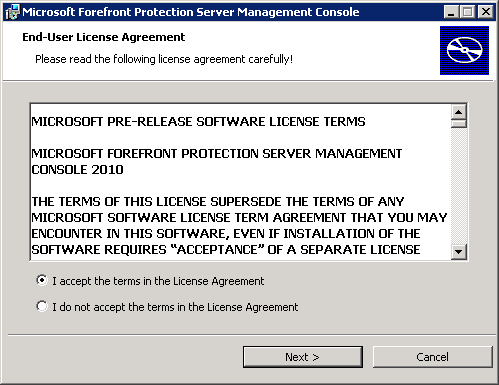
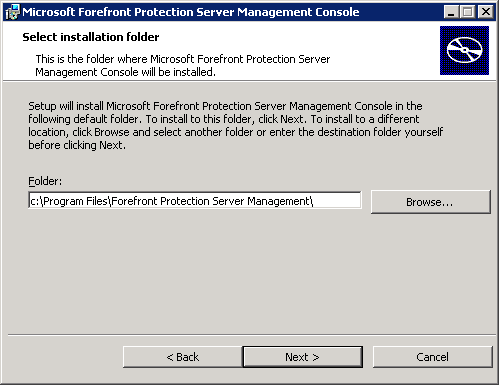
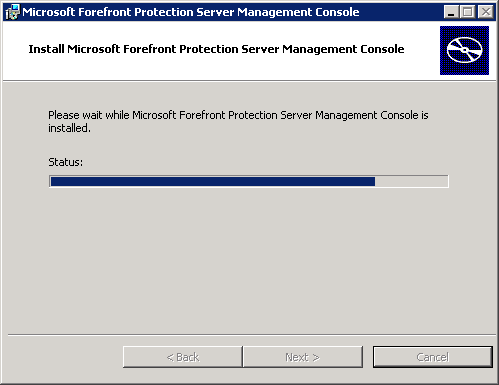
Here are the installation screenshots:

clip_image002[4]     clip_image003

clip_image004     clip_image006[4]

clip_image008[4]     clip_image010[4]

clip_image012[4]     clip_image014[4]

clip_image016[4]     clip_image018[4]

clip_image020     clip_image021

           clip_image022


Once the installation has completed, a program shortcut will be placed in the Start menu’s program list.  You can launch FPSMC from here, or directly via the following hyperlink:

    image


In the next article, we’ll discuss adding and managing servers running Forefront Protection for Exchange 2010.

Converting a Mailbox to a MailUser (and preserving your custom attributes)

It’s not often that you’ll need to convert a mailbox to a mail-user, but when you do, you’ll soon realize the steps go like this:

1. Mail-Disable the user (delete the mailbox)
2. Mail-Enable the user

So what’s the problem?  The problem is twofold:

  • First, you’ll want to automate this, and there is no “convert” button or command.  You’ll need to use PowerShell if converting multiple users.
  • Second, and perhaps more importantly, all the Exchange attributes are nullified when you delete the mailbox.  This includes CustomAttribute1-15

As we can see, you are not able to pass mailboxes to the Enable-MailUser (as you are able to do in reverse):

image
I’ve written a script to solve these problems.  Before you run with it, you do need to make one decision:

What do you want the mail-user’s external email address to be?

The below script takes the user’s mailbox alias and then appends @domain.com.  You may wish to modify this with whatever their new external address has become.

You’ll also notice I’m using a static domain controller for all configurations.  I have found in my testing, that if you do not pick the same DC for all operations, the script could out-run replication.

$DomainController = (Get-ADServerSettings).DefaultConfigurationDomainController.domain

$MailboxList= Get-Mailbox

foreach ($Mailbox in $MailboxList) {
    Disable-Mailbox -Id $mailbox.Identity -Confirm:$False -DomainController $DomainController
    Enable-MailUser -Id $mailbox.Identity -ExternalEmailAddress ($mailbox.alias +"@domain.com") -DomainController $DomainController
    Set-MailUser -Id $mailbox.Identity `
     -DomainController $DomainController `
     -CustomAttribute1 $Mailbox.CustomAttribute1 `
     –CustomAttribute2 $Mailbox.CustomAttribute2 `
     –CustomAttribute3 $Mailbox.CustomAttribute3 `
     –CustomAttribute4 $Mailbox.CustomAttribute4 `
     –CustomAttribute5 $Mailbox.CustomAttribute5 `
     –CustomAttribute6 $Mailbox.CustomAttribute6 `
     –CustomAttribute7 $Mailbox.CustomAttribute7 `
     –CustomAttribute8 $Mailbox.CustomAttribute8 `
     –CustomAttribute9 $Mailbox.CustomAttribute9 `
     –CustomAttribute10 $Mailbox.CustomAttribute10 `
     –CustomAttribute11 $Mailbox.CustomAttribute11 `
     –CustomAttribute12 $Mailbox.CustomAttribute12 `
     –CustomAttribute13 $Mailbox.CustomAttribute13 `
     –CustomAttribute14 $Mailbox.CustomAttribute14 `
     –CustomAttribute15 $Mailbox.CustomAttribute15
     }

(add more attributes if necessary, but remember that since you aren’t deleting the Active Directory object itself, most attributes remain…)

Forefront Endpoint Protection 2010 Release Candidate / Release Date

UPDATE: It looks like this is scheduled to release 12/17.2010 (FEP and FPSMC are due to launch together)

UPDATE2: RTM: http://blogs.technet.com/b/clientsecurity/archive/2010/12/16/announcing-the-release-of-forefront-endpoint-protection-2010.aspx

—————————————————————————————-

Recently I wrote about changes to Microsoft’s file-level antivirus product, FEP.  This is just a quick update to inform everyone that Forefront Endpoint Protection 2010 is now in release candidate stage and is due to RTM in December.

Additionally, this will release with the Forefront Endpoint Protection- Security Management Pack, for those of you using SCOM.

Read more here: http://blogs.technet.com/b/clientsecurity

Network Monitor 3x “How To” Videos

I try to avoid reposting other people’s blog articles, as I am a man of efficiency and do not appreciate the extra clutter on the internet.  Smile  However sometimes I cannot resist!

In a previous post, I claimed Microsoft’s Network Monitor was my favorite protocol analyzer.  Recently I learned about a site with several instructional videos on this product; which is good, because using a protocol analyzer is anything but intuitive!

Apparently some of the videos date back to the ancient times of 2008, but there are fresh ones included as well:

  • Network Monitor Overview
  • Introduction to Capturing with Network Monitor
  • Introduction to Capturing Traffic using the command line utility NMCap
  • Tour of the NM3 Capture Tab
  • Tour of the NM3 Start Page and Parsers Tab
  • Introduction to basic filtering with NM3
  • Using the conversation tree with NM3
  • Introduction to using reassembly with NM3
  • Plugfest Intro To Network Monitor 3.3
  • Network Monitor Automation/Scripting using PowerShell

To view them, check out this site:

http://blogs.technet.com/b/netmon/p/usagevideos.aspx