Installing and Using Forefront Protection Server Management Console 2010

Do you use Forefront products to protect your Exchange or SharePoint environment?  Do you have more than one server that you’d like to manage centrally?

If your answer is “yes” to both of those questions, this post is for you!  In this multi-part article, I’ll show you how to install and use Microsoft’s latest (free) Forefront management product:

Forefront Protection Server Management Console (FPSMC) 2010 (Release Candidate)

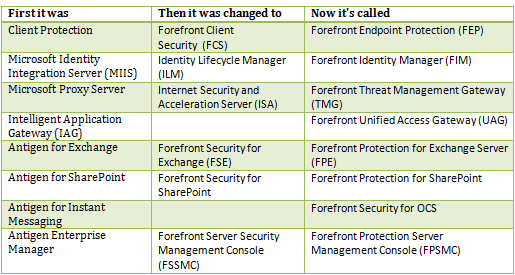
However, before we start, I’d like to provide you with some Forefront orientation.  It seems that title “Forefront” is starting to mean so many things these days.  Hopefully this table will help put some of the product names into perspective:image

(Online services not listed)

That’s quite the moving target for us trying to learn!!

As you can see FPSMC has had a few different names so far.  In fact, Microsoft was going to release this as “Forefront Protection Manager”.  Talk about an identity crisis!

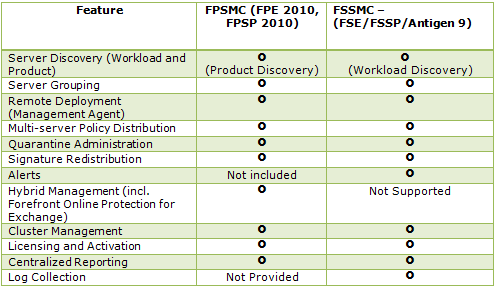
Now, if you are familiar with the existing Forefront Server Security Management Console (FSSMC) product, take a moment to note the differences between it and the new FPSMC:

image

So now that you have some background, let’s get on with it, shall we?

As I suggested above, FPSMC is a product we’d install to centralize our management of Forefront Protection 2010 for Exchange Server and SharePoint.  It does this through a web-interface, SQL and FPSMC agents running on each Forefront-protected server.

For a brief intro on the console, read this help article excerpt:

…[FPSMC] deployment allows administrators to deploy various files and settings to all or selected servers in the enterprise. Using the FPSMC, you can deploy the following to remote servers:

  • FPE and FPSP service packs and patches
  • Policies for configuration management
  • Forefront Protection product activation keys
  • Scan engine signature file updates (to centralize the update procedure)
  • Jobs that send reports on a fixed schedule

In addition, you can retrieve the following from remote servers:

  • Quarantined data.
  • Centralized reporting allows administrators to more closely monitor the servers in the enterprise and evaluate the effectiveness of antivirus software. The FPSMC collects statistics from all of its managed servers and stores them in a central repository for later analysis. Reports provide information about the trends in virus, filter, and update activity for each individual server or the entire enterprise.

Data retrieved by FPSMC will be stored in Microsoft SQL Server®. It can be stored in SQL Server 2008 Express Edition, which is a version of SQL Server with limited features. Alternately, data can also be stored on an existing Enterprise SQL Server 2008—locally or remotely—using SQL or Microsoft Windows® authentication.

In addition to the help article, here are some additional published resources on this product:

    While we’re on the topic of centralized Forefront Server Protection management, I’d like to point out that while we wait for this FPSMC Release Candidate to go Gold, you can manage your multi-server deployment with these scripts:

http://blogs.technet.com/b/fss/archive/2010/08/09/microsoft-forefront-protection-server-script-kit-now-available-for-download.aspx

We’ll compare the scripts to the new FPSMC product later in this article.

In the next part of this article, we’ll identify the prerequisites for FPSMC and begin our installation.

Read Part 2: http://wp.me/pAAoj-8h

Exchange 2010 SP1 IPD (Beta)

UPDATE: RTM:

Launch the download of the IPD Guide for Exchange Server 2010.

——————————————————

I’ve always enjoyed reading the Infrastructure Planning and Design (IPD) guides from the Solution Accelerator folks at Microsoft. The guides aren’t super-technical, but they are a great first step when preparing for an upcoming project. They help me feel like “I’m “doing things right” when I’m aligned with what’s inside.  I also usually assign them as homework, for clients I’m working with, if they are unfamiliar with logic behind some of the decisions that need to be made throughout the engagement.

Additionally, these are a great source when quoting “best practices”. Smile

You can get an “IPD” on many Microsoft technologies.  For a complete list visit here:

http://www.microsoft.com/downloads/en/details.aspx?FamilyId=AD3921FB-8224-4681-9064-075FDF042B0C&displaylang=en

The reason for the post today however, is to share the announcement of the open beta of the Exchange 2010 SP1 IPD!

The guide covers these key steps in the Exchange Server 2010 infrastructure design process:

  • Defining the project scope by identifying your individual business and IT requirements for a messaging infrastructure.
  • Mapping features and functionality based on the defined scope to develop the appropriate Exchange Server 2010 design.
  • Designing the infrastructure and role requirements for the proposed Exchange Server 2010 architecture.
  • Determining the sizing, fault tolerance, and physical placement of Exchange Server 2010 roles.

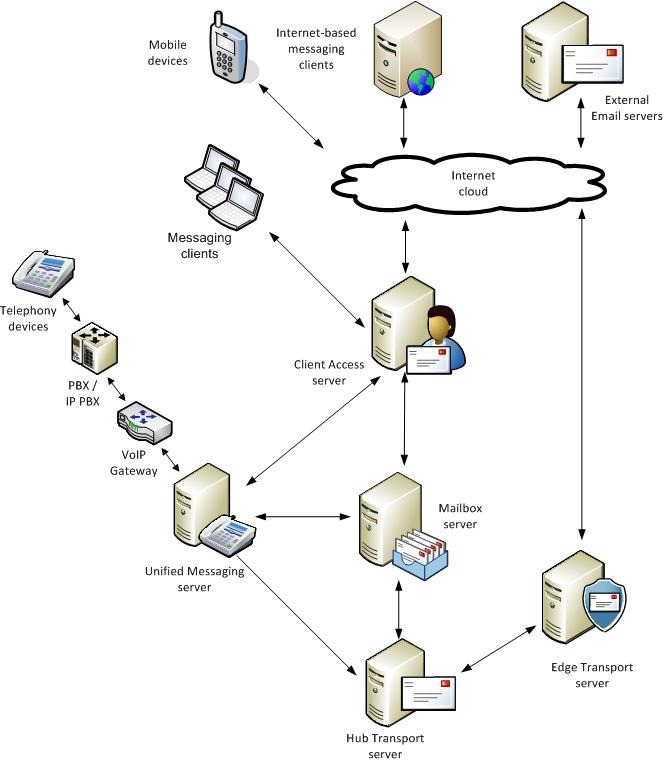
Exchange Example

Often, the Word document is accompanied by a Visio diagram, but no such luck for this version.  However, nested in the document are some nice images (Click to enlarge one of the images):

“Beta” of course means not finished, but it’s a good read nonetheless.  I encourage all of you to check it out and send feedback to IPDfdbk@microsoft.com. They have been very responsive in my experience.

Get the beta by visiting the Connect website at:

https://connect.microsoft.com/content/content.aspx?ContentID=6556&SiteID=14.

Microsoft Remote Desktop Connection Client for Mac 2.1

At the risk of committing a sense offence, Winking smile I dare to report an Apple download I saw pop-up on the TechNet Feed:

http://www.microsoft.com/downloads/en/details.aspx?FamilyID=68346E0D-44D3-4065-99BB-B664B27EE1F0&displaylang=en

Anything Microsoft does to help the Mac folks is good for me, since a lot of my work is in higher education, where being trendy is of the utmost importance!


Remote Desktop Connection Client

(Caption from the Apple site, not necessarily what this version looks like)

To learn about what’s new in Remote Desktop Connection Client for Mac 2.1.0, please visit this Microsoft Web site.

Stevieg.org: Office 365 – What does it mean for Exchange?

Over the last few days you’ve likely seen a lot of hubbub on Office 365, Microsoft’s next generation of online services. 

Steve Goodman writes a blog over at www.stevieg.org, and earlier today he published an insightful post titled “Office 365 – What does it mean for Exchange”.  In it he provides commentary on multiple aspects of Office 365, from the impact it has on Live@EDU to the Exchange Admin’s job security.

Check it out here:

http://www.stevieg.org/2010/10/office-365-what-does-it-mean-for-exchange

Exchange 2010 SP1: Less Secure?

Exchange 2010 hit the ground more secure than it’s predecessors in many ways; one of which was to enable RPC encryption on Outlook MAPI connections by default.  While Outlook 2007 and Outlook 2010 try to do this anyway, Outlook 2003 does not. 

This caused a few of issues:securitytab-Outlook

  • New Outlook 2003 user profiles require an extra step to enable RPC encryption.
  • During a migration, users moved to Exchange 2010 would stop working if this box was not selected prior to the mailbox move.
  • During a migration, users who were not yet migrated could not access calendars and other mailbox items from users who were migrated.

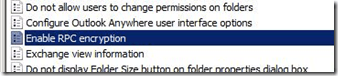
I believe the easiest way to fix this was with a simple Group Policy setting which enabled RPC encryption in Outlook.

Enable-RPC-Encryption

However apparently this was too much for a number of Microsoft customers, and as such Microsoft disabled RPC encryption by default in Exchange 2010 SP1!

See for yourself here:

Note In Exchange Server 2010 Service Pack 1, the RPC encryption requirement is disabled, by default. Any new Client Access Servers (CAS) deployed in the organization will not require encryption. However, any CAS servers deployed prior to Service Pack 1, or upgraded to Service Pack 1, will retain the existing RPC encryption requirement setting.

ref: http://support.microsoft.com/kb/2006508


As the excerpt states, this isn’t an issue for upgrades, but if you plan to deploy new servers in an existing environment, or a new environment all together, you may wish to re-enable this setting on Exchange.

To see what your RPC encryption setting is, run the following command:

image

Get-RPCClientAccess | fl Server, *version, EncryptionRequired

Then to enable the encryption requirement for all Client Access Servers:

image

Get-RPCClientAccess | Set-RpcClientAccess -EncryptionRequired $True

One final note:  This setting is to determine weather Exchange requires encryption.  You’re still welcome to use it even though the setting not doesn’t mandate it.

Why PCNS Stopped Working

I recently visited a customer site who has student email hosted by Microsoft’s Live@EDU program.

While on-site, they reported the ILM/OLSync/PCNS (Password Sync) had stopped working. Users were able to change their LiveID password with Microsoft, but the one-way password-reset sync from Active Directory no longer worked.

For those unfamiliar with any of those above phrases, this article is not for you. But you can read about them here:

A quick overview of PCNS requirements and configuration:

  1. PCNS schema extension is in place
  2. PCNS is installed on all domain controllers in the user’s domain
  3. Inclusion Group(s) Defined
  4. Password Synchronization is configured within the ILM software

For my customer, this was all configured. And PCNS worked when I left them a few months back. What changed?

I stopped by the ILM server to have a look at things. PCNS is not so great about reporting errors by default, so I wanted to enable more logging. To do this you need to create a registry key called FeaturePwdSyncLogLevel.

FeaturePwdSyncLogLevel isn’t documented much on TechNet as far as I’m aware, but it is explained on this public forum here:

http://social.technet.microsoft.com/forums/en-US/identitylifecyclemanager/thread/4686507a-2acc-4a4d-9e64-4f6f15d5e165

PCNS

For PCNS, four logging levels are controlled by adding the EventLogLevel (REG_DWORD) entry to the following registry subkey:

HKEY_LOCAL_MACHINE\System\CurrentControlSet\Services\PCNSSVC\Parameters

· 0 = Minimal logging

· 1 = Normal logging (default)

· 2 = High logging

· 3 = Verbose logging

MIIS 2003

For MIIS 2003, four logging levels are controlled by adding the FeaturePwdSyncLogLevel (REG_DWORD) entry to the following registry subkey:

HKEY_LOCAL_MACHINE\System\CurrentControlSet\Services\miiserver\Logging

· 0 = Minimal logging

· 1 = Normal logging (default)

· 2 = High logging

· 3 = Verbose logging

So after configuring my ILM 2007 FP1 server (despite the above quote saying “MIIS 2003”) with this value (and restarting) I once again attempted a password reset.

Now I am able to see the following error in the application log:

image

Log Name: Application
Source: MIIServer
Event ID: 6905
Task Category: (8)
Level: Information
Keywords: Classic
Computer: gcilm.domain.com
Description:
A password notification was received but could not be processed because the corresponding object is a disconnector.
Additional information:
Reference ID: {6BC69D88-9392-4FEE-B050-940537F4063F}
Source Object GUID: {75562CF8-BF46-4CE2-94FA-89B3EABA60D8}
Source DN: CN=10187,OU=Y2013,OU=Students,OU=User Accounts & Groups,DC=domain,DC=com
Source MA Name: OnPremise

What we see in this error is that ILM cannot sync the password to the Live@EDU mailbox because ILM thinks the account is a “disconnector”.

Essentially this means ILM doesn’t have a matching object for this user.  This does not mean the mailboxes in Live@EDU are gone or damaged – just that ILM doesn’t have a relationship between them and an on-premise AD account anymore.

For more about disconnectors, see the article: Don’t call me disconnector !!!

So how do we fix this?

Objects become disconnected in OLSync when the rules defined by the OLSync code are violated.  So let’s look at the rules.  Our best public source for these rules is in this article, titled: How Outlook Live Directory Sync Works.  Within you’ll find a section called OLSync filtering logic:

When OLSync runs, ILM filters out objects in the following order. After an object is filtered out, ILM won’t evaluate it again, nor will the object be copied to the ILM metaverse for synchronization.

1. Recipient objects that don’t have required attributes ILM reads the following recipient objects. If any of the required attributes are empty (null), the recipient object is filtered out.

Recipient object type Required attributes
Mailbox-enabled user mail, legacyExchangeDN, proxyAddresses
Mail-enabled user mail, targetAddress
User (AD DS or Active Directory only; no Microsoft Exchange installed) mail
Mail-enabled contact mail, targetAddress
Distribution group, dynamic distribution group, or security group mail, proxyAddresses, mailNickName

2. Recipient objects where the adminCount attribute is set to 1 The adminCount attribute is used to identify users in protected administrator groups, such as the Domain Admins and Administrators. If the adminCount attribute is set to 1 on any recipient object, it is filtered out.

3. Mailbox-enabled user objects that are specified as mailbox plans, discovery mailboxes, or arbitration mailboxes The msExchRecipientTypeDetails attribute is used to identify mailboxes that are specified as mailbox plans, discovery mailboxes, or arbitration mailboxes. These mailbox-enabled users are filtered out.

4. The mail attribute on an AD DS or Active Directory-only user that doesn’t match the provisioning domain In an on-premises environment where Microsoft Exchange hasn’t been installed, OLSync filters out all user objects where the mail attribute doesn’t contain an SMTP address that matches the provisioning domain.

5. The attribute used to generate the Windows Live ID doesn’t match any of the accepted domains The final pass filters out recipient objects that are configured for auto-provisioning but don’t have an accepted domain match in the attribute that is used to generate the Windows Live ID.
The attribute used to generate the Windows Live ID must contain a domain name that matches one of the accepted domains that you have configured in Outlook Live. As described in step 4, by default, OLSync looks to the user principal name (UPN) for a match unless you have set the MVWindowsLiveIdAttributeName parameter to use a different attribute. In this case, OLSync matches the SMTP address that is stored in the attribute that you have specified in the MVWindowsLiveIdAttributeName parameter. In any case, if OLSync can’t find a match to an accepted domain, the recipient object is filtered out.

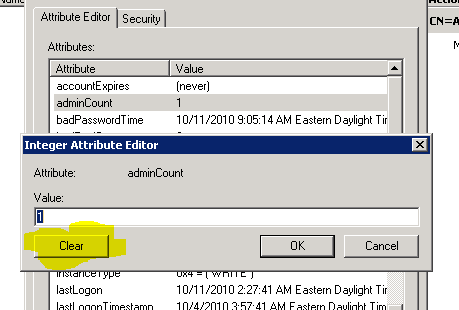
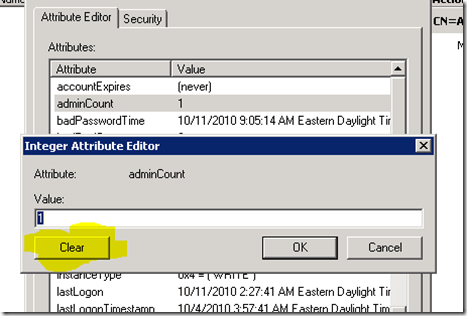
After ruling out many of the above conditions, I thought more on item 2.  I checked and realized the adminCount attribute on ALL of my users now is populated with a “1”!

This attribute is automatically populated by the PDC emulator for all users in “restricted” groups.  Sadly, if you remove users from these groups, the same process doesn’t bother to clear that attribute!  You have to do it manually.

More on this topic here: AdminSDHolder – or where did my permissions go?

When clearing this attribute make sure you set it to null. ADSIedit has a “clear” button to nullify an attribute:
image

Of course I have a few remaining questions:

  1. Will this “1” return?
  2. How did this occur?
  3. How do I script this fix?
      The answer to #1 is yes – if you don’t fix the root cause.  Every hour the protected groups are evaluated and 1’s re-stamped if appropriate.  So we need to fix the

cause

    before we fix the symptom.
    How did this occur?
      After looking at the group memberships of each user I verified users were NOT in a protected group; or at least until I checked

nested

    group memberships – Bingo!
    Someone had added the Domain Users group to Print Operators; a protected group!  Why was this done – who knows.  But I removed this membership.
    Now time for cleanup.

Using the free Quest PowerShell tools, I wrote the following script to identify the scope of the problem:

Get-QADUser –SizeLimit 0 -IncludeAllProperties -SearchRoot “domain.com/User Accounts & Groups/Students” | where {$_.admincount -eq “1”}

And followed up with this one to clear the attribute:

Get-QADUser –SizeLimit 0 -IncludeAllProperties -SearchRoot “domain.com/User Accounts & Groups/Students” | where {$_.admincount -eq “1”} | Set-QADUser -ObjectAttributes @{adminCount= $null}

Note, in the scripts I am only looking in a specific OU.  You’ll need to adjust this for your environment.  In fact, you can remove the SearchRoot switch all together if you want, as the adminCount will be re-populated for users in protected groups in the next hour anyway.

After running this script you can re-run the “startsync.ps1 –firstrun” to repair the relationships between the objects.

That’s it – bye for now!

Chat About Microsoft Office and Windows with Microsoft MVP Experts

Would you like to learn more about the cool new features in Office 2010 and Windows 7 and what has changed since previous versions? Do you use Microsoft Office but would like to learn tips and tricks to be more productive at home, school or at work? Perhaps you are a new user who has questions on how to get started with Windows 7 or using the Office ribbon? Or would like to learn how to protect your computer from malware and viruses. Or perhaps you are just stuck and need answers.

The Microsoft Most Valuable Professionals (MVPs) are here to help!

The MVPs are the same people you see in the technical community as authors, trainers, user groups leaders and answerers in the Microsoft forums. For the first time ever we have brought these experts together as a collective group to answer your questions live. MVPs will be on hand to take questions about Microsoft Office 2010 or Office 2007 products such as Word, Excel, PowerPoint, Outlook, Access, Project, OneNote and more. As well as the Windows 7 and earlier versions such as Windows Vista. In addition to Microsoft Office, the chat will cover Windows related topics such as upgrading, setup and installation, securing your PC, Internet Explorer, personalizing your computer desktop or having fun with Windows Live Essentials to share photos, make movies and more. All levels of experience are welcome from beginners and students to intermediate power users.

Please join us for this informative Q&A style chat and bring on your basic and your tough questions!

Join the Chat!


October 14, 2010

10:00 A.M. – 11:00 A.M. Pacific Time
Additional Time Zones

Add to Calendar

You can follow this on Twitter at #msmvpchat

Join the event on Facebook: Chat about Microsoft Office & Windows with MVP Experts!

BES 5.0.2 and Exchange 2010 SP1

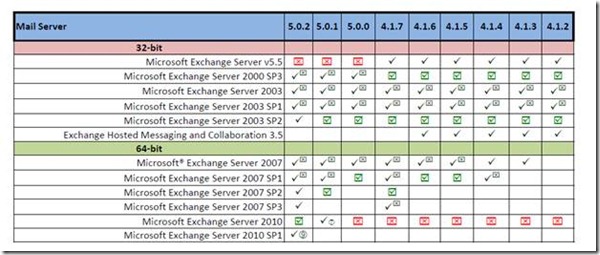
I’m pleased to report Blackberry Enterprise Server (BES) 5.0.2 is now supported with Exchange 2010 SP1.

I’ve been checking this page frequently and noticed just this week BES updated the checkbox below:

clip_image002

Notice the (9) after the check mark. If you scroll down you’ll see the footnote:

clip_image003

That KB is called:

Cannot add users to the BlackBerry Enterprise Server 5.0 in an environment that includes Microsoft Exchange 2010 SP1

You can read more about it here:

http://www.blackberry.com/btsc/microsites/microsite.do?cmd=displayKC&docType=kc&externalId=KB24470&sliceId=1&docTypeID=DT_SUPPORTISSUE_1_1

Essentially it states you’ll run into problems if you choose to deploy Exchange 2010 without public folders (click the link for the fix).  While this could have been true with versions prior to SP1 the (9) only shows in the SP1 column.  Not sure why.

MVP Award

I am honored to join the ranks of the Microsoft MVP award winners!  Thank all of you for your visits here as this blog is a primary way I’ve been able to participate in the Exchange Community!

clip_image002

Exchange 2010 Certifications

On occasion I’m asked to comment on topics over at searchexchange.techtarget.com.  Recently I had a discussion with Stephen J. Bigelow, one of their Senior Technical Writers to discuss Exchange certification.

If this is a topic that interests you, see this link:

http://searchexchange.techtarget.com/tip/0,289483,sid43_gci1520343,00.html?track=sy188

I am also to hear your feedback on Exchange certifications.  Are you certified?  Working on it?  Don’t believe in certifications?

Post a comment!

Exchange 2010 SP1 Edge Transport & TMG 2010 SP1 Issue: Fixed.

Microsoft released Exchange 2010 SP1 a few weeks ago and quickly followed up with the following post of oops! known issues: http://msexchangeteam.com/archive/2010/09/01/456094.aspx

One of these issues is that you cannot combine TMG 2010 with Edge 2010 after you apply Exchange 2010 SP1.

It would seem this is now fixed, as Microsoft released “Software Update 1 for Microsoft Forefront Threat Management Gateway (TMG) 2010 Service Pack 1” earlier today.

Personally I’ve been disappointed with the “integration” of TMG and Edge, but if you are using this configuration, go grab this update here:

http://www.microsoft.com/downloads/en/details.aspx?FamilyID=695D0709-0D8B-45EE-AFDB-727C4428CA4D&displaylang=en

For more info on this update see: What’s new in Forefront TMG 2010 Update 1.

Gartner: Exchange 2010 Takes 1st Place

Exchange doesn’t even know what the definition of competition is in today’s enterprise environment!  Ok, calm down you Gmail fanatics!  Winking smile


See this post from Mohamed Baher (an MCS engineer):

I’m happy to announce Microsoft’s strong position in Gartner’s 2010 MarketScope for E-Mail Systems report, in which Microsoft is the only vendor given the top rating of “Strong Positive”. Microsoft is uniquely positioned to deliver e-mail and calendaring technology to customers in the way that makes most sense to them – on-premise, in the cloud, or a combination of both. See the full report at http://www.gartner.com/technology/media-products/reprints/microsoft/vol10/article19b/article19b.html

clip_image001

-Source: http://blogs.technet.com/b/mbaher/archive/2010/08/31/exchange-is-on-top-gartner-s-2010-marketscope-for-e-mail-systems.aspx


From the report itself:

Microsoft released the fifth version of Exchange in November 2009. Exchange 2010, which is starting to increase its market penetration, promises improvements in storage efficiencies, high availability and disaster recovery, as well as more granular administration control and user self-service options. We expect adoption to follow the normal trajectory of previous Exchange releases, peaking at 50% by the end of 2012. The real action, however, is around Microsoft’s Exchange Online service, a subset of the large Business Productivity Online Standard Suite (BPOS) cloud collaboration offering. Throughout 2009 Microsoft added features to the service, and, more importantly, cut the price in half (to $5 per user per month), while quintupling the storage (to 25GB per user) — bringing it close to price and storage parity with Google GAPE. In November 2009, Microsoft said it had 1 million BPOS subscribers. We suspect that number has since doubled.

In 2H10 Microsoft will release the first service pack for Exchange 2010, with an emphasis on archiving, mobility, browser access, resiliency and management services. In 1H11 it will update Exchange Online with the 2010 version of Exchange, which is better suited to working in a multitenant environment. The current 2007 cloud release lacks some essential features, such as password synchronization, a health and performance console, multimailbox search and end-user password resetting. Furthermore, simple e-mail administration requests, such as to track a message, forward mail to an external mail box and disable ActiveSync require submission of a service request to the Exchange Online help desk, which creates operational inefficiencies for customers. Nonetheless, Microsoft continues to prosper in the e-mail market with both its on-premises and cloud options. Longer term, we will see the introduction of numerous hybrid e-mail models from Microsoft, with some mail boxes live in the cloud and others live on-premises. Google has emerged as its closest e-mail competitor, and it will remain so for the next few years.

Rating: Strong Positive

What’s New With Microsoft’s File-Level Antivirus?

———————-

UPDATE 12-16-2010:

RTM’ed today: http://technet.microsoft.com/en-us/evalcenter/ff182914.aspx

Read more here.

———————-

Many of you know that Microsoft’s file-level antivirus product is changing. For those who don’t, here are some high-level points you all should be aware of:

· Forefront Client Security is now Forefront Endpoint Protection (beta)

· Its delivered as a software package via SCCM and SCCM only.

· The management of it is done via SCCM. (Need 2007 R2/SP2 or later)

· It’s free* (provided you own SCCM).

*Last I heard. This isn’t official until it RTMs *It’s free for eCAL users

· You don’t need more servers beyond what you already have for SCCM (Functionally speaking; performance may dictate)

· The client is nearly identical to Microsoft Security Essentials

· The client installer will seek and destroy uninstall Symantec, MacAfee, Trend Micro and old Forefront (FCS) versions if found.

· It will (soon) have pre-canned lists of exclusions for products like Exchange and SharePoint.

For more info you may consider watching this webcast (skip to 13 minutes in to get to the technical stuff):

TechNet Webcast: Forefront Endpoint Protection 2010: Features and Protection Technologies (Level 300)

Exchange 2010 SP1 Hotfix Prerequisites

Like many of you, I was excited to see that Exchange 2010 SP1 was released earlier this week.  I downloaded and and ran it right away on my demo lab environment to be immediately disappointed with the following error:

image

Ok, so Exchange needs some prerequisites, no big deal, right?  I wish they were in the Microsoft Update queue, but hey its brand spanikin’ new so maybe they haven’t gotten to it yet.

I then clicked the link(s) to get the downloads and was greeted again by an error!


image

Ask my question on Bing… that’s rich.

So finally, I TYPED the links, one at a time to finally get to a page with hotfixes for download.  Yeah, I know typing is required from time to time, but don’t tease me with hyperlinks that don’t work Microsoft!  Smile

Anywho, the links are a grab bag of hotfixes.  Some from the MSDN site, others from the Connect site.  Not very reassuring as many of these links are with a lesser SLA from Microsoft…

Once I installed the updates, Exchange 2010 SP1 did install successfully (it took about an hour).  Also worth noting, while it wants a reboot after each one, I just did them all followed by a single reboot at the end.

Finally, to save you the trouble of rounding up all the updates – here is a ZIP I made with them ready to go:

Exchange2010SP1HotFixes.zip

=========UPDATE=========

Looks like you can also get them from this link as well (one at a time): http://technet.microsoft.com/en-us/library/bb691354.aspx

Exchange 2010 SP1 VHD Download

Microsoft was quick to release this one – you can now try Exchange 2010 SP1 without the trouble of even installing it!

Checkout this pre-canned virtual machine of Exchange 2010 with SP1:

http://www.microsoft.com/downloads/details.aspx?FamilyID=53F7382A-3664-4DE3-8303-31E514D69F02&displaylang=en

You’ll need Hyper-V to use this machine, as Virtual PC doesn’t support x64 guests.