DirSync “Busted Users” Report

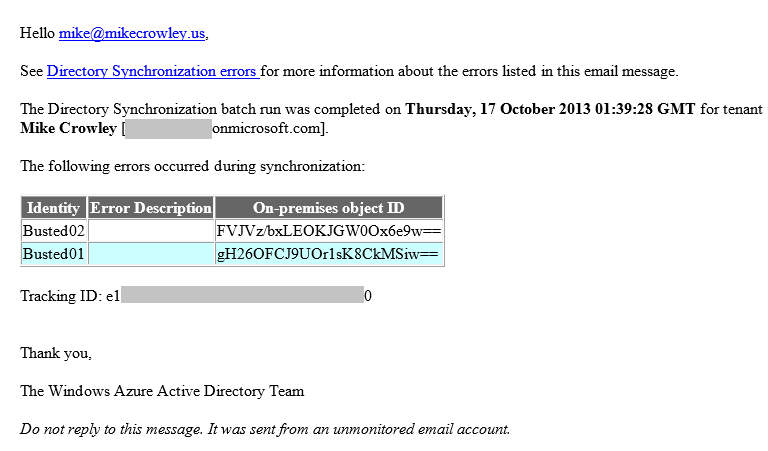
If you administer DirSync for your organization, you likely have seen emails like this, indicating some of your users didn’t sync.

DirSync Error Email

It can be a frustrating email, since the “error description” is for some reason blank and the “On-premises object ID” column is not something that’s easy to correlate to a user account within your Active Directory. There are also application event log entries (FIMSynchronizationService #6111 and Directory Synchronization #0), but again these aren’t exactly rich with detail.

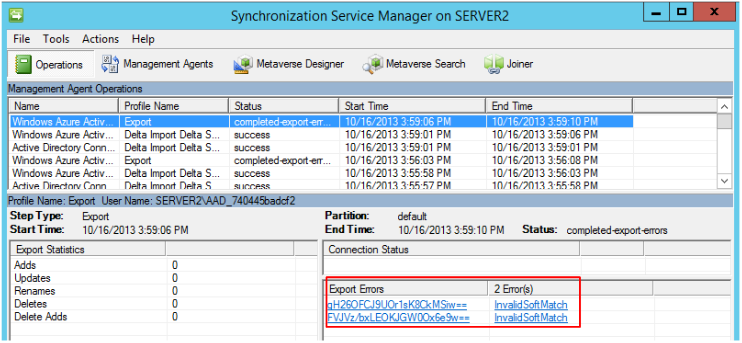
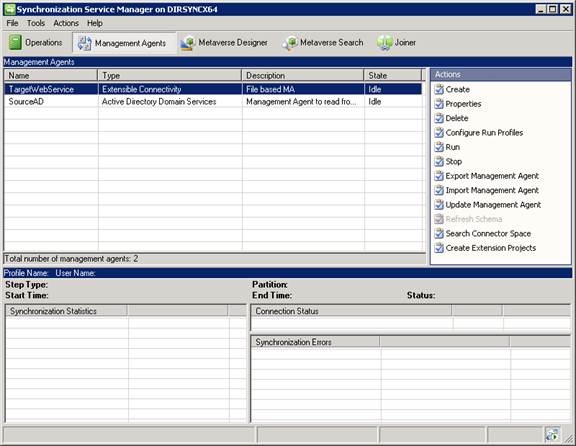
Many of you know that DirSync is actually a customized installation FIM 2010 R2’s Synchronization Service. Within the miisclient.exe console, you can look at your most recent “Export” job and examine the errors one at a time.

Miisclient.exe Console


(By the way, this is actually the place to go if you wanted to configure filtering for directory synchronization.)

Using this console certainly works, but it’s not an efficient way to resolve errors. Microsoft seems to acknowledge this, but falls short of a fix with that email, in my opinion. Instead of wearing out your mouse, I propose you use the PowerShell script I have written below. Within, I leverage the free FimSyncPowerShellModule which you’ll need to download and copy to:

…\System32\WindowsPowerShell\v1.0\Modules\FimSyncPowerShellModule\FimSyncPowerShellModule.psm1

Once you’ve copied the module, you’re ready to run the report, which can be downloaded here.

Here is a sample output, followed by the code itself.

Sample Output

<#
Description:
This script generates a list of users who are failing to export to Azure AD.

This script makes use of the FimSyncPowerShellModule
https://fimpowershellmodule.codeplex.com/
(Download and copy to C:\Windows\System32\WindowsPowerShell\v1.0\Modules\FimSyncPowerShellModule\FimSyncPowerShellModule.psm1)

October 18 2013
Mike Crowley
http://mikecrowley.us
#>

#Import the FimSyncPowerShellModule Module
ipmo FimSyncPowerShellModule

#Get the last export run
$LastExportRun = (Get-MIIS_RunHistory -MaName 'Windows Azure Active Directory Connector' -RunProfile 'Export')[0]

#Get error objects from last export run (user errors only)
$UserErrorObjects = $LastExportRun | Get-RunHistoryDetailErrors | ? {$_.dn -ne $null}

$ErrorFile = @()

#Build the custom Output Object
$UserErrorObjects | % {
 $TmpCSObject = Get-MIIS_CSObject -ManagementAgent 'Windows Azure Active Directory Connector' -DN $_.DN
 [xml]$UserXML = $TmpCSObject.UnappliedExportHologram
 $MyObject = New-Object PSObject -Property @{
 EmailAddress = (Select-Xml -Xml $UserXML -XPath "/entry/attr" | select -expand node | ? {$_.name -eq 'mail'}).value
 UPN = (Select-Xml -Xml $UserXML -XPath "/entry/attr" | select -expand node | ? {$_.name -eq 'userPrincipalName'}).value
 ErrorType = $_.ErrorType
 DN = $_.DN
 }
 $ErrorFile += $MyObject
 }

$FileName = "$env:TMP\ErrorList-{0:yyyyMMdd-HHmm}" -f (Get-Date) + ".CSV"
$ErrorFile | select UPN, EmailAddress, ErrorType, DN | epcsv $FileName -NoType

#Output to the screen
$ErrorFile | select UPN, EmailAddress, ErrorType, DN

Write-Host
Write-Host $ErrorFile.count "users with errors. See here for a list:" -F Yellow
Write-Host $FileName -F Yellow
Write-Host

DirSync Report

Azure Active Directory Sync (DirSync) seems so simple on the surface doesn’t it?  “Next, Next, Finish”, right?  Ha!  If you’ve ever had to revisit your DirSync server to troubleshoot or make a configuration change, you know there can be more than meets the eye.  A lot of useful information happens to be scattered across various registry keys, SQL tables and XML files.  If you’re not familiar with the FIM Management Console, and these other locations it might be hard to see what’s going on.

Here’s a free script that aims to help by creating a dashboard highlighting useful DirSync configurations.  See the image below for a sample output.  Before you run it you should be aware of the limitations listed in the “known issues” area of the script.

Oct 2014 Update: Fellow MVP, Michael Van Horenbeeck has written an update to this script for use with the new Azure AD Sync Tool.  Please be sure to check it out here: http://vanhybrid.com/2014/10/26/azure-ad-sync-tool-html-report/

DirSync Report


You can Review the script below or download it and try it for yourself!

&lt;#
Description:
This script gathers DirSync information from various locations and reports to the screen.

November 5 2013
Mike Crowley
http://mikecrowley.us

Known Issues:
1) All commands, including SQL queries run as the local user.  This may cause issues on locked-down SQL deployments.
2) For remote SQL installations, the SQL PowerShell module must be installed on the dirsync server.
    (http://technet.microsoft.com/en-us/library/hh231683.aspx)
3) The Azure Service account field is actually just the last account to use the Sign In Assistant.
    There are multiple entries at that registry location.  We're just taking the last one.
4) Assumes Dirsync version 6385.0012 or later.

#&gt;

#Console Prep
cls
Write-Host &quot;Please wait...&quot; -F Yellow
ipmo SQLps

#Check for SQL Module
if ((gmo sqlps) -eq $null) {
    write-host &quot;The SQL PowerShell Module Is Not loaded.  Please install and try again&quot; -F Red
    write-host &quot;http://technet.microsoft.com/en-us/library/hh231683.aspx&quot; -F Red
    Write-Host &quot;Quitting...&quot; -F Red; sleep 5; Break
    }

#Get Dirsync Registry Info
$DirsyncVersion = (gp 'hklm:SOFTWARE\Microsoft\Windows\CurrentVersion\Uninstall\Microsoft Online Directory Sync').DisplayVersion
$DirsyncPath = (gp 'hklm:SOFTWARE\Microsoft\MSOLCoExistence').InstallPath
$FullSyncNeededBit = (gp 'hklm:SOFTWARE\Microsoft\MSOLCoExistence').FullSyncNeeded
$FullSyncNeeded = &quot;No&quot;
If ((gp 'hklm:SOFTWARE\Microsoft\MSOLCoExistence').FullSyncNeeded -eq '1') {$FullSyncNeeded = &quot;Yes&quot;}

#Get SQL Info
$SQLServer = (gp 'HKLM:SYSTEM\CurrentControlSet\services\FIMSynchronizationService\Parameters').Server
if ($SQLServer.Length -eq '0') {$SQLServer = $env:computername}
$SQLInstance = (gp 'HKLM:SYSTEM\CurrentControlSet\services\FIMSynchronizationService\Parameters').SQLInstance
$MSOLInstance = ($SQLServer + &quot;\&quot; + $SQLInstance)
$SQLVersion = Invoke-Sqlcmd -ServerInstance $MSOLInstance -Query &quot;SELECT SERVERPROPERTY('productversion'), SERVERPROPERTY ('productlevel'), SERVERPROPERTY ('edition')&quot;

#Get Password Sync Status
[xml]$ADMAxml = Invoke-Sqlcmd -ServerInstance $MSOLInstance -Query &quot;SELECT [ma_id] ,[ma_name] ,[private_configuration_xml] FROM [FIMSynchronizationService].[dbo].[mms_management_agent]&quot; | ? {$_.ma_name -eq 'Active Directory Connector'} | select -Expand private_configuration_xml
$PasswordSyncBit = (Select-Xml -XML $ADMAxml -XPath &quot;/adma-configuration/password-hash-sync-config/enabled&quot; | select -expand node).'#text'
$PasswordSyncStatus = &quot;Disabled&quot;
If ($PasswordSyncBit -eq '1') {$PasswordSyncStatus = &quot;Enabled&quot;}

#Get Account Info
$ServiceAccountGuess = (((gci 'hkcu:Software\Microsoft\MSOIdentityCRL\UserExtendedProperties' | select PSChildName)[-1]).PSChildName -split ':')[-1]
$ADServiceAccountUser = $ADMAxml.'adma-configuration'.'forest-login-user'
$ADServiceAccountDomain = $ADMAxml.'adma-configuration'.'forest-login-domain'
$ADServiceAccount = $ADServiceAccountDomain + &quot;\&quot; + $ADServiceAccountUser

#Get DirSync Database Info
$SQLDirSyncInfo = Invoke-Sqlcmd -ServerInstance $MSOLInstance -Query &quot;SELECT DB_NAME(database_id) AS DatabaseName, Name AS Logical_Name, Physical_Name, (size*8)/1024 SizeMB FROM sys.master_files WHERE DB_NAME(database_id) = 'FIMSynchronizationService'&quot;
$DirSyncDB = $SQLDirSyncInfo | ? {$_.Logical_Name -eq 'FIMSynchronizationService'}
$DirSyncLog = $SQLDirSyncInfo | ? {$_.Logical_Name -eq 'FIMSynchronizationService_log'}

#Get connector space info (optional)
$ADMA = Invoke-Sqlcmd -ServerInstance $MSOLInstance -Query &quot;SELECT [ma_id] ,[ma_name] FROM [FIMSynchronizationService].[dbo].[mms_management_agent] WHERE ma_name = 'Active Directory Connector'&quot;
$AzureMA = Invoke-Sqlcmd -ServerInstance $MSOLInstance -Query &quot;SELECT [ma_id] ,[ma_name] FROM [FIMSynchronizationService].[dbo].[mms_management_agent] WHERE ma_name = 'Windows Azure Active Directory Connector'&quot;
$UsersFromBothMAs = Invoke-Sqlcmd -ServerInstance $MSOLInstance -Query &quot;SELECT [ma_id] ,[rdn] FROM [FIMSynchronizationService].[dbo].[mms_connectorspace] WHERE object_type = 'user'&quot;
$AzureUsers = $UsersFromBothMAs | ? {$_.ma_id -eq $AzureMA.ma_id}
$ADUsers = $UsersFromBothMAs | ? {$_.ma_id -eq $ADMA.ma_id}

#Get DirSync Run History
$SyncHistory = Invoke-Sqlcmd -ServerInstance $MSOLInstance -Query &quot;SELECT [step_result] ,[end_date] ,[stage_no_change] ,[stage_add] ,[stage_update] ,[stage_rename] ,[stage_delete] ,[stage_deleteadd] ,[stage_failure] FROM [FIMSynchronizationService].[dbo].[mms_step_history]&quot; | sort end_date -Descending

#GetDirSync interval (3 hours is default)
$SyncTimeInterval = (Select-Xml -Path ($DirsyncPath + &quot;Microsoft.Online.DirSync.Scheduler.exe.config&quot;) -XPath &quot;configuration/appSettings/add&quot; | select -expand Node).value

#Generate Output
cls

Write-Host &quot;Report Info&quot; -F DarkGray
Write-Host &quot;Date: &quot; -F Cyan -NoNewline ; Write-Host (Get-Date) -F DarkCyan
Write-Host &quot;Server: &quot; -F Cyan -NoNewline ; Write-Host  $env:computername -F DarkCyan
Write-Host

Write-Host &quot;Account Info&quot; -F DarkGray
Write-Host &quot;Active Directory Service Account: &quot; -F Cyan -NoNewline ; Write-Host $ADServiceAccount -F DarkCyan
Write-Host &quot;Azure Service Account Guess: &quot; -F Cyan -NoNewline ; Write-Host $ServiceAccountGuess -F DarkCyan
Write-Host

Write-Host &quot;DirSync Info&quot; -F DarkGray
Write-Host &quot;Version: &quot; -F Cyan -NoNewline ; Write-Host $DirsyncVersion -F DarkCyan
Write-Host &quot;Path: &quot; -F Cyan -NoNewline ; Write-Host $DirsyncPath -F DarkCyan
Write-Host &quot;Password Sync Status: &quot; -F Cyan -NoNewline ; Write-Host $PasswordSyncStatus -F DarkCyan
Write-Host &quot;Sync Interval (H:M:S): &quot; -F Cyan -NoNewline ; Write-Host $SyncTimeInterval -F DarkCyan
Write-Host &quot;Full Sync Needed? &quot; -F Cyan -NoNewline ; Write-Host $FullSyncNeeded -F DarkCyan
Write-Host

Write-Host &quot;User Info&quot; -F DarkGray
Write-Host &quot;Users in AD connector space: &quot; -F Cyan -NoNewline ; Write-Host $ADUsers.count -F DarkCyan
Write-Host &quot;Users in Azure connector space: &quot; -F Cyan -NoNewline ; Write-Host $AzureUsers.count -F DarkCyan
Write-Host &quot;Total Users: &quot; -F Cyan -NoNewline ; Write-Host $UsersFromBothMAs.count -F DarkCyan
Write-Host

Write-Host &quot;SQL Info &quot; -F DarkGray
Write-Host &quot;Version: &quot; -F Cyan -NoNewline ; Write-host $SQLVersion.Column1 $SQLVersion.Column2 $SQLVersion.Column3 -F DarkCyan
Write-Host &quot;Instance: &quot; -F Cyan -NoNewline ; Write-Host  $MSOLInstance -F DarkCyan
Write-Host &quot;Database Location: &quot; -F Cyan -NoNewline ; Write-Host $DirSyncDB.Physical_Name -F DarkCyan
Write-Host &quot;Database Size: &quot; -F Cyan -NoNewline ; Write-Host $DirSyncDB.SizeMB &quot;MB&quot; -F DarkCyan
Write-Host &quot;Database Log Size: &quot; -F Cyan -NoNewline ; Write-Host $DirSyncLog.SizeMB &quot;MB&quot; -F DarkCyan
Write-Host

Write-Host &quot;Most Recent Sync Activity&quot; -F DarkGray
Write-Host &quot;(For more detail, launch:&quot; $DirsyncPath`SYNCBUS\Synchronization Service\UIShell\miisclient.exe&quot;)&quot; -F DarkGray
Write-Host &quot;  &quot; ($SyncHistory[0].end_date).ToLocalTime() -F DarkCyan -NoNewline ; Write-Host &quot; --&quot; $SyncHistory[0].step_result -F Gray
Write-Host &quot;  &quot; ($SyncHistory[1].end_date).ToLocalTime() -F DarkCyan -NoNewline ; Write-Host &quot; --&quot; $SyncHistory[1].step_result -F Gray
Write-Host &quot;  &quot; ($SyncHistory[2].end_date).ToLocalTime() -F DarkCyan -NoNewline ; Write-Host &quot; --&quot; $SyncHistory[2].step_result -F Gray
Write-Host

Converting SMTP Proxy Addresses to Lowercase

Update: Be aware, this script has not been tested with SIP, X400 or other address types. I am working on an update to validate these scenarios, but in the meantime, proceed at your own risk with these address types.

I recently encountered a question in an online forum where someone asked for a script to convert all of their user’s email addresses to lower case values.  While this doesn’t affect the message delivery, it can have an impact on aesthetics when the address is displayed in an external recipient’s email client.  An Exchange Email Address Policy can do this to some degree, but I wanted to see how it could be done with PowerShell.

The challenge with a script like this is twofold:

  1. Email addresses (proxy addresses) are a multi-valued attribute, which can be tricky to work with.
  2. PowerShell is generally not case-sensitive, and therefore when we try to rename Mr. Gallalee’s email address in the screenshot below, we can see that it does not work:

WARNING: The command completed successfully but no settings of 'demolab.local/Users/Rob Gallalee' have been modified.

After a little bit of inspiration from a script written by Michael B Smith, I came up with the below:


$MailboxList = Get-Mailbox  -ResultSize unlimited

$MailboxList | % {

$LoweredList = @()
$RenamedList = @()

foreach ($Address in $_.EmailAddresses){
if ($Address.prefixstring -eq "SMTP"){
$RenamedList += $Address.smtpaddress + "TempRename"
$LoweredList += $Address.smtpaddress.ToLower()
}
}
Set-mailbox $_ -emailaddresses $RenamedList -EmailAddressPolicyEnabled $false
Set-mailbox $_ -emailaddresses $LoweredList

#Without this line the "Reply To" Address could be lost on recipients with more than one proxy address:
Set-mailbox $_ -PrimarySmtpAddress $_.PrimarySmtpAddress
}

This script works as follows:

  1. Puts all mailboxes into the $MailboxList variable.  If you don’t want all mailboxes,  edit the Get-Mailbox cmdlet as you see fit.
  2. Filters out X400 and other non-SMTP addresses.
  3. Creates an array called $RenamedList which stores each proxy address with “TempRename” appended to it (e.g. Rgallalee@demolab.localTempRename).
  4. Creates another array ($LoweredList) and use the “ToLower” method on each proxy address.
  5. Sets the proxy address for the user to the value of $RenamedList and then to $LoweredList.
    1. This is how we get around the case case insensitivity – name it to something else and then name it back.
  6. Step 4 and 5 don’t preserve the “Primary” / “Reply-To” address, so we set it back manually with the last line.

Note: This script turns off the email address policy for each user.

As always, feedback is welcome.

EDIT Dec 2018:
This is a similar approach, but for mailboxes migrated to Office 365. In this case, only the Primary SMTP addresses are targeted.

It may also be faster than the above, due to the fact we’re only operating against mailboxes that have uppercase (vs all of them).

Set-ADServerSettings -ViewEntireForest:$true

$TargetObjects = Get-RemoteMailbox -ResultSize Unlimited | Where {$_.PrimarySmtpAddress.ToLower() -cne $_.PrimarySmtpAddress}

Write-Host $TargetObjects.count "Remote mailboxes have one or more uppercase characters." -ForegroundColor Cyan

#Backup First
Function Get-FileFriendlyDate {Get-Date -format ddMMMyyyy_HHmm.s}
$DesktopPath = ([Environment]::GetFolderPath("Desktop") + '\')
$LogPath = ($DesktopPath + (Get-FileFriendlyDate) + "-UppercaseBackup.xml")

$TargetObjects | select DistinguishedName, PrimarySMTPAddress, EmailAddresses | Export-Clixml $LogPath
Write-Host "A backup XML has been placed here:" $LogPath -ForegroundColor Cyan
Write-Host

$Counter = $TargetObjects.Count

foreach ($RemoteMailbox in $TargetObjects) {

    Write-Host "Setting: " -ForegroundColor DarkCyan -NoNewline
    Write-Host $RemoteMailbox.PrimarySmtpAddress -ForegroundColor Cyan
    Write-Host "Remaining: " -ForegroundColor DarkCyan -NoNewline
    Write-Host $Counter -ForegroundColor Cyan

    Set-RemoteMailbox $RemoteMailbox.Identity -PrimarySmtpAddress ("TMP-Rename-" + $RemoteMailbox.PrimarySmtpAddress) -EmailAddressPolicyEnabled $false
    Set-RemoteMailbox $RemoteMailbox.Identity -EmailAddresses @{remove = $RemoteMailbox.PrimarySmtpAddress}

    Set-RemoteMailbox $RemoteMailbox.Identity -PrimarySmtpAddress $RemoteMailbox.PrimarySmtpAddress.ToLower()
    Set-RemoteMailbox $RemoteMailbox.Identity -EmailAddresses @{remove = ("TMP-Rename-" + $RemoteMailbox.PrimarySmtpAddress)}

    $Counter --
}

Write-Host
Write-Host "Done." -ForegroundColor DarkCyan

#End


Combining PowerShell Cmdlet Results

In my last post I used used New-Object to create an desirable output when the “Get-Mailbox” cmdlet didn’t meet my needs.  If your eyes glazed over trying to read the script, let me make it a bit simpler by focusing on a straight forward example.

Say you need to create a list of user’s mailbox size with their email address.  This sounds like a simple request, but what you’d soon find is that mailbox sizes are returned with the Get-MailboxStatistics cmdlet and the email address is not.  For that, you need to use another cmdlet, such as Get-Mailbox.

With the New-Object cmdlet, we are able to make a custom output that contains data from essentially wherever we want.

See this example:

$MyObject = New-Object PSObject -Property @{
EmailAddress = $null
MailboxSize = $null
}

In this example, I have created a new object with 2 fields, and saved it as the $MyObject variable.

For now, we’ve set the data to null, as shown below:

$MyObject

The next step is to populate each of those fields.  We can write to them one at a time with lines like this:

$MyObject.EmailAddress = (Get-Mailbox mcrowley).PrimarySmtpAddress
$MyObject.MailboxSize = (Get-MailboxStatistics mcrowley).TotalItemSize

Note: The variable we want to populate is on the left, with what we want to put in it on the right.

To confirm our results, we can simply type the variable name at the prompt:

$MyObject with data

Pretty cool, huh?

Ok, so now about that list.  My example only shows the data for mcrowley, and you probably need more than just 1 item in your report, right?

For this, you need to use the foreach loop.  You can read more about foreach here, but the actual code for our list is as follows:

(I am actually going to skip the $null attribute step here)

$UserList = Get-mailbox -Resultsize unlimited
$MasterList = @()
foreach ($User in $UserList) {
$MyObject = New-Object PSObject -Property @{
EmailAddress = (Get-Mailbox $User).PrimarySmtpAddress
MailboxSize = (Get-MailboxStatistics $User).TotalItemSize
}
$MasterList += $MyObject
}
$MasterList

$MasterList with data

Finally, if you wanted to make this run faster, we really don’t need to run “get-mailbox” twice.  For better results, replace the line:

EmailAddress = (Get-Mailbox $User).PrimarySmtpAddress

With this one:

EmailAddress = $User.PrimarySmtpAddress

Exchange Proxy Address (alias) Report

Feb 2021 Edit:
Microsoft finally took down the TechNet Gallery. This script is now available on GitHub: https://github.com/Mike-Crowley/Public-Scripts/blob/main/RecipientReportv5.ps1

————–

Exchange Server stores user’s alternate email addresses as a multi-valued attribute within Active Directory.  For example, if my colleague Jorge has jdiaz@demolab.local as well as diazj@demolab.local, his proxyAddresses attribute would look like this:
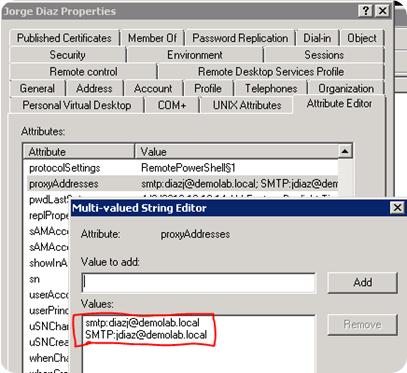
ADUC - ProxyAddresses

Notice, the capital SMTP vs. the lowercase smtp.  There can be only one uppercase SMTP, and this represents the primary, or “reply to” address.

While, it’s very easy to view someone’s proxy addresses (often called aliases, but don’t confuse it with the “alias” attribute) within the Exchange Management Console, it can be tough to work with in the Exchange Management Shell (PowerShell) due to the data being stored as a  “Multi-Valued” attribute.  The usual “Get-Mailbox” output not only shows all addresses as a single item, but in the case “mcrowley” below, we can see the shell truncates:

get-mailbox mcrowley | select emailaddresses

While there are ways (example1, example2) to manipulate this output on the screen, I recently needed to create a complete list of all users possessing one or more secondary email address, and document what those addresses were.

On the surface, this sounds simple.  We want a list of users who have more than 1 proxy address.  At first, I thought of something like this:

Get-Mailbox -Filter {emailaddresses -gt 1} | Select EmailAddresses

Get-Mailbox -Filter {emailaddresses -gt 1} | Select EmailAddresses

But we can see this doesn’t actually capture the correct users.  In the above example, LiveUser1 only has a single proxy address, but it was returned anyway.  This is because the result is actually converted to a number, and the “-gt” or “greater than” operation is done on this number; not what we want.

I have written a script to help!

Features:

  1. This script creates a CSV output of everyone’s SMTP proxy addresses.
  2. Reports to the screen the total number of users found.
  3. Reports to the screen the user(s) with the most proxy addresses.
  4. You can configure the threshold of users reported. For example, if you only wanted users with 2 or more proxy addresses included, you should change the line: “$Threshold = 0” to “$Threshold = 2”

Misc:

  1. Does not currently work with Exchange Online (planned enhancement).
  2. This uses “get-recipient” with no filters by default.  You may want to  replace this with something more restrictive, like “get-mailbox”, or use the -filter parameter.
  3. Requires PS 2.0 (for Exchange 2007, see here)

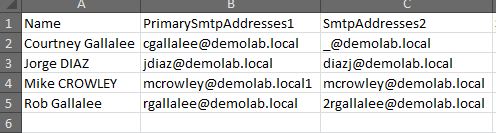
Here is a sample output, shown in excel:

Sample output to screen:

The guts of this script might help with this exact scenario, or really, anywhere you want to break out and evaluate multi-valued attributes.  Feel free to use it and adjust as you see fit!

Download the script here, or copy from the text below:

&amp;lt;#

Features:
1) This script Creates a TXT and CSV file with the following information:
a) TXT file: Recipient Address Statistics
b) CSV file: Output of everyone's SMTP proxy addresses.

Instructions:
1) Run this from &amp;quot;regular&amp;quot; PowerShell.  Exchange Management Shell may cause problems, especially in Exchange 2010, due to PSv2.
2) Usage: RecipientReportv5.ps1 server5.domain.local

Requirements:
1) Exchange 2010 or 2013
2) PowerShell 4.0

April 4 2015
Mike Crowley

http://BaselineTechnologies.com

#&amp;gt;

param(
[parameter(Position=0,Mandatory=$true,ValueFromPipeline=$false,HelpMessage='Type the name of a Client Access Server')][string]$ExchangeFQDN
)

if ($host.version.major -le 2) {
Write-Host &amp;quot;&amp;quot;
Write-Host &amp;quot;This script requires PowerShell 3.0 or later.&amp;quot; -ForegroundColor Red
Write-Host &amp;quot;Note: Exchange 2010's EMC always runs as version 2.  Perhaps try launching PowerShell normally.&amp;quot; -ForegroundColor Red
Write-Host &amp;quot;&amp;quot;
Write-Host &amp;quot;Exiting...&amp;quot; -ForegroundColor Red
Sleep 3
Exit
}

if ((Test-Connection $ExchangeFQDN -Count 1 -Quiet) -ne $true) {
Write-Host &amp;quot;&amp;quot;
Write-Host (&amp;quot;Cannot connect to: &amp;quot; + $ExchangeFQDN) -ForegroundColor Red
Write-Host &amp;quot;&amp;quot;
Write-Host &amp;quot;Exiting...&amp;quot; -ForegroundColor Red
Sleep 3
Exit
}

cls

#Misc variables
#$ExchangeFQDN = &amp;quot;exchserv1.domain1.local&amp;quot;
$ReportTimeStamp = (Get-Date -Format s) -replace &amp;quot;:&amp;quot;, &amp;quot;.&amp;quot;
$TxtFile = &amp;quot;$env:USERPROFILE\Desktop\&amp;quot; + $ReportTimeStamp + &amp;quot;_RecipientAddressReport_Part_1of2.txt&amp;quot;
$CsvFile = &amp;quot;$env:USERPROFILE\Desktop\&amp;quot; + $ReportTimeStamp + &amp;quot;_RecipientAddressReport_Part_2of2.csv&amp;quot;

#Connect to Exchange
Write-Host (&amp;quot;Connecting to &amp;quot; + $ExchangeFQDN + &amp;quot;...&amp;quot;) -ForegroundColor Cyan
Get-PSSession | Where-Object {$_.ConfigurationName -eq 'Microsoft.Exchange'} | Remove-PSSession
$Session = @{
ConfigurationName = 'Microsoft.Exchange'
ConnectionUri = 'http://' + $ExchangeFQDN + '/PowerShell/?SerializationLevel=Full'
Authentication = 'Kerberos'
}
Import-PSSession (New-PSSession @Session)

#Get Data
Write-Host &amp;quot;Getting data from Exchange...&amp;quot; -ForegroundColor Cyan
$AcceptedDomains = Get-AcceptedDomain
$InScopeRecipients = @(
'DynamicDistributionGroup'
'UserMailbox'
'MailUniversalDistributionGroup'
'MailUniversalSecurityGroup'
'MailNonUniversalGroup'
'PublicFolder'
)
$AllRecipients = Get-Recipient -recipienttype $InScopeRecipients -ResultSize unlimited | select name, emailaddresses, RecipientType
$UniqueRecipientDomains = ($AllRecipients.emailaddresses | Where {$_ -like 'smtp*'}) -split '@' | where {$_ -NotLike 'smtp:*'} | select -Unique

Write-Host &amp;quot;Preparing Output 1 of 2...&amp;quot; -ForegroundColor Cyan
#Output address stats
$TextBlock = @(
&amp;quot;Total Number of Recipients: &amp;quot; + $AllRecipients.Count
&amp;quot;Number of Dynamic Distribution Groups: &amp;quot; +         ($AllRecipients | Where {$_.RecipientType -eq 'DynamicDistributionGroup'}).Count
&amp;quot;Number of User Mailboxes: &amp;quot; + 	                    ($AllRecipients | Where {$_.RecipientType -eq 'UserMailbox'}).Count
&amp;quot;Number of Mail-Universal Distribution Groups: &amp;quot; + 	($AllRecipients | Where {$_.RecipientType -eq 'MailUniversalDistributionGroup'}).Count
&amp;quot;Number of Mail-UniversalSecurity Groups: &amp;quot; + 	    ($AllRecipients | Where {$_.RecipientType -eq 'MailUniversalSecurityGroup'}).Count
&amp;quot;Number of Mail-NonUniversal Groups: &amp;quot; + 	        ($AllRecipients | Where {$_.RecipientType -eq 'MailNonUniversalGroup'}).Count
&amp;quot;Number of Public Folders: &amp;quot; + 	                    ($AllRecipients | Where {$_.RecipientType -eq 'PublicFolder'}).Count
&amp;quot;&amp;quot;
&amp;quot;Number of Accepted Domains: &amp;quot; + $AcceptedDomains.count
&amp;quot;&amp;quot;
&amp;quot;Number of domains found on recipients: &amp;quot; + $UniqueRecipientDomains.count
&amp;quot;&amp;quot;
$DomainComparrison = Compare-Object $AcceptedDomains.DomainName $UniqueRecipientDomains
&amp;quot;These domains have been assigned to recipients, but are not Accepted Domains in the Exchange Organization:&amp;quot;
($DomainComparrison | Where {$_.SideIndicator -eq '=&amp;gt;'}).InputObject
&amp;quot;&amp;quot;
&amp;quot;These Accepted Domains are not assigned to any recipients:&amp;quot;
($DomainComparrison | Where {$_.SideIndicator -eq '&amp;lt;='}).InputObject
&amp;quot;&amp;quot;
&amp;quot;See this CSV for a complete listing of all addresses: &amp;quot; + $CsvFile
)

Write-Host &amp;quot;Preparing Output 2 of 2...&amp;quot; -ForegroundColor Cyan

$RecipientsAndSMTPProxies = @()
$CounterWatermark = 1

$AllRecipients | ForEach-Object {

#Create a new placeholder object
$RecipientOutputObject = New-Object PSObject -Property @{
Name = $_.Name
RecipientType = $_.RecipientType
SMTPAddress0 =  ($_.emailaddresses | Where {$_ -clike 'SMTP:*'} ) -replace &amp;quot;SMTP:&amp;quot;
}

#If applicable, get a list of other addresses for the recipient
if (($_.emailaddresses).count -gt '1') {
$OtherAddresses = @()
$OtherAddresses = ($_.emailaddresses | Where {$_ -clike 'smtp:*'} ) -replace &amp;quot;smtp:&amp;quot;

$Counter = $OtherAddresses.count
if ($Counter -gt $CounterWatermark) {$CounterWatermark = $Counter}
$OtherAddresses | ForEach-Object {
$RecipientOutputObject | Add-Member -MemberType NoteProperty -Name (“SmtpAddress” + $Counter) -Value ($_ -replace &amp;quot;smtp:&amp;quot;)
$Counter--
}
}
$RecipientsAndSMTPProxies += $RecipientOutputObject
}

$AttributeList = @(
'Name'
'RecipientType'
)
$AttributeList += 0..$CounterWatermark | ForEach-Object {&amp;quot;SMTPAddress&amp;quot; + $_}

Write-Host &amp;quot;Saving report files to your desktop:&amp;quot; -ForegroundColor Green
Write-Host &amp;quot;&amp;quot;
Write-Host $TxtFile -ForegroundColor Green
Write-Host $CsvFile -ForegroundColor Green

$TextBlock | Out-File $TxtFile
$RecipientsAndSMTPProxies | Select $AttributeList | sort RecipientType, Name | Export-CSV $CsvFile -NoTypeInformation

Write-Host &amp;quot;&amp;quot;
Write-Host &amp;quot;Report Complete!&amp;quot; -ForegroundColor Green

PowerShell Tip – Running a Service Pack Report – Faster

Imagine you wanted to run a quick report of all your server’s service pack level in your domain.  After all, SP1 just came out!  You could get this information quickly by using the Active Directory Module for Windows PowerShell.  If you don’t have at least one Windows 2008 R2 (RTM or SP1) Domain Controller, you could also do something similar with the free Quest PowerShell tools, but that’s for another day…

We can find this information using a few different methods.  Here I’ll show two:

Method 1

Get-ADComputer -Properties OperatingSystem, OperatingSystemServicePack -Filter * | Where-Object {$_.OperatingSystem -like '*server*'} |  Format-Table name, oper* -autosize

You can see with Method 1, we’re telling PowerShell to get all the computer accounts from Active Directory.  Then we pass those objects over to the “Where-object” cmdlet and ask it to select only those who have an OperatingSystem attribute containing “server”.  We then format the results in a table.  Give it a try.

Not too shabby; but let’s make it better!

Method2

Get-ADComputer -Properties OperatingSystem, OperatingSystemServicePack -Filter {OperatingSystem -like '*server*'} | Format-Table name, oper* -autosize

In Method 2, we’re making smarter use of the –Filter switch.  So instead of getting ALL the computer accounts, we do our filtering up-front.  This can lead to significant amount of time saved!

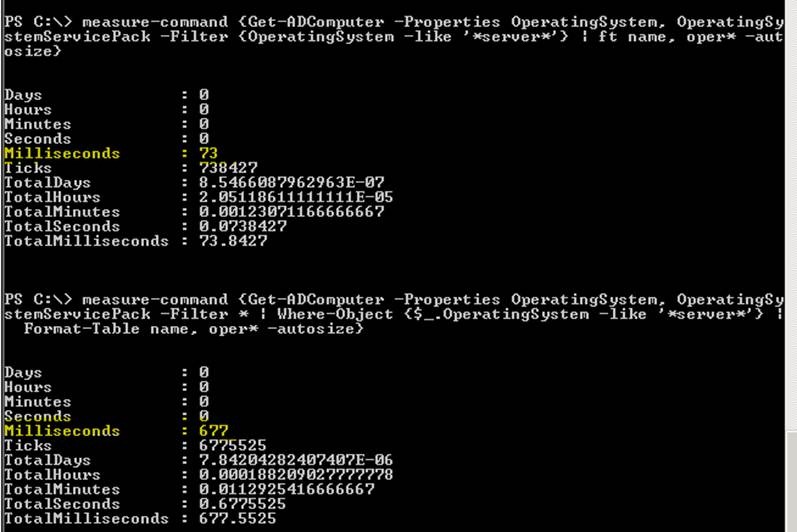
How much time, you ask?  Well, we can find out with the “Measure-Command” cmdlet.  Just put any command string in {} and it will tell you how long it took to run!

Here are the results from a small environment with fast servers. 677 milliseconds isn’t bad, but when you compare it to 73, you can begin to appreciate the potential.

clip_image001

One last thought:  You may wish to add this extra code to make your output prettier.  It will organize your results first by operating system and then by name:

Get-ADComputer -Properties OperatingSystem, OperatingSystemServicePack -Filter {OperatingSystem -like '*server*'} | Sort-Object operatingsystem, name | Format-Table name, oper* -autosize

Script for Missing UPNs

For various reasons I’ve found myself needing to fix customer sites where the User Principal Name (UPN) was not present for AD user accounts.

image

Most frequently this is because the environment was once NT4, which did not require this attribute.  Whatever the reason, I’ve fixed it using PowerShell.

If you don’t have 2008 R2 domain controllers you can use the free Quest PowerShell add-ins downloaded here.

If you DO have 2008 R2 domain controllers you can use the native Active Directory Module for Windows PowerShell.

Below is a script you can use for either scenario.  This will take all users with missing UPNs from the “My Users” OU in the “contoso.local” domain and set their UPN to username@contoso.local

Quest:

Get-QADUser –SearchRoot “contoso.local/My Users” -UserPrincipalName $null -SizeLimit 0 | % {$CompleteUPN = $_.samaccountname +"@contoso.local"; Set-QADUser -Id $_.DN -UserPrincipalName $CompleteUPN}

2008 R2 Native:

Get-ADUser  -Filter {-not (UserPrincipalName -like '*')} -SearchBase 'OU=My Users,DC=contoso,DC=local' | % {$CompleteUPN = $_.SamAccountName + "@contoso.local" ; Set-ADUser -Identity $_.DistinguishedName -UserPrincipalName $CompleteUPN}

Converting a Mailbox to a MailUser (and preserving your custom attributes)

It’s not often that you’ll need to convert a mailbox to a mail-user, but when you do, you’ll soon realize the steps go like this:

1. Mail-Disable the user (delete the mailbox)
2. Mail-Enable the user

So what’s the problem?  The problem is twofold:

  • First, you’ll want to automate this, and there is no “convert” button or command.  You’ll need to use PowerShell if converting multiple users.
  • Second, and perhaps more importantly, all the Exchange attributes are nullified when you delete the mailbox.  This includes CustomAttribute1-15

As we can see, you are not able to pass mailboxes to the Enable-MailUser (as you are able to do in reverse):

image
I’ve written a script to solve these problems.  Before you run with it, you do need to make one decision:

What do you want the mail-user’s external email address to be?

The below script takes the user’s mailbox alias and then appends @domain.com.  You may wish to modify this with whatever their new external address has become.

You’ll also notice I’m using a static domain controller for all configurations.  I have found in my testing, that if you do not pick the same DC for all operations, the script could out-run replication.

$DomainController = (Get-ADServerSettings).DefaultConfigurationDomainController.domain

$MailboxList= Get-Mailbox

foreach ($Mailbox in $MailboxList) {
    Disable-Mailbox -Id $mailbox.Identity -Confirm:$False -DomainController $DomainController
    Enable-MailUser -Id $mailbox.Identity -ExternalEmailAddress ($mailbox.alias +"@domain.com") -DomainController $DomainController
    Set-MailUser -Id $mailbox.Identity `
     -DomainController $DomainController `
     -CustomAttribute1 $Mailbox.CustomAttribute1 `
     –CustomAttribute2 $Mailbox.CustomAttribute2 `
     –CustomAttribute3 $Mailbox.CustomAttribute3 `
     –CustomAttribute4 $Mailbox.CustomAttribute4 `
     –CustomAttribute5 $Mailbox.CustomAttribute5 `
     –CustomAttribute6 $Mailbox.CustomAttribute6 `
     –CustomAttribute7 $Mailbox.CustomAttribute7 `
     –CustomAttribute8 $Mailbox.CustomAttribute8 `
     –CustomAttribute9 $Mailbox.CustomAttribute9 `
     –CustomAttribute10 $Mailbox.CustomAttribute10 `
     –CustomAttribute11 $Mailbox.CustomAttribute11 `
     –CustomAttribute12 $Mailbox.CustomAttribute12 `
     –CustomAttribute13 $Mailbox.CustomAttribute13 `
     –CustomAttribute14 $Mailbox.CustomAttribute14 `
     –CustomAttribute15 $Mailbox.CustomAttribute15
     }

(add more attributes if necessary, but remember that since you aren’t deleting the Active Directory object itself, most attributes remain…)